EasyManua.ls Logo

MUTOH VJ-1324 - User Manual

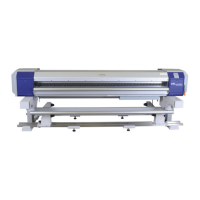
MUTOH VJ-1324
212 pages
Print Icon
To Next Page IconTo Next Page
Loading...
VJ-1324 OPERATION MANUAL 1 Safety instructions
1-1
1 Safety instructions
This chapter explains the installation of this printer, warning terms that operators need to know, caution
items and warning labels on the printer main unit.
WARNING
When installing and operating this printer, be sure to follow the directions and
warnings in this book.

Other manuals for MUTOH VJ-1324

Questions and Answers

  • D
    Donna DayAug 20, 2025
    What to do if my MUTOH Plotter does not work after power activation?
    • K
      kyle73Aug 20, 2025
      If your MUTOH Plotter doesn't work after turning it on, first ensure the power cable is securely connected to the plug. If it is, check whether the AC power supply provides the correct voltage, and if not, try connecting the cable to another outlet. Also, make sure that the front cover is closed and the media loading lever is lowered.
  • K
    Kristine BarnesAug 22, 2025
    How to fix MUTOH Plotter if it cannot perform the initial ink charge?
    • J
      Joseph CampbellAug 22, 2025
      If you cannot perform the initial ink charge on your MUTOH Plotter, check the following: Ensure that the front cover is closed and the media loading lever is lowered. Also, confirm that the maintenance cover is closed and all four color ink cartridges are fully inserted.
  • J
    Jonathan PachecoAug 25, 2025
    Why white or black lines appear on printed media from my MUTOH Plotter?
    • T
      troy45Aug 25, 2025
      If white or black lines appear on printed media from your MUTOH Plotter, ensure you are using the recommended media and that the scroller is set correctly. Also, perform head cleaning, alignment, and media feed compensation. Check that the temperature setting of each heater is appropriate and the head height is set to 'Low'.
  • A
    austin23Aug 26, 2025
    What causes frequent media jams in my MUTOH Plotter?
    • M
      Mr. Bryan Gibbs Jr.Aug 26, 2025
      If media jams frequently occur with your MUTOH Plotter, ensure that you are using the recommended media in a dedicated environment. Replace old media with new media. If the media bends, use the recommended media or set the Vacuum Fan menu if you're using other media.
  • A
    alvaradoderrickAug 28, 2025
    Why is printing blurred on my MUTOH Plotter?
    • L
      Latasha SmithAug 28, 2025
      If the printing from your MUTOH Plotter is blurred, make sure you are using the recommended media, and that the media is neither too thick nor too thin. Confirm that the media is set with the correct printing surface facing up, and perform an alignment.
  • J
    Julie MunozAug 30, 2025
    What to do if my MUTOH Plotter does not work after loading the media?
    • A
      Amanda WilsonAug 30, 2025
      If your MUTOH Plotter doesn't work after loading the media, ensure that the front cover is closed and the media loading lever is lowered. Also, check that the maintenance cover is closed, the media is loaded straight, and the ink cartridge is inserted. Use the recommended media and ensure the printer is used in the specified environment, away from direct sunlight.
  • A
    Andre HawkinsSep 1, 2025
    Why printing lines are not straight on my MUTOH Plotter?
    • C
      Christina MorganSep 1, 2025
      If the printing lines from your MUTOH Plotter are not straight, verify that the ink cartridge is within its validity period and that you are using the recommended media. Perform alignment and media feed compensation.
  • A
    Amy StaffordSep 3, 2025
    Why does the media slip or tear during initialization on my MUTOH Plotter?
    • B
      brandirussellSep 3, 2025
      If the media slips or tears during initialization of your MUTOH Plotter, ensure you are using the recommended media and that the loading position is correct. Check if the scroller is set correctly and clean the pressurizing roller of any foreign materials. Use the printer in the specified environment. Replace folded, torn, or rolled media, and if the media bends, use the recommended media or set the Vacuum Fan menu.
  • M
    Michael MillerSep 5, 2025
    Why does the media veer during printing on my MUTOH Plotter?
    • B
      Brian VargasSep 5, 2025
      If the media veers during printing with your MUTOH Plotter, ensure you're using the recommended media, the loading position of the media is correct, and the scroller is set correctly.
  • R
    Ryan LowerySep 7, 2025
    What to do if ink does not come out after initial ink charge on my MUTOH Plotter?
    • T
      tracy31Sep 7, 2025
      If ink does not come out after the initial ink charge on your MUTOH Plotter, and the ink cartridge might be cold or frozen, leave the ink bag at room temperature for at least three hours and perform cleaning several times. If the power was turned OFF during the initial ink charge, turn the power ON again and continue the initial ink charge. If normal printing cannot be performed after the initial ink charge, perform cleaning several times, and check it every time.

Summary

Safety Instructions

Important Safety Instructions

Details crucial safety precautions for using the printer to avoid hazards.

Before Using

Power Cable Connection

Details the correct procedure for connecting the printer's power cable safely.

Turning the Power ON;OFF

Provides instructions for powering the printer on and off correctly.

Installing Ink Cartridges

Guides users through the process of installing ink cartridges and adapters.

Loading Media

Explains how to load and set various types of media for printing.

Test Print

Details how to perform various test prints like nozzle checks and setup lists.

Adjust Print

Covers methods for adjusting print quality, including standard and custom patterns.

Connecting the Printer to PC

Explains system requirements and procedures for connecting the printer to a PC.

Handling the Printer

Media

Details available media types, handling precautions, and storage advice.

Menu Setups on the Operation Panel

Covers procedures and overviews for setting up printer menus via the operation panel.

Panel Setup Menu

Maintenance

Troubleshooting

MUTOH VJ-1324 Specifications

General IconGeneral
Max Resolution1440 x 1440 dpi
Number of Colors4
Media HandlingRoll-to-Roll
ConnectivityUSB, Ethernet
Ink ColorsCyan, Magenta, Yellow, Black
Ink TypeEco-Solvent Ink
Media TypeVinyl, banner
Power Requirements220-240V, 50/60Hz
Operating Environment35-65% RH
Print TechnologyDrop-on-demand Piezo Inkjet Technology
Print Width54 inches (1372 mm)

Related product manuals