EasyManua.ls Logo

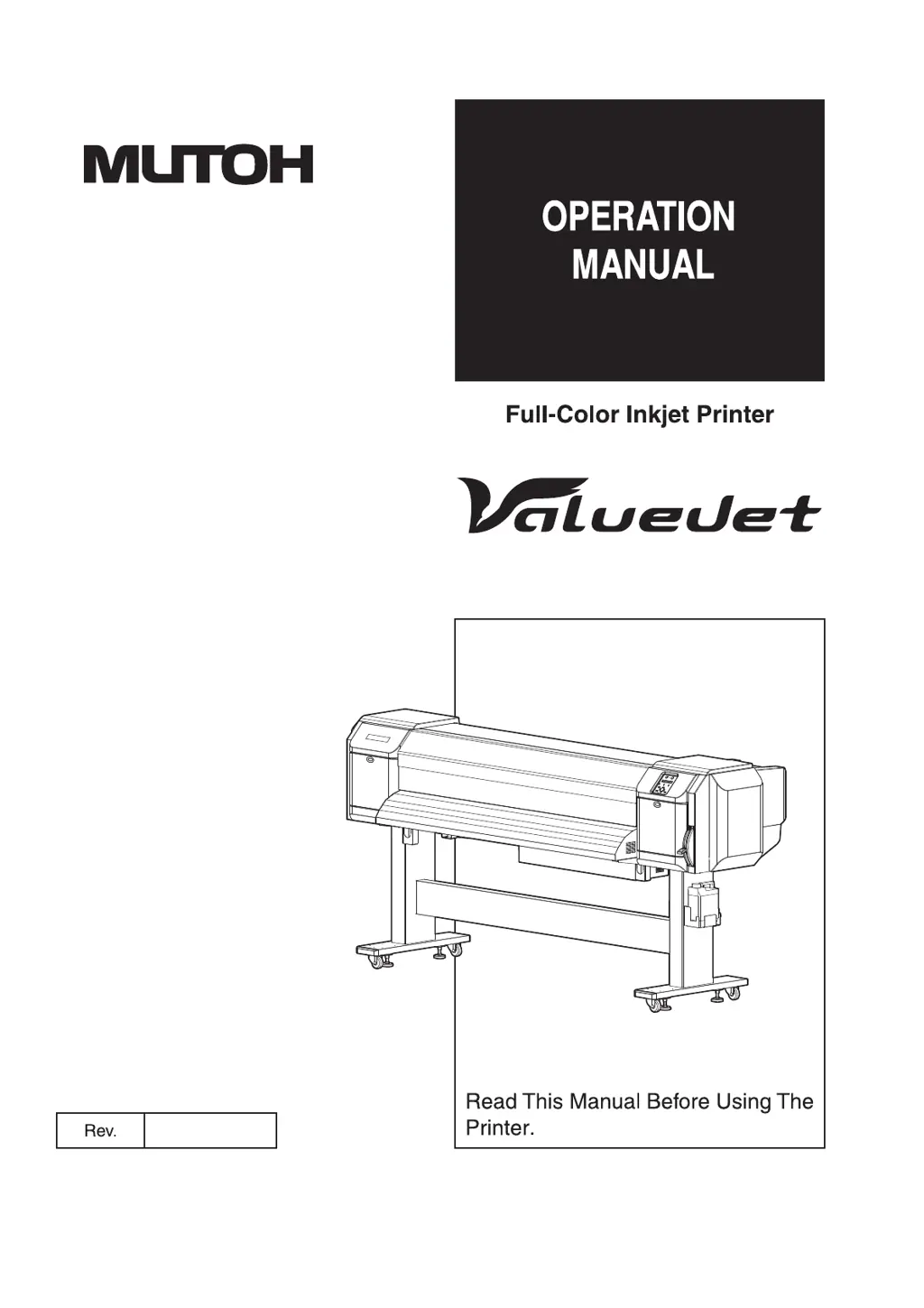
MUTOH ValueJet VJ-1624X - User Manual

MUTOH ValueJet VJ-1624X
358 pages
Print Icon
To Next Page IconTo Next Page
Loading...
VJ-1624X/VJ-1624WX
VJ-1924WX
VJ1x24XE-A-00

Table of Contents

Questions and Answers

  • J
    jvincentAug 2, 2025
    Why does my MUTOH ValueJet VJ-1624X Printer not work at all after power activation?
    • T
      thomas16Aug 2, 2025
      If your MUTOH Printer doesn't work after turning it on, check the following: * Ensure the power cord is properly connected to the plug. * Verify the AC power supply provides the specified voltage by trying another outlet. * Make sure that the front cover is closed and the media loading lever is lowered. * Confirm that the maintenance cover is closed.
  • F
    flopezAug 7, 2025
    What to do if my MUTOH Printer does not work after loading the media?
    • D
      Denise BaileyAug 7, 2025
      If your MUTOH Printer isn't working after loading the media, consider these points: * Ensure the front cover is closed and the media loading lever is lowered. * Make sure the maintenance cover is closed. * Check that the media is loaded straight. * Verify that the ink cartridge is inserted. * Confirm that you are using the recommended media. * Ensure the printer is used in the specified environment and not in direct sunlight.
  • J
    John ChristensenAug 12, 2025
    Why can't I perform the initial ink charge on my MUTOH Printer?
    • M
      Michael MurphyAug 13, 2025
      If you cannot perform the initial ink charge on your MUTOH Printer, check if the front cover is open or the media loading lever is raised. Close the front cover or lower the media loading lever. Also, ensure the maintenance cover is closed and that all four ink cartridges are fully inserted.
  • J
    Jessica WilliamsAug 17, 2025
    What to do if ink does not come out after the initial ink charge in my MUTOH ValueJet VJ-1624X Printer?
    • E
      Elizabeth HoltAug 17, 2025
      If ink doesn't come out after the initial ink charge in your MUTOH Printer: * If the ink cartridge is cold or frozen, leave the ink bag at room temperature for at least three hours and perform cleaning several times. * If the power was turned off during the initial ink charge, turn the power back on and continue the initial ink charge. * If normal printing cannot be performed after the initial ink charge, perform cleaning several times, checking each time.
  • D
    Dale CampbellAug 22, 2025
    Why can't I use the computer online using LAN with my MUTOH ValueJet VJ-1624X?
    • K
      Kevin HowardAug 22, 2025
      If you cannot use your MUTOH Printer online via LAN, check the following: * Ensure the network interface cable is correctly connected, verifying the cable types (cross or straight). * Confirm that the network settings are configured correctly. * Match the printer's network settings with the computer's environment. * If the Power lamp on the operation panel does not blink after sending printing data from the computer, contact the computer manufacturer.
  • K
    Katherine SmithAug 27, 2025
    What causes media-related issues with my MUTOH ValueJet VJ-1624X Printer?
    • L
      laura34Aug 27, 2025
      For media-related troubleshooting with your MUTOH Printer, consider the following: * Ensure you are using the recommended media. * Verify the media loading position is correct. * Confirm the roll media is loaded correctly. * Check for any foreign materials on the pressurizing roller and clean it if necessary. * Use the printer in the specified environment, avoiding direct sunlight. * Replace creased, damaged, torn, or curled media. * If the media bends, use the recommended media or set the Vacuum Fan menu when using other media.

Summary

Important Notice

For Users in Europe

Details about CE marking conformity requirements for products sold in Europe.

For Users in the United States

Information on compliance with FCC rules for Class A digital devices.

About this Manual

Contents of the Manual

Overview of the manual's structure and available related manuals.

Purpose and Target Readers

Explains the manual's objective and intended audience for the printer.

Safety Instructions

Important Safety Instructions

Provides essential precautions to ensure safe installation and operation of the printer.

Warning Labels

Details the location, types, and handling of warning labels on the printer.

Product Overview

Names of Parts and Functions

Identifies and describes the printer's components and their roles.

Printer Status Outline

Status

Explains the printer's operational status, including Normal and Setup menu displays.

Before Using

Power Cord Set Connection

Provides instructions for safely connecting the printer's power cord set to the power outlet.

Turning the Power ON;OFF

Details the procedure for powering on and off the printer, including initial operations.

Filling Ink

Step-by-step guide for installing ink cartridges and high-capacity ink packs.

Loading Media

Loading Roll Media

Details the procedure for loading roll media onto the printer, including centering.

Setting Roll Media

Explains how to set the roll media, including initial operations and cover management.

Head Height Adjustment

Explains how to adjust the distance between the print head and media to prevent rubbing.

Media Feed Compensation

Details how to adjust media feed for accurate printing and prevent issues like image overlap.

Test Print

Nozzle Check

Checks for clogged heads or missing/blurred prints by printing test patterns.

Mode Print

Confirms various printing conditions like print mode, effect, and heater settings.

Setup Print

Prints the current printer setup list for checking configuration details.

Print Quality Adjustment

Standard Print Quality Adjustment

Adjusts print quality for the current user type setting by optimizing print modes.

Custom Adjustment Pattern

Allows adjustment for all patterns (A to F) across all print modes for fine-tuning quality.

Handling the Printer

Print Flow Chart

Illustrates the step-by-step procedure for performing printing with the printer.

Media

Provides details on available media types, handling precautions, and storage.

Menu Setups on Operation Panel

Menu Setup Procedure

Guides on how to navigate and configure various setup menus using the operation panel.

Operating from Operation Panel

Feeding Media

Explains how to feed the roll media forward or backward to a desired position.

Cutting Media

Explains how to cut the media automatically or manually using the operation panel.

Changing and Confirming Settings While Printing

Allows users to modify or check settings via the Panel setup menu during printing.

Using Spectrophotometer (VJ-1624 X only)

Panel Setup Menu

Setup Menu

Provides an overview of various printer settings that can be configured via the panel.

Cleaning Menu

Head Cleaning

Procedure to clean the print head surface and nozzles to resolve print defects.

Cleaning Cleaning Wiper

Details how to clean the printer's cleaning wiper using a cleaning stick.

Cleaning the Circumference of Print Head

Explains how to clean around the print head to remove dust or ink clumps.

Maintenance

Replacing Consumable Components

Covers procedures for replacing ink cartridges, roll media, and flushing-box sponges.

Cleaning the Printer

Describes periodic cleaning of the printer's outer case, inside, and print head components.

Disposal of Waste Fluids

Provides timing and method for the proper disposal of waste fluid from the printer.

Moving or Transporting the Printer

Moving the Printer

Provides preparation steps and procedures for safely moving the printer.

Transporting the Printer

Guidelines for packing and protecting the printer during transportation to prevent damage.

Troubleshooting

Malfunctions and Failures

Lists common printer malfunctions, their possible causes, and suggested remedies.

Error Messages

Details various error messages that may appear and provides solutions to resolve them.

The Media is Jammed

Provides procedures for safely removing jammed media from the printer.

Appendix

Product Specifications

Lists detailed technical specifications for the printer, including dimensions and performance.

Interface Specification

Details the specifications for the printer's network interface and corresponding protocols.

Setup Menu Diagram

Setup Menu Diagram (Ready to Print) (1;4)

Visual representation of the setup menu configuration for ready-to-print status.

Setup Menu Diagram (Ready to Print) (2;4)

Visual representation of the setup menu configuration for ready-to-print status, detailing print mode and adjustment settings.

Setup Menu Diagram (Ready to Print) (3;4)

Visual representation of the setup menu configuration for ready-to-print status, covering cleaning and status menus.

Setup Menu Diagram (Receiving; Converting; Printing)

Visual representation of setup menu configuration for receiving, converting, and printing operations.

MUTOH ValueJet VJ-1624X Specifications

General IconGeneral
Print Resolution1440 x 1440 dpi
Ink TypeEco-Solvent Ink
Number of Print Heads2
Media HandlingRoll-to-roll
ConnectivityUSB 2.0, Ethernet
Power RequirementsAC 100-240V, 50/60Hz
Print TechnologyPiezo inkjet
Print Width64 inches (1625 mm)
Ink ColorsCMYK
Media TypeVinyl, banner, canvas, paper, textiles
Maximum Media Weight40 kg
Dimensions (W x D x H)1250 mm

Related product manuals