EasyManua.ls Logo

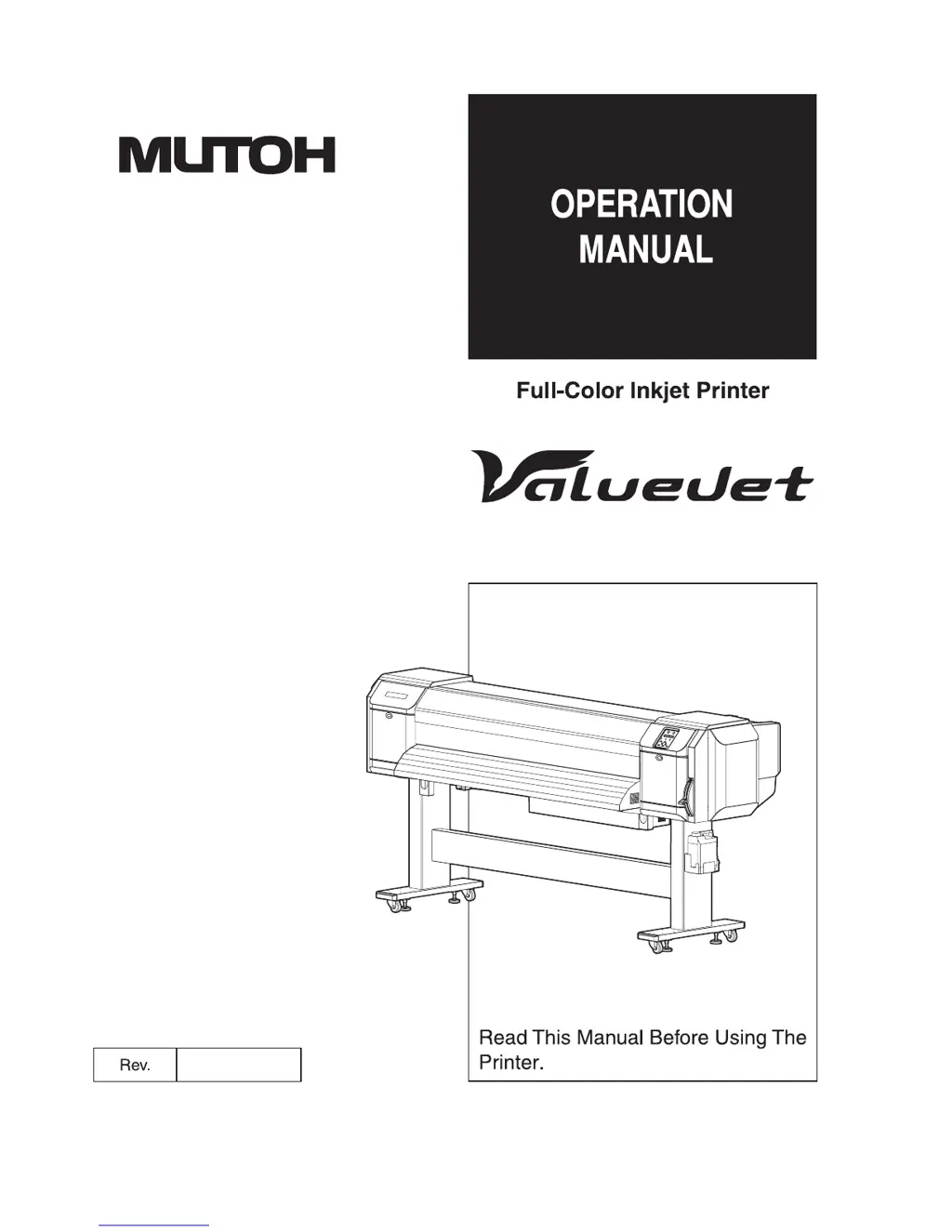
MUTOH ValueJet VJ-1624 - User Manual

MUTOH ValueJet VJ-1624
324 pages
Print Icon
To Next Page IconTo Next Page
Loading...
VJ-1624
VJ-1624W
VJ1624E-A-02

Table of Contents

Other manuals for MUTOH ValueJet VJ-1624

Questions and Answers

  • R
    Robert RamirezAug 20, 2025
    How to fix blurred printing on my MUTOH ValueJet VJ-1624?
    • S
      Stacy AndrewsAug 20, 2025
      To resolve blurred printing on your MUTOH Printer, consider the following: * Ensure you are using the recommended media. * Verify you are not using media that is too thick or too thin; stick to the recommended types. * Confirm that the media is placed with the correct printing surface facing up. * Perform 'Adjust print' and 'Media feed compensation'. * For VJ-1624 models, ensure the heater temperature is appropriately set. * Check that the head height is set to 'Low'.
  • L
    Linda MackAug 22, 2025
    How to get rid of black or white lines on MUTOH ValueJet VJ-1624 prints?
    • T
      Thomas WareAug 22, 2025
      To address white or black lines appearing on printed media with your MUTOH Printer: * Ensure you are using the recommended media. * Verify the roll media is loaded correctly. * Perform a head cleaning to ensure the nozzles are in good condition. * Execute 'Adjust print' and 'Media feed compensation'. * If you have a VJ-1624 model, check that the temperature setting of each heater is appropriate. * Make sure the head height is set to 'Low'.
  • S
    Samuel GutierrezAug 25, 2025
    Why does my MUTOH ValueJet VJ-1624 keep jamming?
    • C
      Christopher DavisAug 25, 2025
      To resolve the issue of media jams frequently occurring on your MUTOH Printer: * Ensure that you are using the recommended media. * Use the media in the environment specified for use. * If you are using old media, replace it with new media. * If the media bends, use the recommended media, or set the Vacuum Fan menu when using alternative media.
  • U
    ujohnsonAug 26, 2025
    What to do if my MUTOH ValueJet VJ-1624 Printer does not turn on?
    • J
      Joanne ThomasAug 26, 2025
      To resolve the issue of your MUTOH Printer not working at all after power activation: * Check that the power cord is securely connected to the plug. * Ensure the AC power supply provides the specified voltage by connecting the cable to another outlet. * Confirm that the front cover is closed and the media loading lever is lowered. * Make sure the maintenance cover is closed.
  • A
    arthurfieldsAug 28, 2025
    Why can't I perform the initial ink charge on my MUTOH ValueJet VJ-1624?
    • A
      Anthony FreemanAug 28, 2025
      To troubleshoot why the initial ink charge cannot be performed on your MUTOH Printer: * Ensure that the front cover is closed and the media loading lever is lowered. * Verify that the maintenance cover is closed. * Check that all four ink cartridges are fully inserted.
  • J
    Joseph MayAug 30, 2025
    How to correct crooked printing lines on my MUTOH Printer?
    • D
      darrellnewtonAug 30, 2025
      To fix printing lines that are not straight on your MUTOH Printer: * Use a new ink cartridge if the current one is past its validity period. * Ensure you are using the recommended media. * Perform 'Adjust print' and 'Media feed compensation'.
  • D
    Dr. Christopher ChristensenSep 1, 2025
    Why is the media slipping or tearing during MUTOH Printer initialization?
    • R
      Ryan ColeSep 1, 2025
      To address the issue of the media slipping or tearing during initialization on your MUTOH Printer: * Ensure you are using the recommended media. * Verify the loading position of the media is correct. * Make sure the roll media is loaded correctly. * Clean the pressurizing roller to remove any foreign materials. * Use the printer in the specified environment. * Replace any creased, damaged, torn, or curled media. * If the media bends, use the recommended media or adjust the Vacuum Fan menu for other media types.
  • B
    Briana RodriguezSep 3, 2025
    What to do if ink doesn't come out after initial ink charge on MUTOH ValueJet VJ-1624 Printer?
    • R
      reedanthonySep 3, 2025
      To address the issue of ink not coming out after the initial ink charge on your MUTOH Printer: * If the ink cartridge is cold or frozen, leave the ink bag at room temperature for at least three hours and perform cleaning several times. * If the power was turned off during the initial ink charge, turn the power back on and continue the initial ink charge. * If normal printing cannot be performed after the initial ink charge, perform cleaning several times, checking after each attempt.
  • S
    strongheatherSep 5, 2025
    Why is the media crumpling during initialization of my MUTOH ValueJet VJ-1624?
    • K
      Karen AtkinsSep 5, 2025
      To resolve the issue of the media being crumpled during initialization on your MUTOH Printer: * Ensure you are using the recommended media. * Verify the media's loading position is correct. * Set the media straight to avoid angles. * Clean the pressurizing roller to remove any foreign materials. * Only use the printer in its specified environment. * Replace any creased, damaged, torn, or curled media.
  • S
    smithmarySep 7, 2025
    What to do if my MUTOH Printer doesn't work after loading media?
    • W
      wallaceerinSep 7, 2025
      To resolve issues with your MUTOH Printer not working after loading the media: * Ensure that the front cover is closed and the media loading lever is lowered. * Verify that the maintenance cover is closed. * Load the media straight. * Insert the ink cartridge. * Use the recommended media. * Ensure the printer is used in the specified environment.

Summary

Important Notice

For Users in Europe

CE marking indicates conformity with EU health and safety requirements.

For Users in the United States

FCC compliance for Class A digital devices to prevent harmful interference.

About this Manual

Purpose and Target Readers

Explains manual's purpose for VJ-1624/1624W owner/operators.

Manual Configuration

Describes the structure and sections of the manual for user guidance.

1 Safety Instructions

Important Safety Instructions

Details critical safety precautions for installation and operation of the printer.

Warning Labels

Explains handling, locations, and types of warning labels on the printer.

2 Product Overview

Names of Parts and Functions

Identifies and describes the function of various printer parts (front and rear sections).

Printer Status Outline

Explains the printer's operational status (Normal, Setup menu display) and how to change them.

3 Before Using

Power Cord Set Connection

Provides instructions and warnings for safely connecting the power cord.

Turning the Power ON;OFF

Details the procedure for turning the printer's power on and off safely.

Filling Ink

Step-by-step guide for installing ink cartridges/packs, including cautions.

4 Handling the Printer

Print Flow Chart

Illustrates the step-by-step procedure for performing printing with the printer.

Media

Explains details of available media, types, handling, and storage precautions.

Head Height Adjustment

Details how to adjust the print head height for optimal printing and to prevent media rub.

5 Panel Setup Menu

Setup menu

Outlines the various settings configurable through the printer's setup menu.

Test Print Menu

Lists functions for performing nozzle checks, mode prints, and setup list printing.

Cleaning menu

Explains head cleaning procedures (Short, Normal, Long, Little Charge, Initial Ink Charge).

6 Maintenance

Replacing Consumable Components

Guides on replacing ink cartridges, roll media, and flushing-box sponges.

Cleaning the Printer

Provides instructions for routine cleaning of the printer's exterior and interior parts.

Disposal of Waste Fluids

Explains the correct procedure and precautions for disposing of waste ink fluids.

7 Troubleshooting

Malfunctions and Failures

Lists common printer malfunctions, their causes, remedies, and references.

Error Messages

Details status and error messages displayed by the printer, with troubleshooting steps.

The Media is Jammed

Provides instructions for safely removing jammed media from the printer.

8 Appendix

Product Specifications

Lists detailed technical specifications for the VJ-1624 and VJ-1624W printers.

Interface Specification

Describes the network interface specifications, including type and protocol.

Options;Supply list

Information on optional accessories and supply items, contact for details.

MUTOH ValueJet VJ-1624 Specifications

General IconGeneral
BrandMUTOH
ModelValueJet VJ-1624
CategoryPrinter
LanguageEnglish

Related product manuals