EasyManua.ls Logo

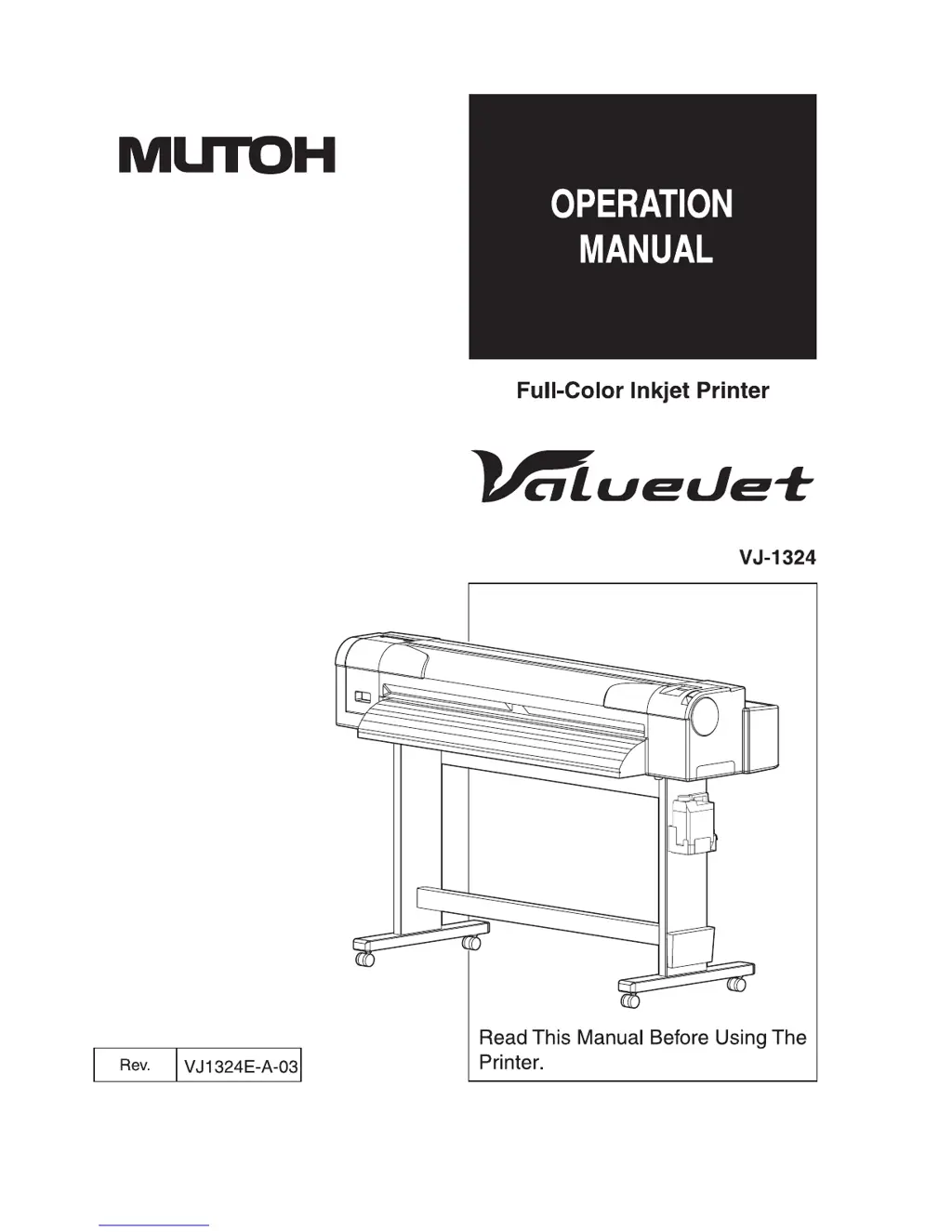
MUTOH Valuevet VJ-1324 - User Manual

MUTOH Valuevet VJ-1324
278 pages
Print Icon
To Next Page IconTo Next Page
Loading...

Table of Contents

Questions and Answers

  • W
    Wendy DrakeAug 20, 2025
    Why does my MUTOH Valuevet VJ-1324 Printer media jam frequently?
    • K
      Kathryn ValenzuelaAug 20, 2025
      Frequent media jams can occur in your MUTOH Printer if you are not using the recommended media, or if the media is being used in an environment other than the one specified. Old media or media that bends can also cause this issue. It is recommended to use the specified environment and replace old media with new media. If you are not using the dedicated media, set the Vacuum Fan menu.
  • H
    Heather JacksonAug 22, 2025
    How to fix blurred printing on my MUTOH Valuevet VJ-1324?
    • J
      Jennifer TaylorAug 22, 2025
      Blurred printing on your MUTOH Printer can be caused by several factors. Ensure you are using the recommended media, and that the media is printed on the correct printing surface. Also, make sure that you perform Alignment and Media feed compensation. Check if the temperature setting of each heater is appropriate and that the head height is not set to "High"; if it is, return it to "Low".
  • K
    Kathy JohnsonAug 25, 2025
    Why are there white or black lines on my MUTOH Printer output?
    • E
      elizabeth19Aug 25, 2025
      White or black lines on printed media from your MUTOH Printer can be due to several reasons. Verify you are using the recommended media and that the scroller is set correctly. Perform Head cleaning, Alignment, and Media feed compensation. Also, ensure the temperature setting of each heater is appropriate, and the head height is not set to "High"; if it is, return it to "Low". Check the condition of the nozzle and perform Head cleaning if necessary.
  • R
    randallchristensenAug 27, 2025
    What to do if my MUTOH Printer does not work after power activation?
    • J
      James ThompsonAug 27, 2025
      If your MUTOH Printer doesn't work after turning it on, check the following: Ensure the power cable is properly connected to the plug and that the AC power supply provides the correct voltage by trying another outlet. Also, make sure that the front cover and maintenance cover are closed, and the media loading lever is lowered.
  • P
    Pamela SnyderAug 28, 2025
    Why does the media slip or tear during MUTOH Printer initialization?
    • M
      moraleskarenAug 28, 2025
      If the media slips or tears during initialization of your MUTOH Printer, make sure you are using the recommended media and that it is loaded correctly. Check that the scroller is set correctly and that there are no foreign materials on the pressurizing roller; if there are, clean the roller. Ensure the printer is used in a specified environment. Replace any folded, torn, or rolled media. If the media bends, use the recommended media or set the Vacuum Fan menu if using alternative media.
  • K
    Kenneth NortonAug 29, 2025
    Why is the media crumpled during MUTOH Printer initialization?
    • J
      John MolinaAug 30, 2025
      If the media crumples during initialization with your MUTOH Printer, ensure you are using the recommended media and that it is loaded correctly and straight. Check for any foreign materials on the pressurizing roller and clean it if necessary. Only use the printer in a specified environment. Replace any folded, torn, or rolled media.
  • D
    David SwansonSep 1, 2025
    What to do if my MUTOH Printer does not work after loading the media?
    • N
      Nicole ZavalaSep 1, 2025
      If your MUTOH Printer doesn't work after loading the media, verify that the front cover and maintenance cover are closed and the media loading lever is lowered. Ensure the media is loaded straight and that the ink cartridge is inserted. Also, confirm that you are using the recommended media and that the printer is being used in the specified environment.
  • M
    Mary MillerSep 2, 2025
    Why are the printing lines not straight on my MUTOH Valuevet VJ-1324?
    • B
      Benjamin SullivanSep 2, 2025
      If the printing lines are not straight on your MUTOH Printer, ensure that the ink cartridge is within its validity period and that you are using the recommended media. Additionally, perform Alignment and Media feed compensation.
  • K
    Krista HuynhSep 4, 2025
    How to troubleshoot initial ink charge failure on my MUTOH Valuevet VJ-1324 Printer?
    • M
      Monica MilesSep 4, 2025
      If you cannot perform the initial ink charge on your MUTOH Printer, make sure that the front cover is closed, the media loading lever is lowered, and the maintenance cover is closed. Also, ensure that all four color ink cartridges are fully inserted.
  • S
    Stephen ByrdSep 6, 2025
    Why is the wrong media size set during MUTOH Valuevet VJ-1324 initialization?
    • C
      Chad GarciaSep 6, 2025
      If the wrong media size is set during initialization of your MUTOH Printer, ensure you are using the recommended media and that it is loaded straight. If the media curls upward when set, straighten it or use new media. Only use the printer in the specified environment. Avoid using media that has already been printed on; use new media instead.

Summary

Important Notice

For Users in Europe

Details CE marking requirements and conformity to EU directives.

For Users in the United States

Explains FCC compliance for digital devices and interference.

About this Manual

Purpose and Target Readers

Explains the manual's objective and intended audience for the printer.

Manual Configuration

Outlines the structure and content of the operation manual chapters.

Manual Notation

Safety Instructions

Important Safety Instructions

Lists critical safety precautions for printer installation and use.

Warning Labels

Explains the handling, location, and types of warning labels on the printer.

Product Overview

Features

Highlights the main capabilities and benefits of the printer.

Names of Parts and Functions

Identifies and explains the purpose of various printer components.

Before Using

Power Cable Connection

Provides instructions for safely connecting the printer's power cable.

Turning the Power ON;OFF

Details the procedure for powering the printer on and off.

Installing Ink Cartridges

Guides on installing 220ml ink cartridges and high capacity adapters.

Loading Media

Explains how to load roll media and set it up correctly.

Test Print

Describes procedures for performing various print tests like nozzle check.

Adjust Print

Covers methods for optimizing print quality through adjustments.

Handling the Printer

Operating from the Operation Panel

Details various functions controllable from the printer's panel.

Media

Discusses media types, handling precautions, and storage.

Panel Setup Menu

Setup Menu

Lists and describes the various configuration options available in the setup menu.

User Type Menu

Configures settings for different media types and print jobs.

Auto Cleaning Menu

Configures automatic cleaning cycles for standby, printing, and pre-printing.

IP Address Menu

Sets the printer's IP address for network connectivity.

Maintenance

Replacing Consumable Components

Details replacement of parts like ink cartridges, roll media, and cutters.

Cleaning the Printer

Provides instructions for routine cleaning of the printer's parts.

Moving or Transporting the Printer

Covers procedures for safely moving and transporting the printer.

Troubleshooting

Malfunctions and Failures

Lists common printer issues, their causes, and remedies.

Error Messages

Describes displayed messages, their meanings, and solutions.

The Media is Jammed

Provides step-by-step instructions for removing jammed media.

Appendix

Product Specifications

Lists detailed technical specifications of the printer.

Interface Specification

Details the specifications for the printer's network interface.

Setup Menu Diagram

Setup Menu Diagram (Ready to Print) (1;4)

Visual guide to the setup menu flow for the ready state (part 1).

Setup Menu Diagram (Ready to Print) (2;4)

Visual guide to the setup menu flow for the ready state (part 2).

Setup Menu Diagram (Ready to Print) (3;4)

Visual guide to the setup menu flow for the ready state (part 3).

Setup Menu Diagram (Ready to Print) (4;4)

Visual guide to the setup menu flow for the ready state (part 4).

Setup Menu Diagram (Receiving; Converting; Printing)

Visual guide to the setup menu flow during receiving, converting, or printing.

Revision History

MUTOH Valuevet VJ-1324 Specifications

General IconGeneral
Print Resolution1440 x 1440 dpi
Ink TypeEco-solvent
Media HandlingRoll-to-roll
Take-up SystemOptional
InterfaceUSB 2.0, Ethernet
Number of Nozzles180 nozzles per color
Media TypesVinyl, banner
Media ThicknessUp to 0.8 mm
Power RequirementsAC 100-240V, 50/60Hz
Dimensions (W x D x H)1200 mm
Weight150 kg
Operating EnvironmentTemperature: 20°C - 30°C (68°F - 86°F), Humidity: 40% - 60% RH (non-condensing)

Related product manuals