EasyManua.ls Logo

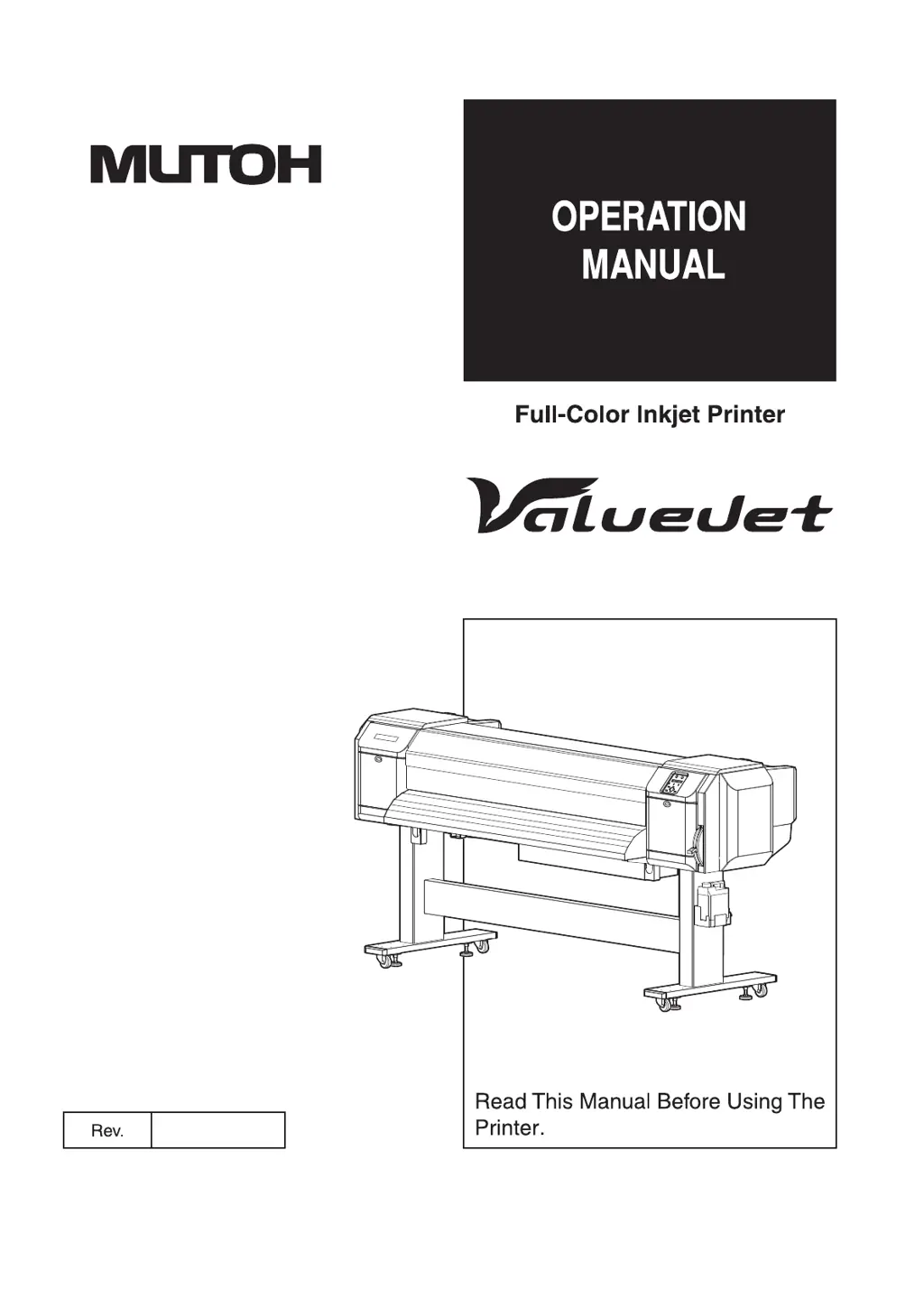
MUTOH VJ-2638 - User Manual

MUTOH VJ-2638
378 pages
Print Icon
To Next Page IconTo Next Page
Loading...
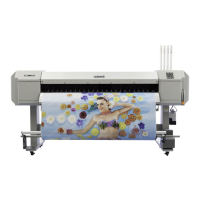
VJ-2638 VJ-1638X
VJ-1938WX VJ-1638WX
VJx638xE-A-05

Table of Contents

Other manuals for MUTOH VJ-2638

Questions and Answers

  • J
    James NelsonAug 1, 2025
    Why is my MUTOH VJ-2638 not printing at all?
    • C
      Cody HarrisAug 2, 2025
      If your MUTOH Printer isn't printing, ensure the power cord is properly connected and the AC power supply provides the correct voltage. Try a different outlet. Also, check that the front cover and maintenance covers are closed, and the media loading lever is lowered.
  • V
    Vincent WhitakerAug 6, 2025
    What to do if my MUTOH VJ-2638 does not work after loading the media?
    • C
      cperryAug 6, 2025
      If your MUTOH Printer isn't working after loading the media, make sure the front cover is closed and the media loading lever is lowered. Also, ensure the maintenance cover is closed and the ink cartridge is inserted. Verify that you're using the recommended media and that the printer is used in the specified environment.
  • J
    Jerry RobinsonAug 11, 2025
    Why does the media slip or tear during initialization on my MUTOH VJ-2638?
    • J
      Justin MurphyAug 11, 2025
      If the media slips or tears during initialization on your MUTOH Printer, ensure you are using the recommended media and that it's loaded correctly. Check the pressurizing roller for foreign materials and clean it if necessary. Also, make sure the printer is used in the specified environment and that you are not using creased, damaged, torn, or curled media. If the media bends, consider using the recommended media or adjusting the Vacuum Fan menu.
  • D
    Dale WareAug 17, 2025
    What to do if ink doesn't come out after initial ink charge on MUTOH VJ-2638 Printer?
    • M
      michael95Aug 17, 2025
      If ink doesn't come out after the initial ink charge on your MUTOH Printer, and the ink cartridge might be cold or frozen, leave the ink bag at room temperature for at least three hours and perform cleaning several times. If the power was turned off during the initial ink charge, turn it on again and continue the process. If normal printing cannot be performed after the initial ink charge, perform cleaning several times and check it each time.
  • J
    Julia MorenoAug 22, 2025
    Why can't I use my MUTOH Printer online using LAN?
    • S
      Samantha ColemanAug 22, 2025
      If you cannot use the computer online with your MUTOH Printer via LAN, check that the network interface cable is correctly connected, ensuring you're using the correct type of cable (cross or straight). Also, verify that the network settings are configured correctly and that the printer's network settings match the computer's settings.
  • S
    Stacey BrownAug 27, 2025
    What to do if data sent to MUTOH VJ-2638 causes an error and nothing prints?
    • S
      Scott HernandezAug 27, 2025
      If an error occurs at the printer and nothing is printed when data is sent from the computer to your MUTOH Printer, check that the printer type selected on the computer matches the printer type settings on the printer itself.

Summary

About this Manual

Contents of the Manual

Outlines three manuals for the product: Installation, Product Activation Guide, and Operation Manual.

Purpose and Target Readers

Explains manual's purpose for MUTOH Full Color Ink Jet Printer owners and operators.

Manual Configuration

Details the sections of the manual and their descriptions, covering safety, overview, handling, and maintenance.

Safety instructions

Types and meanings of warnings

Explains the meaning of WARNING, CAUTION, and NOTE labels used in the manual and on the printer.

Important safety instructions

Provides general cautions for safe printer operation, covering installation, handling, power, and environmental factors.

Warning labels

Explains the handling, pasting locations, and types of warning labels attached to the printer.

Product overview

Features

Details the main features of the printer, including high-speed output, media compatibility, color reproduction, and media usage.

Names of parts and functions

Explains the names and functions of the printer's front section parts, including levers, panel, and covers.

Printer status outline

Explains the printer's status, including Normal and Setup menu display.

Before using

Power cord set connection

Explains how to connect the power cord set, including safety warnings and precautions.

Turning the power ON;OFF

Details the procedure for turning the printer's power ON and OFF, including initial operations.

Filling ink

Describes the procedure for installing ink cartridges for the first time, including safety precautions.

Loading media

Explains how to load and set media, including roll media loading procedures and specifications.

Test print

Explains how to perform test printing to confirm the printer's correct operation, covering nozzle check and print modes.

Print quality adjustment

Explains how to optimize print quality by adjusting settings for image prints.

Connecting the printer to PC

Explains how to connect the printer to a PC, covering system requirements and cable preparation.

Handling the printer

Print flow chart

Illustrates the procedure for printing, including data creation, power ON, media setup, and printing execution.

Media

Provides details on available media for the printer, including media types, handling cautions, and storage precautions.

Menu setups on Operation panel

Guides on configuring setup menus via the operation panel, including menu setup procedures and overview.

Operating from Operation panel

Explains various functions controllable from the operation panel, such as feeding media and stopping printing.

Panel setup menu

Setup menu

Lists the various setup items available in the printer's panel menu, such as User Type, Spitting, and Side Margin.

Test Print menu

Performs nozzle checks and prints setup lists to verify printer functionality.

Cleaning menu

Performs head cleaning with different modes (Short, Normal, Long) and ink charge procedures.

Menu Option menu

Configures which setup items are displayed or hidden, allowing for a cleaner interface.

Version menu

Displays the firmware versions of the printer's main and controller sides.

Sleep Mode menu

Configures sleep mode settings, affecting printer operations like fans, heaters, and auto head cleaning.

Display menu

Sets the language and units displayed on the LCD monitor, including temperature, length, and ink level.

Job Status menu

Displays information about previous print jobs, including completion status and data length.

Maintenance

Replacing consumable components

Guides on replacing ink cartridges, roll media, and flushing-box sponges, detailing when and how to do it.

Cleaning the printer

Provides instructions for periodic cleaning of the printer's outer case, inside, print head, and wiper.

Disposal of waste fluids

Explains the correct timing and method for disposing of printer waste fluids in compliance with regulations.

Moving or transporting the printer

Provides instructions on how to move the printer safely, including preparation and reinstallation steps.

Troubleshooting

Malfunctions and failures

Lists common malfunctions and failures, their possible causes, remedies, and references to relevant sections.

Error messages

Lists status messages and error messages displayed during printer operation, with their descriptions and remedies.

The media is jammed

Provides step-by-step instructions for removing jammed media from the printer.

Appendix

Product specifications

Details the printer's specifications, including model, printing method, media handling, CPU, and memory.

Interface specification

Describes the network interface specifications, including network type and corresponding protocol.

Options;Supply list

Provides information on available options and supply items for the printer.

Setup menu diagram

Setup menu diagram (Ready to Print) (1;4)

Visualizes the setup menu structure for ready-to-print configurations, covering user type, spitting, and media settings.

Setup menu diagram (Ready to Print) (2;4)

Continues the visual representation of setup menu paths for various printer functions.

Setup menu diagram (Ready to Print) (4;4)

Completes the visual representation of setup menu paths for various printer functions.

Revision History

MUTOH VJ-2638 Specifications

General IconGeneral
BrandMUTOH
ModelVJ-2638
CategoryPrinter
LanguageEnglish

Related product manuals