Importer Plus Technical Instruction Manual Operating the Importer Plus
Page 8-6 Issue 0.02 2010-03-29
Disable Log Message Display: Click the print log icon to enable or disable the printing
of log messages on the Importer Control Panel. When enabled, normal log messages
are displayed in blue text. Error messages are displayed in red text. Warning messages are
displayed in yellow text. Debug messages are displayed in black text.
Other functions: Additional icons exist that allow for saving, printing, erasing and searching log files.
SPS processor
Use the SPS Processor application as follows:
1. From the Importer Plus’ desktop, double click on the
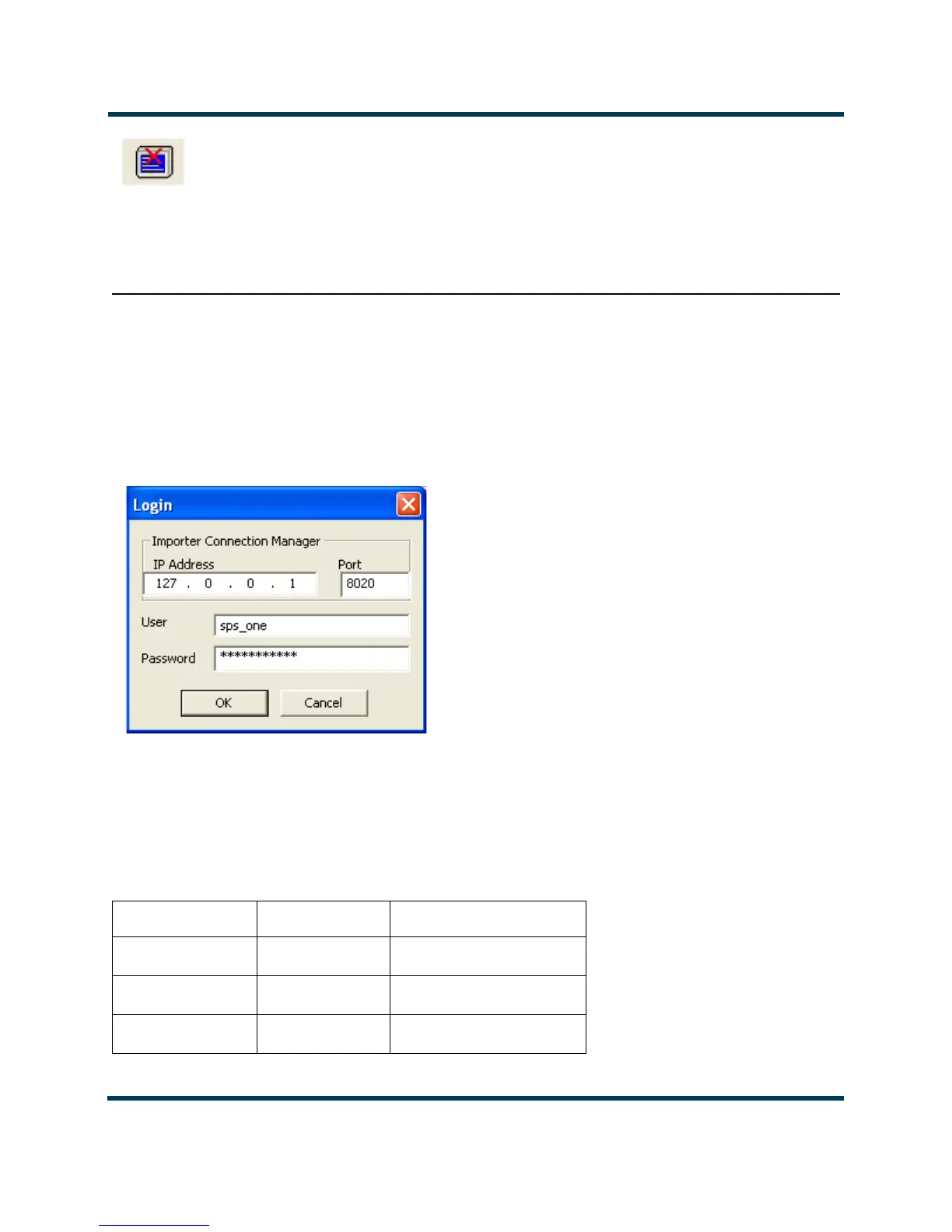
SPS Capture 1 icon. The SPS Capture
application will start and the screen shown in Figure 8.5 will appear.
Figure 8.5: SPS Capture screen
2. Enter the User name and Password and click OK. The screen shown in Figure 8.6 will
appear. The
User name and Password are non-volatile and will not need to be entered every
time the SPS processor is started up. The default
User names and Passwords for the two
secondary channels are shown in Table 8.1.
Table 8.1: Default User Names and Passwords
Channel User Name Password
SPS1 sps_one sps_one_pwd
SPS2 sps_two sps_two_pwd
SPS3 sps_three sps_three_pwd



 To Next Page