Chapter 3: Touch Screen Calibration 3-11
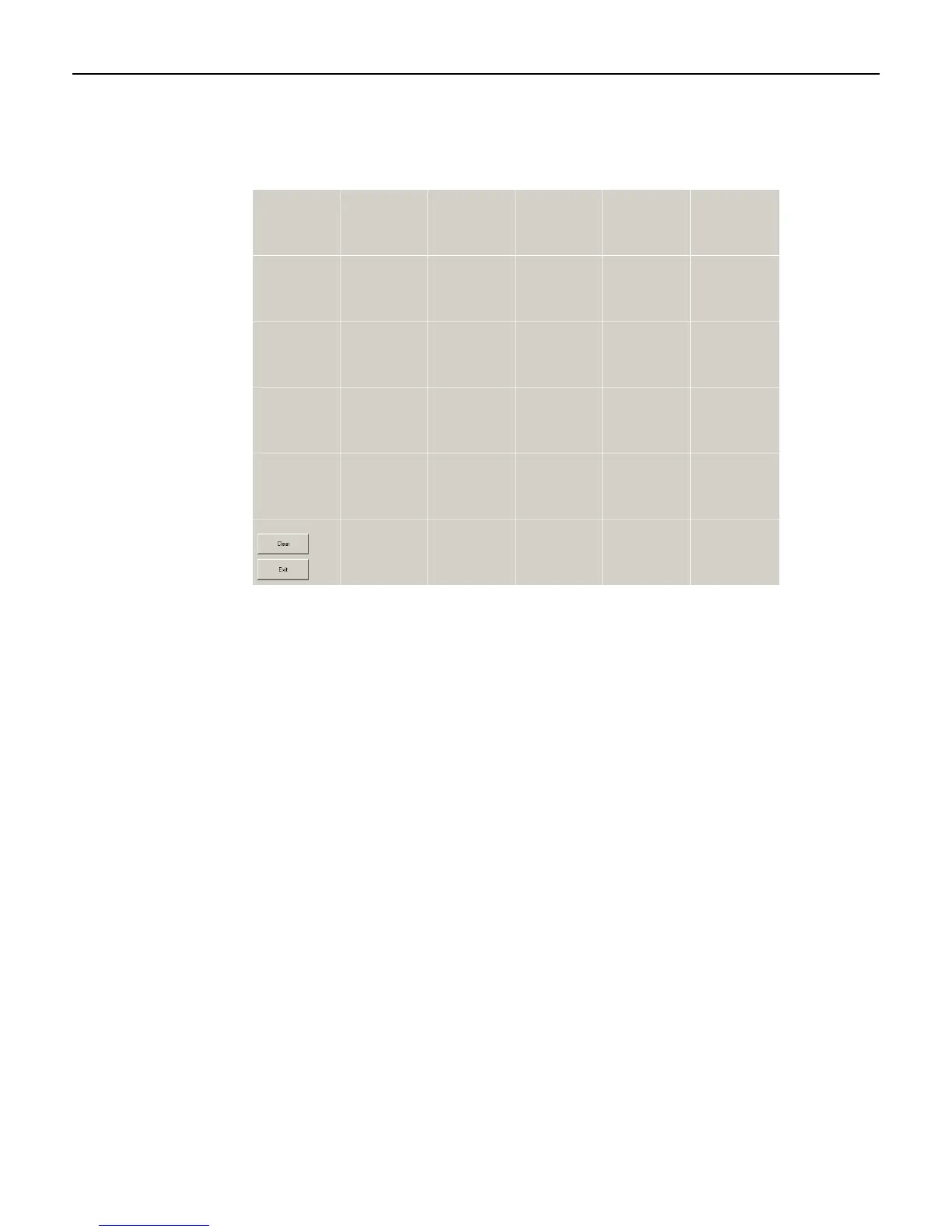
3. Test the calibration on the draw screen.
Touch the screen in various spots and trace each of the horizontal and vertical lines,
including the border around the screen.
In this test, all touches are persistent, including touch downs (green dots) and touch ups
(red dots).
After tracing the lines, review the drawn lines to make sure they closely follow the
underlying pattern. Pay close attention to the edges of the display and the corners since this
is where an incorrect calibration is most noticeable. If a line or point appears to be outside
the pattern, try pressing the area to see how far the cursor is from the touch point. If the
registered touch is greater than 7 mm away from where the touch occurred, repeat the
calibration.
4. Select Exit to close this screen and to return to the Microchip TSHARC Control Panel.
5. Select the Calibration tab to repeat the calibration procedure or select Apply and then
OK if you are satisfied with the results and want to close the application.
Caution: This application must be closed before a display hot swap occurs. If the
display is hot swapped while this application is open, the system can hang.


 To Next Page