9
Chapter 2 . Basics
Create Home screen folders to organize your applications as desired. For example, you can
create a Camera folder that contains all of your camera applications.
1. On the Home screen, drag an icon onto another icon to create a folder containing both
applications.
2. To name the new folder, tap the folder, tap Unnamed Folder and enter the folder name.
• Rename a folder
On the Home screen, open the folder and touch the folder name, then enter the new name.
• Add apps to a folder
On the Home screen, touch and hold the application you want to remove, then drag it to the
folder you want to add it to.
• Remove apps from a folder
1. On the Home screen, open the folder.
2. Touch and hold the application you want to remove, then drag it out of the folder.
• Delete a folder
You can delete a fold in two ways:
• On the Home screen, open the folder. Remove all the applications in it, then the folder will be
automatically deleted.
• Touch and hold the folder and drag it to Remove in the status bar. The folder and icons in it
will be deleted together.
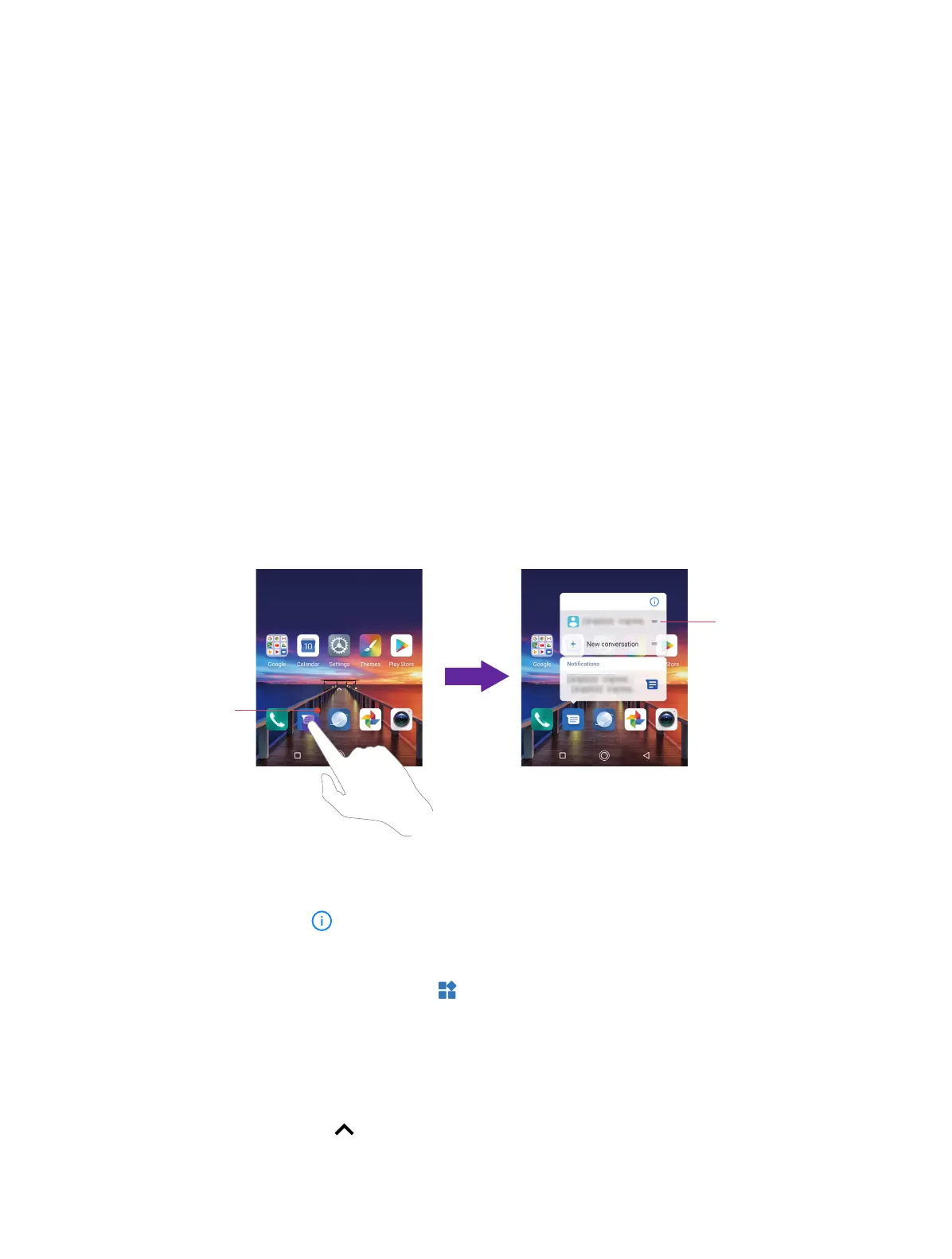
Organize applications on the Home screen
Notication dot
Shortcut
• App pop up box
On the Home screen, touch and hold an application to open the pop up box. You can:
• View App info: Tap .
• Shortcut: Tap the shortcut to go to the target interface quickly. Tap and hold the shortcut
and drag it to the target area to add it on the Home screen, so that you can find it more easily.
• Add the widget to Home screen: Tap to view the widgets. Touch and hold the widget and
drag it to your target area.
• Notification dot
Touch and hold the app with notification dot to view the notification. Tap to open and swipe left
or right to remove the notification.
• App drawer
On the Home screen, tap or swipe up on the dock component bar to expand the app drawer.
All of your applications sorted by name. You can tap the search box to search the app you need.



 To Next Page