48Chapter 10 . Play Store
Google Play Store
Use Google Play Store to download applications to you phone as desired.
Applications are available through Google Play Store either free of charge or at a
cost.
• Add an account to your Google Play Store
• Download and install applications
10. 1 Add an account to your Google Play Store
To get applications from the Google Play Store, you’ll need to log in an account on your device.
When you add an account, information associated with that account automatically syncs with your
phone.
When using Google Play Store for the first time, you will first enter Sign in screen, then enter your
account on the Email or phone line or tap Or create a new account to apply for a new account,
then follow the onscreen instructions to log in your account.
10. 2 Download and install applications
1. Find the application you want. There are three ways:
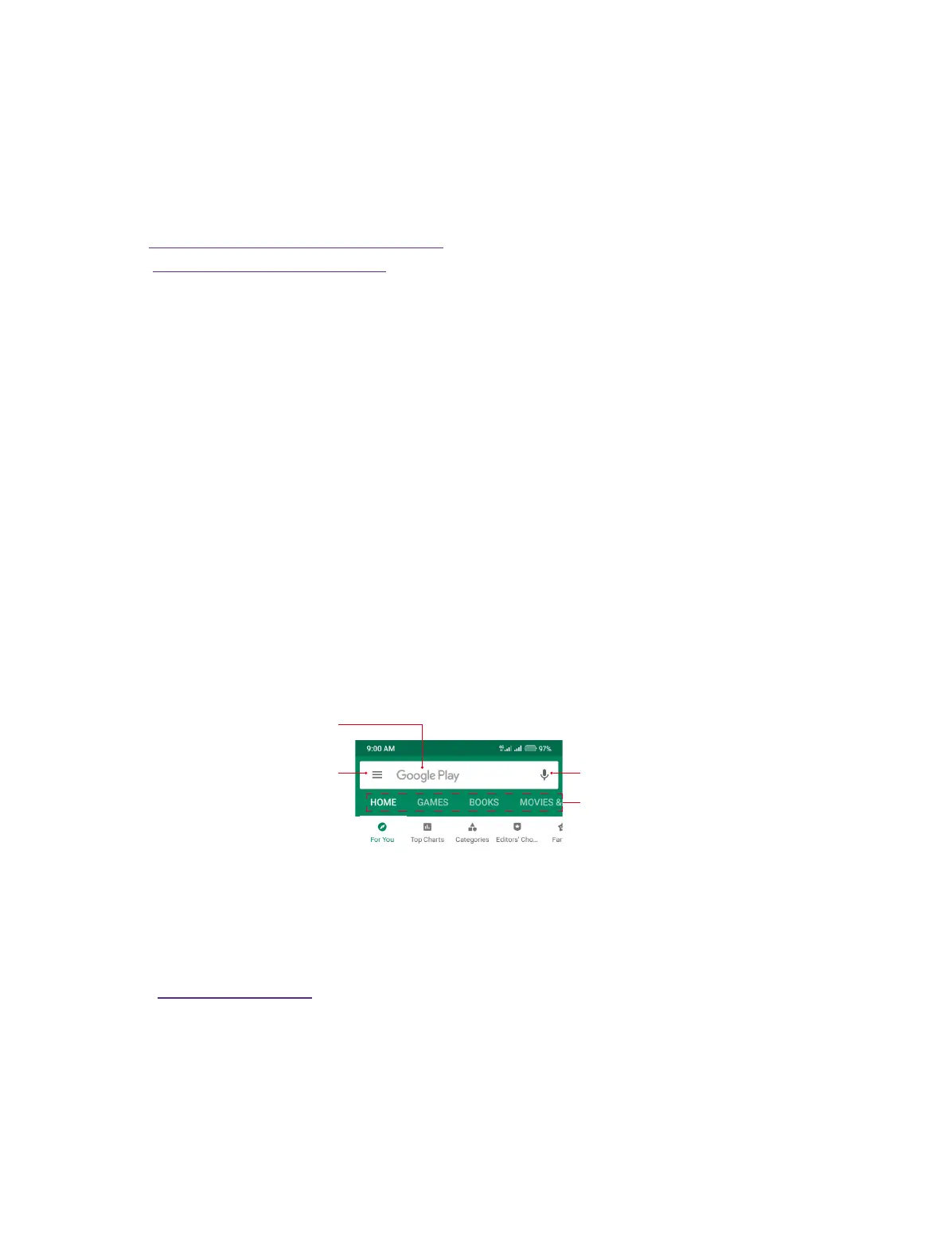
• Use the search bar or voice search to manually find the applications you want.
• Swipe the screen left to find the category of the app you want and tap the category, related
applications will display on the screen.
• Swipe the screen down to get the latest push applications.
Tap to congure more options
Tap to enter the name/key words
of the app you want, then related
information will display
Tap to say the name/key words
of the app you want, then related
information will display
Swipe left to view related apps
2. Tap the application and then tap INSTALL.
3. When downloading, you can always swipe down from the status bar to view the download
progress. When downloading completed, the application will be installed on your phone
automatically.
4. The app will be displayed in App drawer by default. (To configure more settings about this, see
Home screen settings). Tap the app icon, follow the onscreen instructions to set the application
permissions to protect your phone and privacy, then you can start using it.
10



 To Next Page