12
Chapter 2 . Basics
• Lock an application: Swipe down on a thumbnail to lock the corresponding application so that
they will not be cleared when you close all recently used applications.
• Close all applications: Tap to close all applications.
2. 4 Status bar
Use the status bar to access the Quick Settings Panel, Notification Panel and check your phone’s
status.
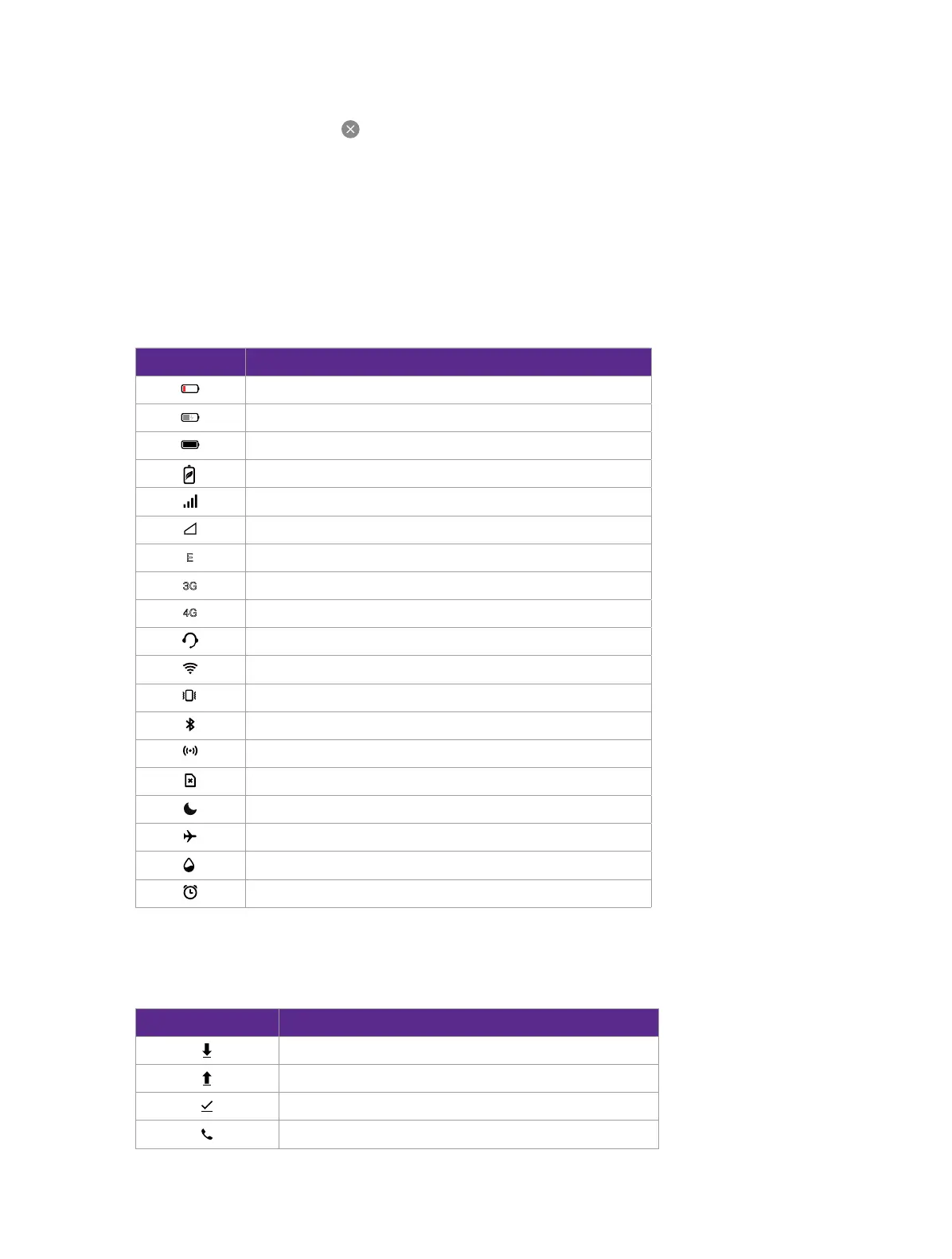
Status icons
Status icons are displayed on the right-hand side of the status bar and tell you about your phone’s
status, including network connections, signal strength, battery, and time.
Status icons
Indications
Battery low
Charging
Battery full
Battery saver enabled
Signal strength
No signal
E
Connected over GPRS
Connected over 3G
4G
Connected over LTE
Headset mic inserted
WLAN connected
Vibrate mode enabled
Bluetooth enabled
Hotspot enabled
No SIM card installed
Do not disturb enabled
Airplane mode enabled
Data saver enabled
Alarms enabled
Notification icons
Notification icons are displayed on the left-hand side of the status bar when you receive a new
message and other notifications.
Notifications icons Indications
Downloading status
Uploading data
Download complete
Call in progress



 To Next Page