76Chapter 17 . Settings
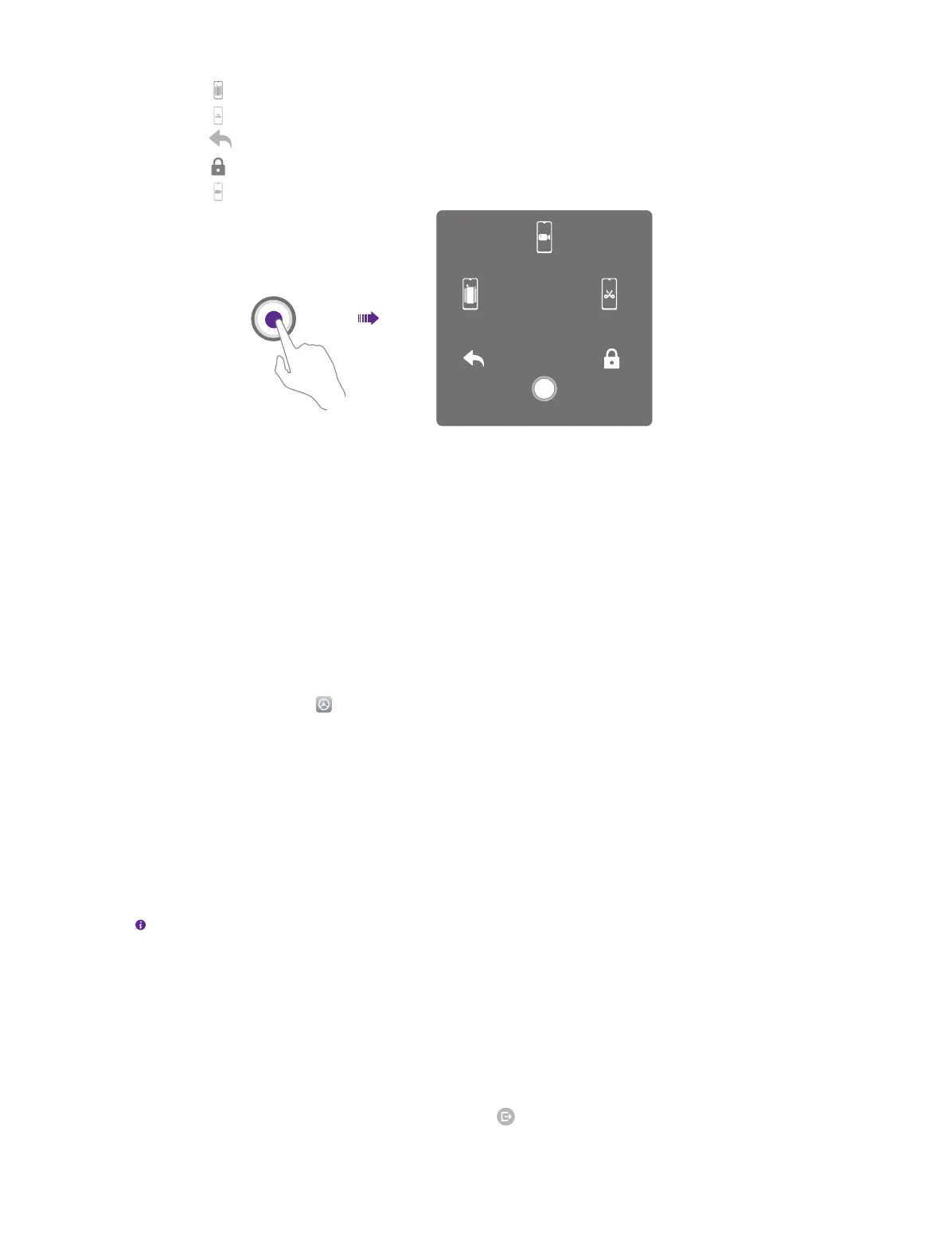
• Tap to display the list of recently used applications.
• Tap to take a screenshot.
• Tap to return to the previous screen.
• Tap to lock the screen.
• Tap to record the screen.
Screen
recorder
Recents Screenshot
Lock
Back
Home
Glove mode
Switch on Glove mode to increase screen sensitivity so that it can be operated even when wearing
gloves.
Touch sensitivity
Tap or slide the slider to adjust the sensitivity of the screen.
17. 13 Battery
On the Home screen, tap Settings > Battery and configure the following settings:
View battery details
1. Tap Details to view the software power consumption and hardware power consumption.
2. Tap an app and you can view the battery use details of the app.
Optimize battery for apps
1. To optimize battery for apps, tap Details > BATTERY OPTIMIZATION.
2. Turn on the switches next to the apps that you want to optimize; then the battery will be optimized
and the battery life will be extended.
Note: Apps with higher real-time requirements, such as email and chat apps are better not optimized,
otherwise you may not receive timely information.
Change power saving mode
You can use either the following power saving mode:
• Smart power saving mode: Switch on Smart power saving to enable it, and then the location
information service and app autostart function will be restricted; notifications will not light the
screen, and visual effects will be reduced.
• Ultra power saving mode: Switch on Ultra power saving to enable it, and only Phone and SMS
are allowed. To exit ultra power saving mode, tap > EXIT.



 To Next Page