41Chapter 7 . Videos
Videos
Use Videos to enjoy videos stored on Neffos.
• Play a video
• Video management
7. 1 Play a video
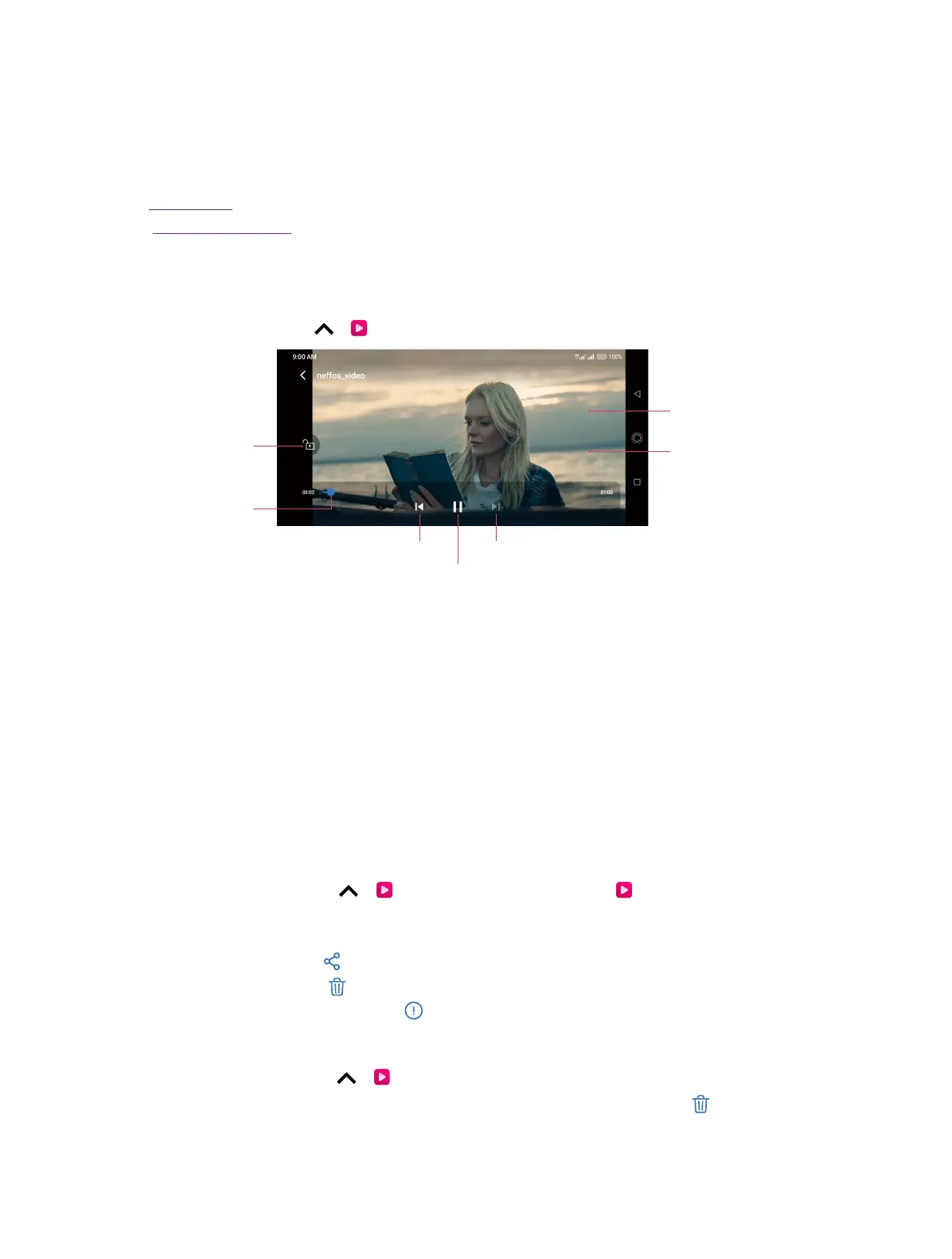
On the Home screen, tap > Videos, and tap the video you want to play.
Playback slider
Tap to play the previous video Tap to play the next video
Tap to pause the video
Tap to lock playback
orientation
Tap to show/hide controls
Double-tap to pause/play
During playback, you can:
• Adjust the screen brightness: Swipe up or down on the left-hand side of the screen. Swipe up
to increase the brightness, or swipe down to decrease the brightness.
• Adjust the volume: Swipe up or down on the right-hand side of the screen. Swipe up to increase
the volume or swipe down to decrease the volume.
• Rewind or fast-forward: Swipe left or right on the screen to accurately adjust the video progress
bar. Drag the progress bar left to rewind or right to fast-forward.
7. 2 Video management
Share/delete a video and see the details of a video
1. On the Home screen, tap > Videos > ALL Videos, or go to Videos > Folders and tap
to open a folder.
2. Touch and hold a video, you can:
• Share the video: tap .
• Delete the video: tap .
• See the details of the video: tap .
Delete the video folders
1. On the Home screen, tap > Videos > Folders.
2. Touch and hold a video folder, then select the folders you want to delete, tap > DELETE.
7



 To Next Page