13
Chapter 2 . Basics
Notifications icons Indications
Missed calls
New messages
Connected to a PC using USB cable
2. 5 Notification Panel
Notification Panel collects all the notifications and alerts so that you can review them whenever
you like.
• Open Notification Panel: Swipe down from the status bar to open the Notification Panel.
• View a notification: Tap an item to view the details. New notifications, such as missed calls and
messages are displayed on the Lock screen. From the Lock screen, double-tap it to view the
details, or swipe left or right to remove it.
• Clear notifications: Swipe the notification left or right to remove the it from the list. You can also
tap to remove all the notifications at once.
• Quickly manage notification: Touch and hold the notification detail to open the quick settings
screen.
• Close Notification Panel: Swipe up, or tap the Home button/Back button.
2. 6 Quick Settings Panel
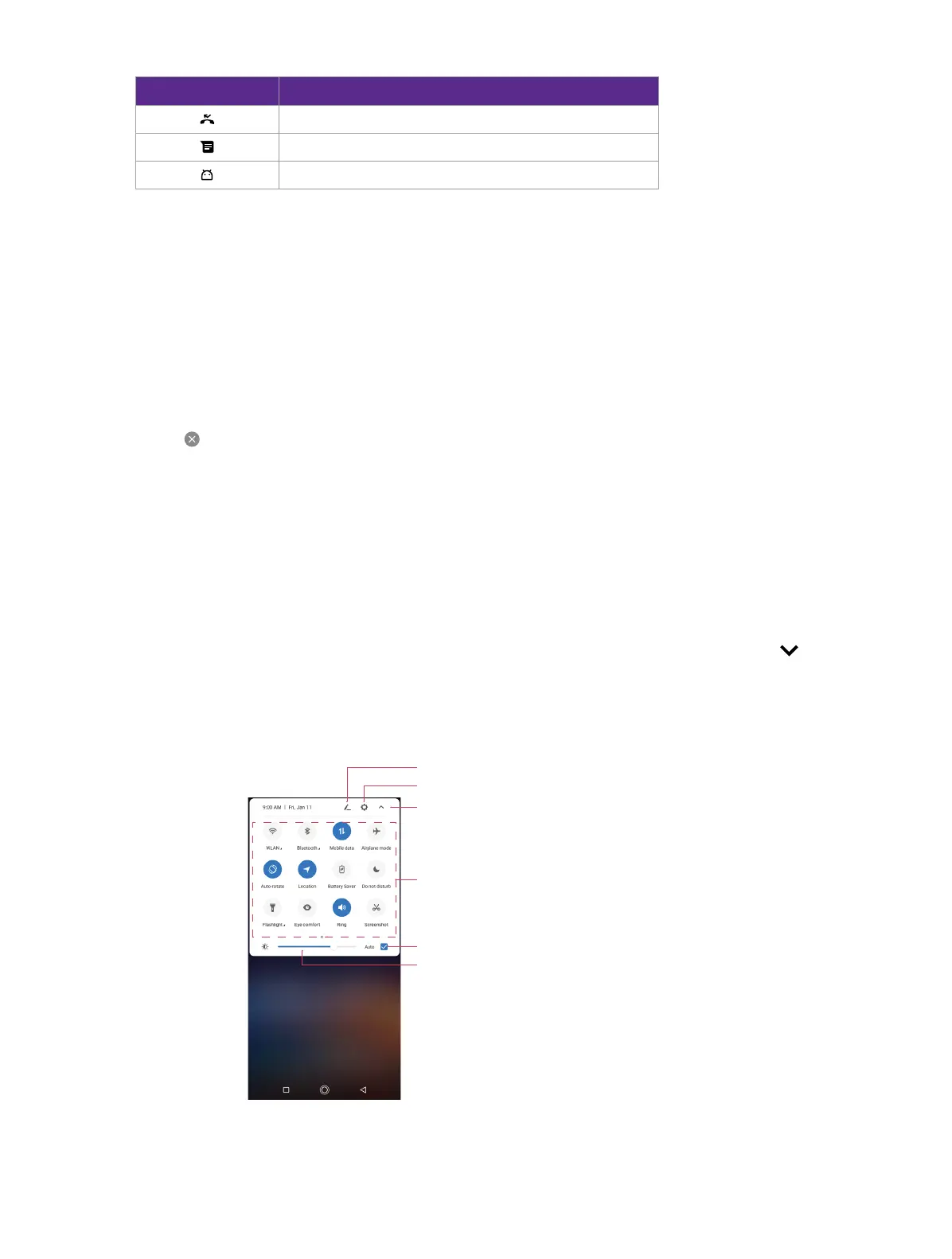
Use shortcut switches on the Quick Settings Panel to enable or disable functions quickly without
using a settings menu.
• Open the Quick Settings Panel: Swipe down from the status bar, or swipe down and tap to
open the Quick Settings Panel.
• Use shortcut switches: Tap the shortcut switches on the Quick Settings Panel to turn the
functions on or off. Touch and hold the shortcut icon to enter the feature’s settings page.
• Close the Quick Settings Panel: Swipe up, or tap the Home button or Back button.
Edit: Tap to enter the edit page
Settings: Tap to go to Settings
Collapse/expand the panel: Tap to collapse the Quick Settings Panel
Shortcut switches: Tap to enable/disable functions quickly
Brightness slider: Use this slider to adjust the brightness of the screen
Adaptive brightness: Tap to enable auto-brightness



 To Next Page