8
Chapter 2 . Basics
2. 2 Home screen
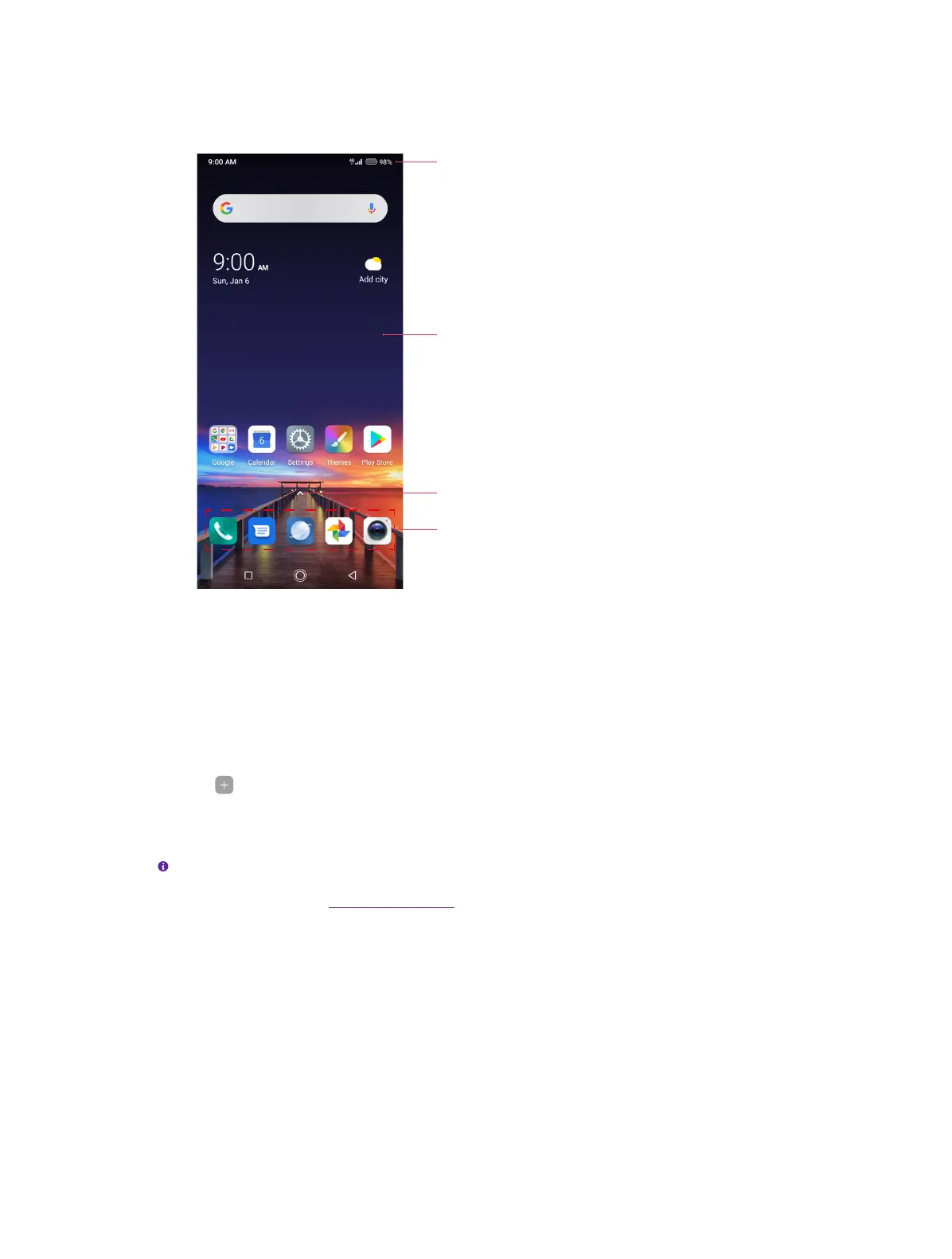
Your Home screens are where you can find your favorite widgets and all your applications.
Status bar: Displays status and notification icons
Display area: Displays app icons, folders, and widgets
App drawer: Tap to open application list
Dock component bar: Shortcuts to your frequently
used applications
On the Home screen, slide left on the Home screen to enter the information assistant page.
Organize widgets on the Home screen
• Add a widget to the Home screen
Add frequently used widgets to the Home screen for quick access.
1. On the Home screen, touch and hold a blank area (or pinch two fingers together) on the
screen to access the Home screen editor.
2. Tap Widgets and select a widget. Tap the widget to add to the Home screen and drag it
to a blank area you like. Or you can just touch and hold the widget and drag it to target area.
3. Tap a blank area on the Home screen (or tap Home button/Back button) to quit the Home
screen editor.
Note:
You must have enough space on the Home screen to add widgets. If there is not enough space, add
another Home screen (see Add a Home screen) or free up some space.
• Change a widget size
On the Home screen, touch and hold a widget and then drag the frame to adjust the widget size.
• Move a widget
On the Home screen, touch and hold a widget and then drag it to the desired location.
• Delete a widget
On the Home screen, touch and hold the widget you want to delete and then move it to Remove
in the status bar.
Organize folders on the Home screen
• Create a folder



 To Next Page