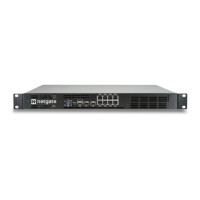
Security Gateway Manual Netgate-4200
1.1.1 What next?
To connect to the GUI and configure the firewall in a browser, continue on to Initial Configuration.
To connect to the console and make adjustments before connecting to the GUI, see Connecting to the USB Console.
Warning: The default IP Address on the LAN subnet on the Netgate firewall is 192.168.1.1/24. The same
subnet cannot be used on both WAN and LAN, so if the default IP address on the ISP-supplied modem is also
192.168.1.1/24, disconnect the WAN interface until the LAN interface on the firewall has been renumbered to
a different subnet (like 192.168.2.1/24) to avoid an IP Address conflict.
To change an interface IP address, choose option 2 from the Console Menu and walk through the steps to change
it, or from the GUI, go through the Setup Wizard (opens at first boot, also found at System > Setup Wizard) and
change the IP address on Step 5. Complete the Wizard and save the changes.
1.2 Initial Configuration
Plug the power cable into the power port (shown in the Input and Output Ports section) to turn on the Netgate® Firewall.
Allow 4 or 5 minutes to boot up completely.
Warning: If the ISP Customer Premise Equipment (CPE) on WAN (e.g. Fiber or Cable Router) has a default IP
Address of 192.168.1.1, disconnect the Ethernet cable from the 1 port on the Netgate 4200 Security Gateway
before proceeding.
Change the default LAN IP Address of the device during a later step in the configuration to avoid having conflicting
subnets on the WAN and LAN.
1.2.1 Connecting to the Web Interface (GUI)
1. From the computer, log into the web interface
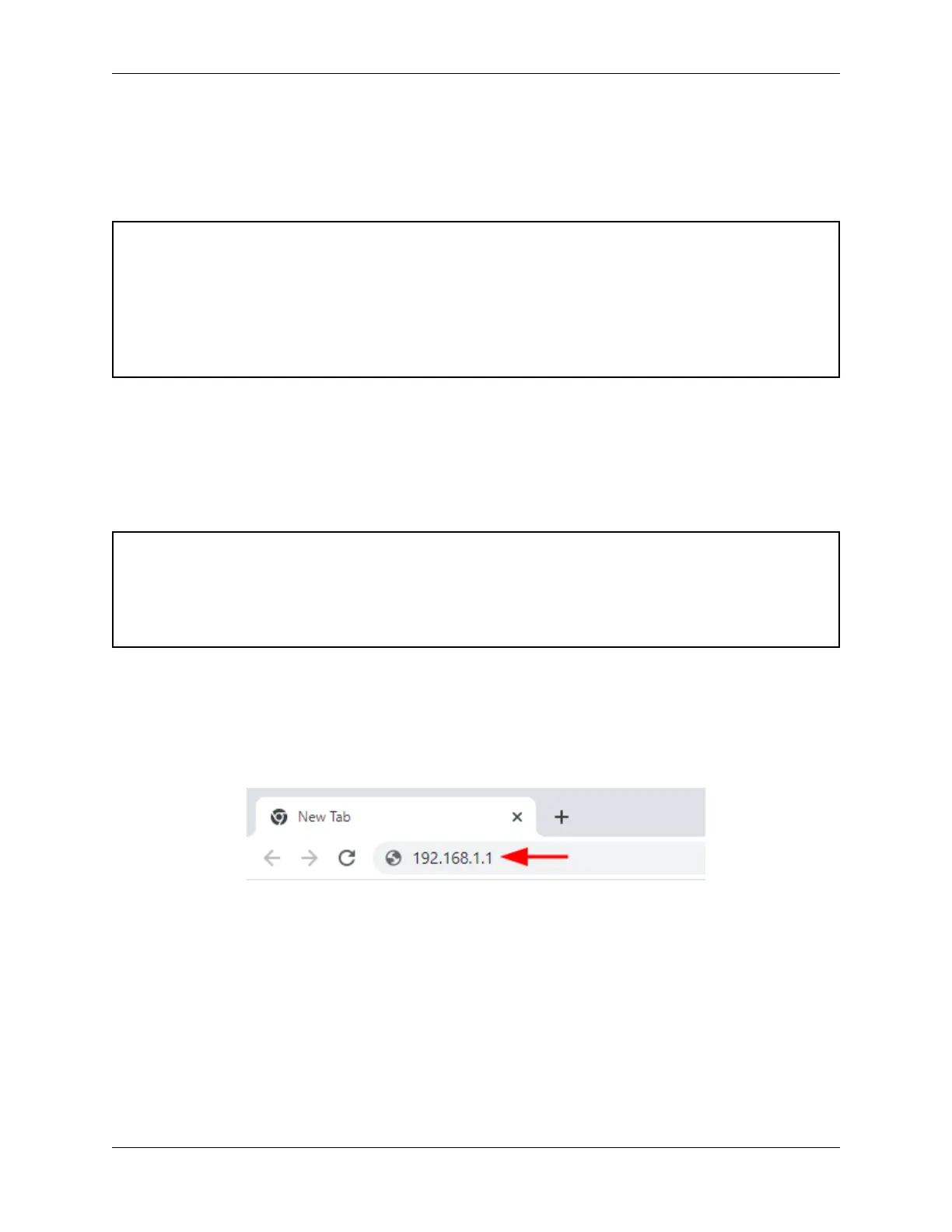
Open a web browser (Google Chrome in this example) and enter 192.168.1.1 in the address bar. Press Enter.
Fig. 1: Enter the default LAN IP address in the browser
2. A warning message may appear. If this message or similar message is encountered, it is safe to proceed. Click
the Advanced Button and then click Proceed to 192.168.1.1 (unsafe) to continue.
3. At the Sign In page, enter the default pfSense
®
Plus username and password and click Next.
• Default Username: admin
• Default Password: pfsense
© Copyright 2024 Rubicon Communications LLC 3


 To Next Page