Security Gateway Manual Netgate-4200
2.8 Changing the Boot Order
The Netgate 4200 ships with a factory default boot order which may not be optimal for all users. This document
describes methods for changing the boot order on the 4200 which can reduce the boot time.
There are two primary methods for changing the boot order: By changing settings in the BIOS, and by using the
efibootmgr utility on pfSense® software.
Users tend to find making changes in the BIOS easier to follow, but doing so requires local console access and downtime
while making changes. Changes made through the efibootmgr utility can be performed remotely while the device is
running and take effect immediately, allowing the next boot to use the new settings.
2.8.1 BIOS Boot Order
Changing the boot order in the BIOS is relatively straightforward but requires rebooting the device and accessing the
BIOS configuration. The device will be offline during this time, so these actions must be performed from a local serial
console either directly connected to a client system or by other means of out-of-band access.
To alter the BIOS Boot Order in this way, take the steps in the following sections.
Access the BIOS Boot Settings
The first task is to access the BIOS configuration as follows:
• Connect to the serial console.
• Reboot the device.
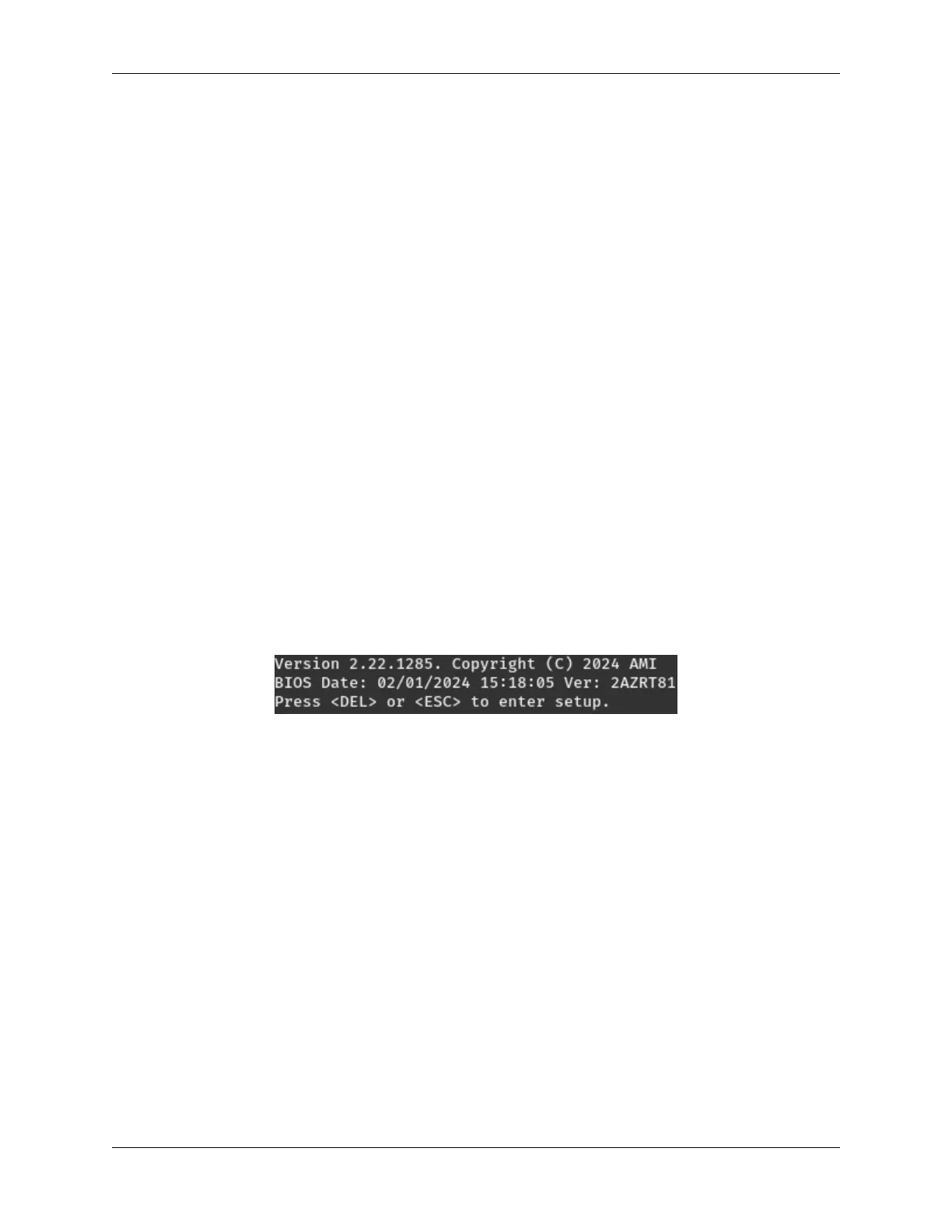
• During the boot sequence, press either the Del or Esc key when prompted to enter the BIOS.
Fig. 10: The Netgate 4200 BIOS Prompt
• Navigate to the Boot tab.
From here, make any desired changes in the Boot Option Priorities section, such as those in the following sections.
Make pfSense software boot first
To give pfSense software top priority when booting, make the following changes:
• Highlight Boot Option #1 with the up/down arrow keys.
• Press the Enter key to open the device choice menu.
• Select the entry which corresponds to pfSense software using the up/down arrow keys.
This entry may be labeled pfSense+, FreeBSD, or share the name of the disk, such as Ultra HS-COMBO.
• Press the Enter key to select the device.
© Copyright 2024 Rubicon Communications LLC 64


 To Next Page