Security Gateway Manual Netgate-4200
2.9 Updating the BIOS
The Netgate 4200 BIOS may need updating for security fixes or other stability improvements. The BIOS cannot be
updated automatically, it must be updated manually. This document describes a simple method for updating the BIOS
using a USB mass storage device.
When this is necessary, Netgate will provide a means for owners of Netgate 4200 hardware to download the BIOS files
directly.
Note: This method only updates the main BIOS area and not the management engine or microcontroller.
Updating the BIOS is relatively straightforward but requires rebooting the device and accessing the BIOS configuration.
The device will be offline during this time, so these actions must be performed from a local serial console either directly
connected to a client system or by other means of out-of-band access.
2.9.1 Prepare a USB Drive
The BIOS can read its update file from a DOS (FAT) formatted partition on a USB drive. USB drives can be formatted
in this manner by most operating systems.
Note: Some large USB drives may not support this filesystem type. If OS does not offer this filesystem type as a
choice when formatting the USB drive, try a smaller drive.
Copy the BIOS file, e.g. 2AZRT81.rom, to the DOS partition on the USB drive.
Plug the USB drive into the USB port on the 4200 (Input and Output Ports).
2.9.2 Access the BIOS
The first task is to access the BIOS configuration as follows:
• Connect to the serial console.
• Reboot the device.
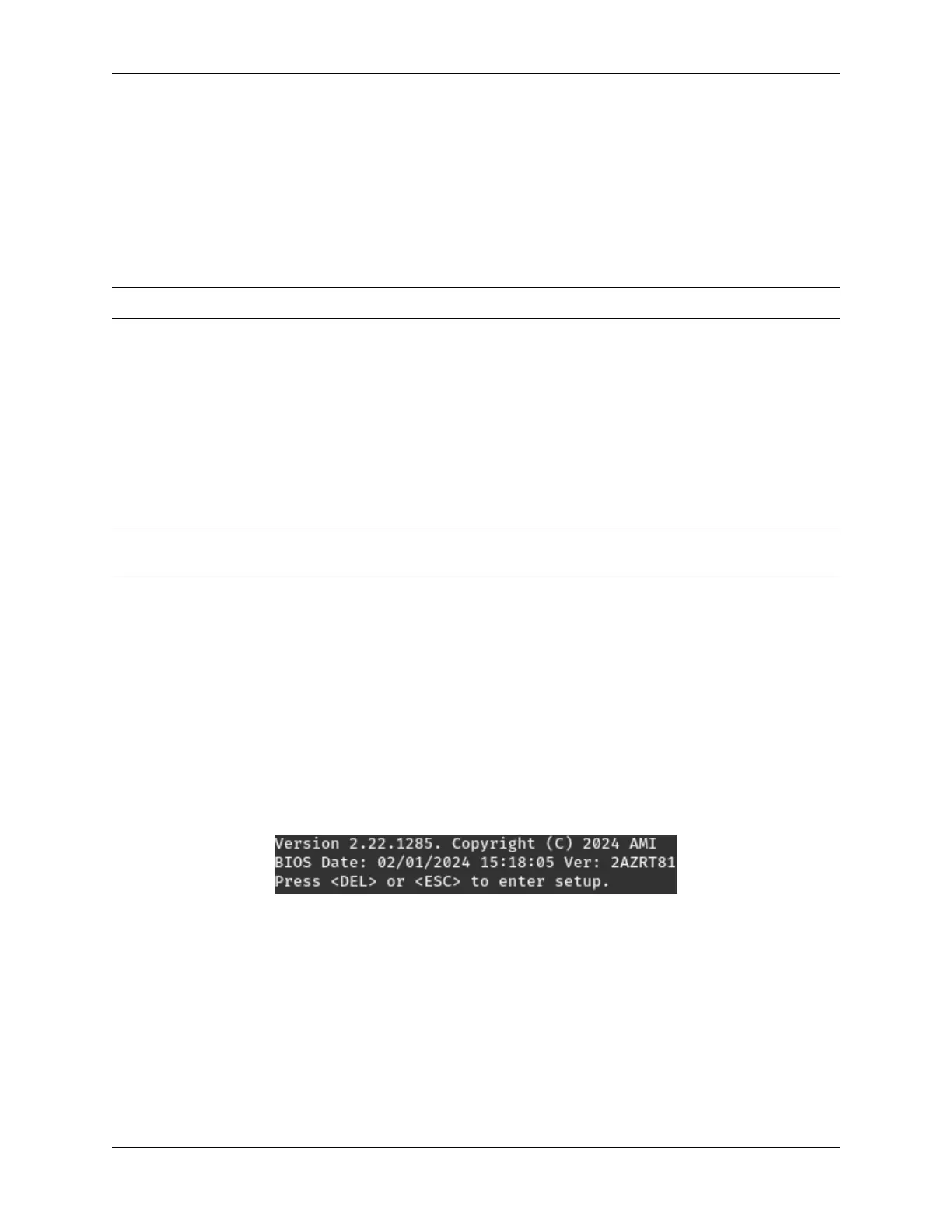
• During the boot sequence, press either the Del or Esc key when prompted to enter the BIOS.
Fig. 16: The Netgate 4200 BIOS Prompt
• Navigate to the Firmware Update tab.
The functions on this tab will update the BIOS as described in the next section.
© Copyright 2024 Rubicon Communications LLC 71


 To Next Page