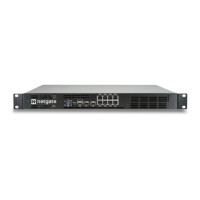
Security Gateway Manual Netgate-4200
Power Off and Disconnect
Installing the SSD requires removing the top of the case to expose the internal components. Before opening the case,
the Netgate 4200 must be completely disconnected from everything. This includes power, network cables, USB cables,
serial console cables, and any other cable or devices connected to the Netgate 4200.
Danger: Reminder:
• Anti-static protection must be used throughout this procedure.
• Any hardware damage incurred during this procedure is not covered by the hardware warranty.
1. Unplug the power cable
Danger: Wait at least 60 seconds after unplugging power to proceed. This ensures that all phantom power
has dissipated.
2. Unplug all network cables, USB cables and devices, serial console connections, etc.
3. Dismount the Netgate 4200 device if it is secured in some way (e.g. wall mount)
4. Move the Netgate 4200 to a safe work location such as an anti-static mat
Removing the Lid
The next portion of the procedure involves opening the device and removing the lid.
Danger: Reminder:
• Anti-static protection must be used throughout this procedure.
• Any hardware damage incurred during this procedure is not covered by the hardware warranty.
1. Remove the SIM card slot cover screw using the #1 Phillips head screwdriver.
2. Remove the SIM card slot cover.
3. Remove the SIM card slot retention screw using the #1 Phillips head screwdriver.
4. Turn the device over carefully and protect the surface to avoid damaging the vented lid of the device
Tip: An anti-static mat or similar non-marring work surface is ideal for this role.
5. Locate the four (4) T10 Torx pan head machine screws holding the plastic and rubber feet onto the chassis
6. Remove the four (4) T10 Torx pan head machine screws and washers holding the plastic and rubber feet using a
T10 Torx driver.
7. Remove the four (4) plastic and rubber feet.
8. Remove the four (4) long T10 Torx plas-tite threaded screws from the chassis corners using the T10 Torx driver.
9. Turn the device so the I/O panel (“rear” of the system) is visible.
10. Using fingers, gently pry the edge of the plastic lid away from the I/O panel, starting from either corner of the
device.
© Copyright 2024 Rubicon Communications LLC 79


 To Next Page