Security Gateway Manual XG-7100
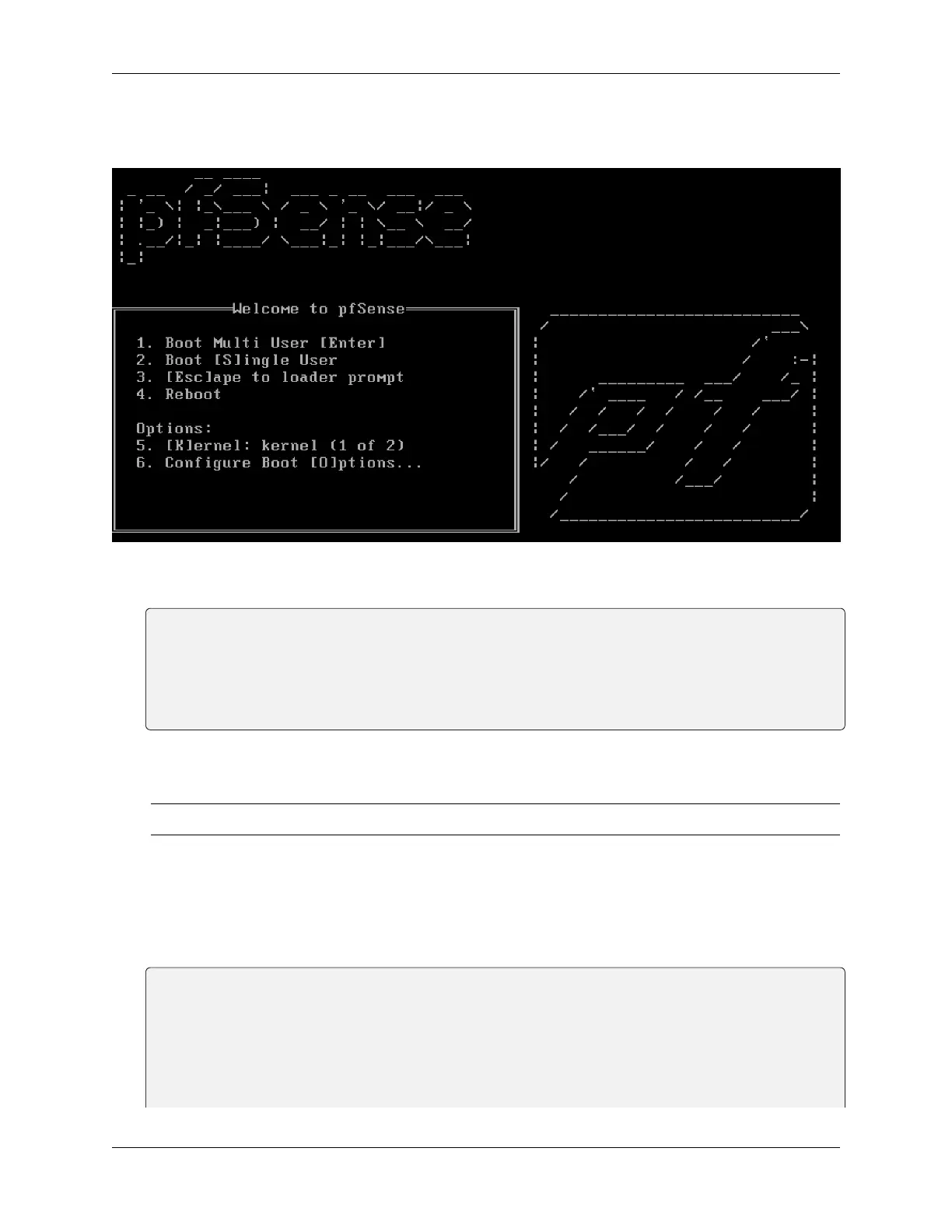
5. After a minute the pfSense
®
Plus loader menu will be displayed with a 3 second timer. Either allow the menu to
timeout or press 1 (the default) to continue.
6. Console options are presented for serial console installation. The default option is vt100, which should work
for most. Choose the correct console output most compatible with the serial client.
Please choose the appropriate terminal type for your system.
Common console types are:
ansi Standard ANSI terminal
vt100 VT100 or compatible terminal
xterm xterm terminal emulator (or compatible)
cons25w cons25w terminal
7. The installer will automatically launch and several options will be presented. On Netgate appliances, choosing
Enter for the default options will complete the installation process.
Note: Options such as the type of disk partition can be modified through this installation if required.
See also:
For more information on the available choices during this process, see the Installation Walkthrough.
8. Once the installer is finished, choose No and press Enter to skip going to a shell.
9. The installer will then prompt to Reboot. Select Reboot and press Enter. The device will shutdown and reboot.
Dec 21 22:41:37 Waiting (max 60 seconds) for system process `vnlru` to stop... done
Waiting (max 60 seconds) for system process `bufdaemon` to stop... done
Waiting (max 60 seconds) for system process `syncer` to stop...
Syncing disks, vnodes remaining... 0 0 done
All buffers synced.
Uptime: 5m43s
umass0: detached
(continues on next page)
© Copyright 2024 Rubicon Communications LLC 49



 To Next Page