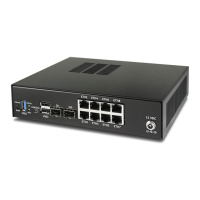
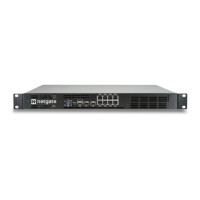
Security Gateway Manual XG-7100
Serial Output Stops After the BIOS
If serial output is shown for the BIOS but stops afterward, check the following items:
Terminal Speed
Ensure the terminal program is configured for the correct speed for the installed operating system. (See No Serial
Output)
Device OS Serial Console Settings
Ensure the installed operating system is configured to activate the serial console and that it is configured for
the proper console (e.g. ttyS1 in Linux). Consult the various operating install guides on this site for further
information.
Bootable Media
If booting from a USB flash drive, ensure that the drive was written correctly and contains a bootable operating
system image.
2.6 Reinstalling pfSense Plus Software
The best practice at this time is to use the Online Network Installer to install pfSense® Plus software. Most of the
document covers the former method which used separate hardware-specific installation image files.
1. Obtain an installation image.
Ideally, use the Online Network Installer which can be downloaded from the Netgate Store using a Netgate Store
Account without requesting assistance from TAC. After downloading the Online Network Installer image, move
ahead to the next step and continue following the steps to boot from USB. There is a warning message later in
this document at the point where readers should switch over to the Online Network Installer documentation.
To obtain the legacy Plus firmware image, please open a TAC ticket to request access by selecting Firmware
Access as the General Problem and then select Netgate 7100 Desktop for the platform. Make sure to include
the serial number in the ticket to expedite access.
Once the ticket is processed, the latest stable version of the firmware will be attached to the ticket, with a name
such as:
pfSense-plus-memstick-serial-24.03-RELEASE-amd64.img.gz
Note: pfSense
®
Plus is preinstalled on Netgate appliances, which is optimally tuned for Netgate hardware and
contains features that cannot be found elsewhere, such as ZFS Boot Environments, OpenVPN DCO, and the
AWS VPC Wizard.
2. Write the image to a USB memstick.
See also:
Locating the image and writing it to a USB memstick is covered in detail under Writing Flash Drives.
3. Connect to the console port of the Netgate device.
4. Insert the memstick into an open USB port and boot the device.
Warning: At this point, those using the Online Network Installer should follow that documentation for the
rest of the process. Only follow the remainder of this document for legacy firmware images.
© Copyright 2024 Rubicon Communications LLC 48



 To Next Page