18
OpenSPR 1-Channel Operation Manual V4.1.01
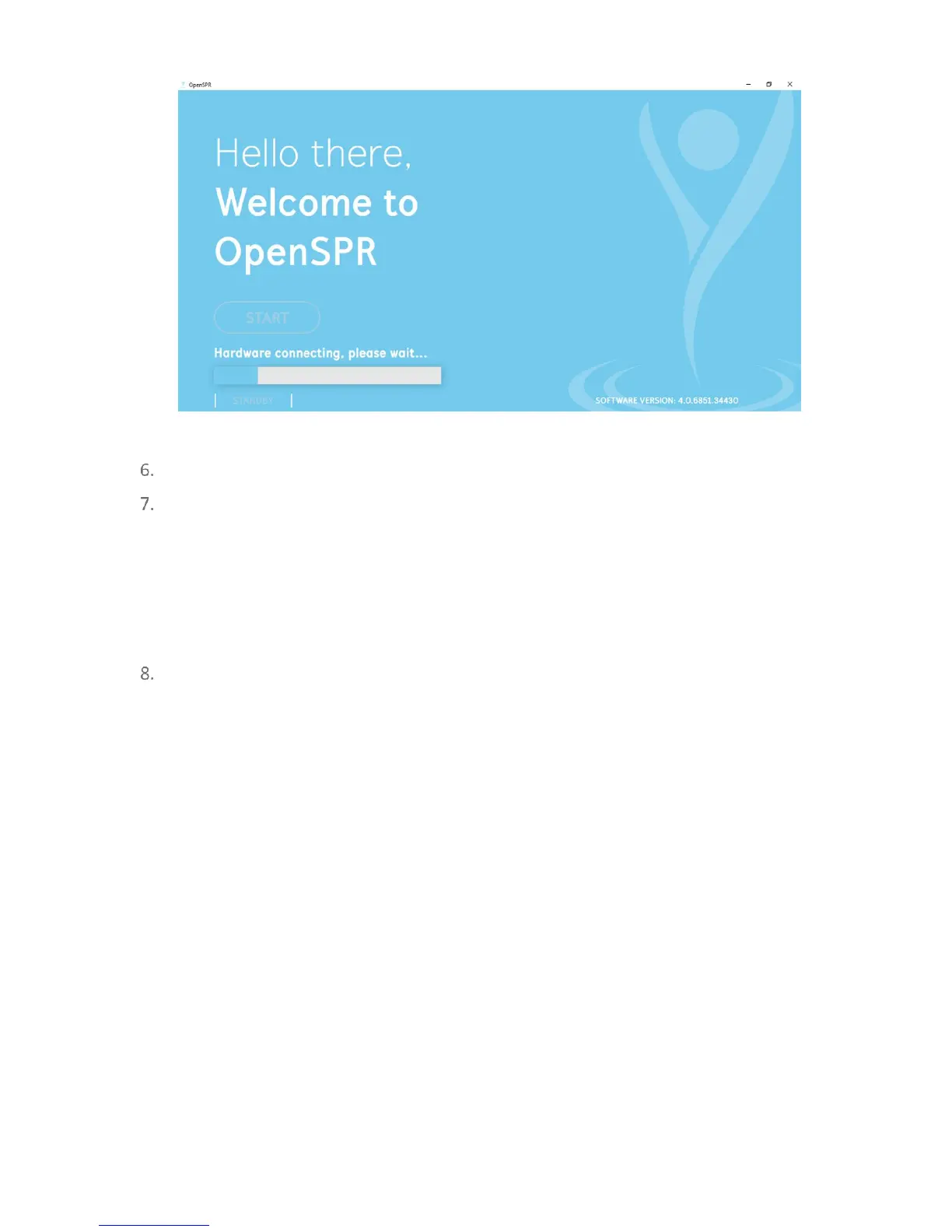
Figure 2.6 OpenSPR home screen with hardware connection in progress.
Once the connection is complete the Start button will be active.
If the communication connection is not able to be established, an error message will
appear in red. If this happens, unplug the USB connection to the computer, power cycle
the OpenSPR, then re-establish the USB connection. If the software is still unable to
connect, restart the software.
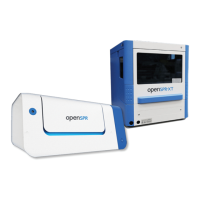
Tip: to power off the OpenSPR, hold the power button down for 10 seconds until the power LED
turns off
Click “Start” to enter the software. The software will walk you through the Instrument
Setup, and Sensor Setup procedures prior to collecting your data – see sections below for
details.
2.3 Instrument Setup
When entering the OpenSPR Software, you will begin on the Instrument Setup Screen [Figure
2.7]. This screen will allow you to indicate your running buffers used for your test, prime the
fluidics of the OpenSPR, as well as setup optical references. Full details for each of these
procedures are provided in the sections below.


 To Next Page