EasyManua.ls Logo

Nikon COOLPIX P340 - User Manual

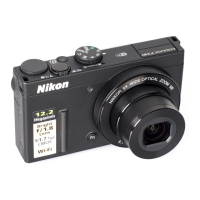
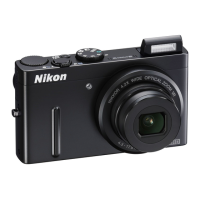
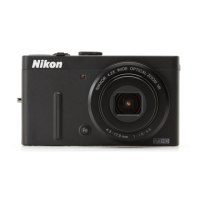
Nikon COOLPIX P340
292 pages
Print Icon
To Next Page IconTo Next Page
Loading...
Nikon
Quick
Start Guide
Confirming
the
Package Contents 3
First Steps 5
Shooting and Playback
13
Using ViewNX 2 19
Other
Functions
25
For Your Safety 33

Table of Contents

Other manuals for Nikon COOLPIX P340

Questions and Answers

  • J
    Jacob KingAug 30, 2025
    How to fix images that are too bright (overexposed) on my Nikon COOLPIX P340?
    • J
      James StewartAug 30, 2025
      If your Nikon Digital Camera images are too bright, adjust the exposure compensation. Alternatively, use the Built-in ND filter setting found in the shooting menu.
  • J
    Jillian GreeneAug 29, 2025
    How to fix images that are too dark (underexposed) on my Nikon COOLPIX P340 Digital Camera?
    • B
      Belinda BlevinsAug 29, 2025
      If your Nikon Digital Camera images are too dark, check if the flash window is blocked or if the subject is too far for the flash. You can also adjust exposure compensation or increase ISO sensitivity. If the subject is backlit, raise the flash or select the Backlighting scene mode. Also, ensure that the Built-in ND filter in the shooting menu is not enabled.
  • L
    lisa51Aug 28, 2025
    Why Nikon COOLPIX P340 Digital Camera battery cannot be charged when inserted in the camera?
    • P
      Perry CooperAug 29, 2025
      If the battery in your Nikon Digital Camera isn't charging, first confirm all connections. When connected to a computer: ensure 'Charge by computer' is not set to Off in the setup menu; note that charging stops if the camera is turned off; charging is impossible if the camera’s display language and date/time haven't been set, or were reset after the clock battery was exhausted (use the charging AC adapter in this case); charging may stop if the computer is in sleep mode; and depending on computer specifications, charging might not be possible.
  • J
    Jamie HughesSep 12, 2025
    Why is the date not imprinted on images even when Print date is enabled on my Nikon COOLPIX P340?
    • Q
      qhenrySep 12, 2025
      If the date isn't imprinted on your Nikon Digital Camera images even with Print date enabled, the current shooting mode might not support it, a function restricting Print date might be enabled, or you're trying to imprint the date on movies (which isn't possible).
  • D
    Donald TurnerSep 15, 2025
    What to do if my Nikon Digital Camera is on but does not respond?
    • N
      nathaniel16Sep 15, 2025
      First, wait for any recording to finish. If the issue continues, turn the Nikon Digital Camera off. If it still doesn't turn off, remove and reinsert the battery or batteries. If you're using an AC adapter, disconnect and reconnect it. Note that while any data being recorded will be lost, previously recorded data will remain unaffected.
  • J
    Jessica FloresSep 22, 2025
    What to do if the PictBridge screen is not displayed when Nikon COOLPIX P340 Digital Camera is connected to a printer?
    • C
      Cindy WilsonSep 22, 2025
      With some PictBridge-compatible printers, the PictBridge screen may not be displayed and it may be impossible to print images when Auto is selected for the Charge by computer option on your Nikon Digital Camera. Set the Charge by computer option to Off and reconnect the camera to the printer.
  • M
    Michelle BrownAug 27, 2025
    Why Nikon Digital Camera cannot focus?
    • S
      Scott RobertsAug 27, 2025
      Your Nikon Digital Camera might not be able to focus because the subject is too close. Try using the Scene auto selector, Close-up scene mode, or the macro close-up focus mode. Also, check the focus mode setting. If the subject is hard to focus on, set AF assist to Auto in the setup menu. Ensure the subject is in the focus area when pressing the shutter-release button halfway. If the focus mode is set to E (manual focus), try turning the camera off and then on again.
  • K
    Kelly WillisAug 26, 2025
    Why Nikon COOLPIX P340 cannot be turned on?
    • M
      Mark WardAug 26, 2025
      The battery of your Nikon Digital Camera might be exhausted. Note that when the charging AC adapter is connected, the camera cannot be turned on using the power switch. The camera turns on in playback mode by pressing and holding down the c (playback) button, but shooting is not possible in this mode.
  • E
    Emily Green DDSAug 26, 2025
    Why won't my Nikon COOLPIX P340 Digital Camera turn on?
    • K
      Kaylee PierceAug 26, 2025
      If your Nikon Digital Camera won't turn on, the battery is likely exhausted. Note that when the charging AC adapter is connected, the camera cannot be turned on using the power switch. You can enter playback mode by pressing and holding the playback button, but shooting isn't possible in this state.
  • L
    Lisa BoydAug 25, 2025
    Why won't the battery charge in my Nikon COOLPIX P340 Digital Camera?
    • G
      Gabriel CoxAug 26, 2025
      If the battery in your Nikon Digital Camera isn't charging, first, confirm all connections. When connected to a computer, charging may be disabled if 'Charge by computer' is set to Off in the setup menu, if the camera is turned off, or if the camera’s display language and date/time haven't been set or were reset. Use the charging AC adapter to charge the battery in these cases. Charging may also stop if the computer is in sleep mode or may not be possible depending on the computer's specifications.

Summary

First Steps

Insert the Battery and the Memory Card

Guidance on correctly inserting the battery and memory card into the camera.

Charge the Battery

Step-by-step instructions for charging the camera's battery using the AC adapter.

Turn the Camera On

Procedure for powering on the digital camera and checking initial indicators.

Shooting and Playback

Focus and Shoot

Steps for focusing on the subject and capturing the image.

Play Back Images

Instructions on how to access and view captured images on the camera.

Using ViewNX 2

Transferring Images to the Computer

Instructions for copying images from the camera to a computer via USB.

Other Functions

Selecting a Shooting Mode

Explanation of available shooting modes and how to select them.

Using Menus (the MENU Button)

Guide to navigating and using the camera's menu system.

Playback Mode

Details on operations available in the camera's playback mode.

For Your Safety

WARNINGS

Critical safety warnings including malfunction, disassembly, and gas hazards.

Caring for the Camera

Wi-Fi (Wireless LAN Network)

Precautions when Using Radio Transmissions

Information and Precautions

Use Only Nikon Brand Electronic Accessories

Importance of using genuine Nikon accessories to avoid damage and voiding warranty.

Parts of the Camera and Main Functions

The Camera Body

Identification of the main external parts of the Nikon COOLPIX P340 camera.

Principle Functions of the Controls

For Shooting

Explanation of controls and their functions during shooting.

For Playback

Using Menus (the MENU Button)

The Monitor

The Basics of Shooting and Playback

Preparation 1 Insert the Battery

Steps to insert the battery correctly into the camera.

Preparation 2 Charge the Battery

Instructions for charging the camera battery using the AC adapter.

Preparation 3 Insert a Memory Card

Guidance on inserting and formatting a memory card for the camera.

Step 1 Turn the Camera On

Procedure for turning on the camera and initial setup.

Setting the Display Language, Date, and Time

Guide to setting the camera's language, date, and time.

Step 2 Select a Shooting Mode

Instructions on selecting the appropriate shooting mode.

Step 4 Focus and Shoot

Steps for focusing and capturing an image.

Step 5 Play Back Images

Instructions on how to view captured images.

Shooting Features

A (Auto) Mode

Details on using the camera's automatic shooting mode.

Scene Mode (Shooting Suited to Scenes)

Explanation of scene modes for optimizing settings for specific situations.

Special Effects Mode (Applying Effects When Shooting)

Guide to applying creative effects during the shooting process.

P, S, A, M Modes (Setting the Exposure for Shooting)

Manual control over exposure settings like shutter speed and aperture.

Exposure

Explanation of how to adjust exposure settings for desired image brightness.

Functions Available in P, S, A, M Modes

Overview of settings configurable in manual exposure modes.

Functions That Can Be Set Using the Multi Selector

Functions configurable via the multi selector across different modes.

Using the Flash

Instructions on raising and setting the built-in flash for shooting.

The Flash Mode Setting

Details on available flash modes and their compatibility with shooting modes.

Shooting Smiling Faces Automatically (Smile Timer)

How to use the smile timer for automatic shooting when a smile is detected.

Using Focus Mode

Instructions for selecting the appropriate focus mode based on the subject.

Available Focus Modes

Description of different autofocus and manual focus modes.

Taking Images with Manual Focus

Steps for manually focusing and capturing images.

Adjusting Brightness (Exposure Compensation)

How to adjust overall image brightness using exposure compensation.

Functions That Can Be Set with the MENU Button (Shooting Menu)

Overview of settings configurable via the shooting menu.

Functions That Can Be Set with the Control Ring

Details on functions that can be assigned to the control ring.

Using the Control Ring in A (Auto), P, S, A, M, U Modes

How to use the control ring in various shooting modes.

Functions That Can Be Set with the Fn (Function) Button

Customizing the Fn button for quick access to specific functions.

Focusing

Explanation of focus area modes and target finding AF.

Using Face Detection

How the camera uses face detection for automatic focusing.

Subjects Not Suitable for Autofocus

Conditions where autofocus may not perform as expected.

Focus Lock

Technique for locking focus to enable creative composition.

Playback Features

Playback Zoom

Instructions on zooming in and out of images during playback.

Functions That Can Be Set with the MENU Button (Playback Menu)

Overview of settings configurable via the playback menu.

Recording and Playing Back Movies

Recording Movies

Steps for starting, pausing, and ending movie recording.

Functions That Can Be Set with the MENU Button (Movie Menu)

General Camera Setup

Functions That Can Be Set with the MENU Button (Setup Menu)

Overview of settings configurable via the camera's setup menu.

Using the Wi-Fi (Wireless LAN) Function

Connecting the Smart Device to the Camera

Connecting the Camera to a TV, Computer, or Printer

Transferring Images to the Computer

Shooting

Playback

Menu

Additional Information

Error Messages

Troubleshooting guide for common error messages and their solutions.

Shooting with Easy Panorama

Editing Still Images

Quick Retouch: Enhancing Contrast and Saturation

D-Lighting: Enhancing Brightness and Contrast

Filter Effects: Applying Digital Filter Effects

NRW RAW (NRW) Processing: Creating JPEG Images from NRW Images

Connecting the Camera to a Printer (Direct Print)

Editing Movies

The Shooting Menu (P, S, A or M Mode)

Image Size

Picture Control (COOLPIX Picture Control)

Customizing Existing COOLPIX Picture Controls: Quick Adjust and Manual Adjust

Custom Picture Control (COOLPIX Custom Picture Control)

White Balance (Adjusting Hue)

Metering

Continuous Shooting

Pre-shooting Cache

ISO Sensitivity

Exposure Bracketing

AF Area Mode

Target finding AF (default setting)

Camera automatically detects and focuses on the main subject.

Using Subject Tracking

Autofocus Mode

Active D-Lighting

Multiple Exposure

Multiple Exposure Shooting

Print Order (Creating a DPOF Print Order)

Copy (Copy Between Internal Memory and Memory Card)

The Movie Menu

Frame Rate

The Wi-Fi Options Menu

The Setup Menu

Time Zone and Date

Monitor Settings

Print Date (Imprinting Date and Time on Images)

Vibration Reduction

Format Memory;Format Card

Charge by Computer

Reset All

Error Messages

Technical Notes and Index

Troubleshooting

Solutions for common problems encountered with the camera.

The Camera

Do Not Drop

Warning against subjecting the product to strong shock or vibration.

Handle the Lens and All Moving Parts with Care

Precautions for handling delicate camera parts like the lens and monitor.

Keep Dry

Instructions to protect the device from water and high humidity.

Do Not Point the Lens at Strong Light Sources for Extended Periods

Warning against pointing the lens at the sun to prevent sensor damage.

Turn the Product off Before Removing or Disconnecting the Power Source or the Memory Card

The Battery

Charging AC Adapter

Memory Cards

Cleaning

Troubleshooting

Power, Display, Settings Issues

Troubleshooting common power, display, and settings problems.

Shooting Issues

Troubleshooting common problems encountered during shooting.

Specifications

Wireless LAN

Rechargeable Li-ion Battery EN-EL12

Charging AC Adapter EH-71 P

IMPORTANT SAFETY INSTRUCTIONS - SAVE THESE INSTRUCTIONS.

DANGER - TO REDUCE THE RISK OF FIRE OR ELECTRIC SHOCK, CAREFULLY FOLLOW THESE INSTRUCTIONS.

Nikon Inc. CAMERA;ACCESSORY ONE YEAR USA LIMITED WARRANTY

This is your Nikon Inc. Camera;Accessory One Year USA Limited Warranty

Details of the limited warranty coverage for Nikon products in the USA.

Nikon COOLPIX P340 Specifications

General IconGeneral
Megapixel12.2 MP
Camera typeCompact camera
Sensor typeCMOS
Image stabilizerYes
Total megapixels12.76 MP
Image sensor size1/1.7 \
Image formats supportedJPG, RAW
Supported aspect ratios1:1, 3:2, 16:9
Maximum image resolution4000 x 3000 pixels
Image stabilizer locationLens
Still image resolution(s)4000 x 3000\\r 3984 x 2656\\r 3968 x 2232\\r 3264 x 2448\\r 3000 x 3000\\r 2272 x 1704\\r 1920 x 1080\\r 1600 x 1200\\r 640 x 480
Optical zoom5 x
Focal length range5.1 - 25.5 mm
Maximum aperture number5.6
Minimum aperture number1.8
Number of diaphragm blades7
Lens structure (elements/groups)7/6
Maximum focal length (35mm film equiv)120 mm
Minimum focal length (35mm film equiv)24 mm
FocusTTL
Focus adjustmentAuto/Manual
Normal focusing range0.3 - ∞, 0.5 - ∞ m
Auto focusing (AF) modesContrast Detection Auto Focus, Spot Auto Focus
Macro focusing range (wide)0.02 - ∞ m
Normal focusing range (tele)0.5 - ∞ m
Normal focusing range (wide)0.3 - ∞ m
Light meteringCentre-weighted, Matrix, Spot
ISO sensitivity80, 3200, 6400, 25600, Auto
Light exposure modesAperture priority AE, Auto, Manual, Shutter priority AE
ISO sensitivity (max)25600
ISO sensitivity (min)80
Light exposure controlProgram AE
Light exposure correction± 2EV (1/3EV step)
Camera shutter typeElectronic, Mechanical
Fastest camera shutter speed1/4000 s
Slowest camera shutter speed60 s
Flash modesAuto, Flash off
Flash range (tele)0.5 - 2.5 m
Flash range (wide)0.5 - 6.5 m
Power source typeBattery
Video resolutions320 x 240, 640 x 480, 1280 x 720, 1920 x 1080 pixels
Motion JPEG frame rate120 fps
Video formats supportedAVC, H.264, MOV, MPEG4
Maximum video resolution1920 x 1080 pixels
Analog signal format systemNTSC, PAL
Resolution at capture speed1280x720@25fps, 1280x720@50fps, 1920x1080@15fps, 1920x1080@30fps, 1920x1080@60fps, 640x480@120fps, 640x480@25fps, 640x480@30fps
Audio systemstereo
Audio formats supportedLPCM, WAV
Memory slots1
Internal memory56 MB
Compatible memory cardsSD, SDHC, SDXC
Field of view100 %
Display diagonal3 \
Display resolution (numeric)921000 pixels
USB version2.0
HDMI connector typeMini
Wi-Fi standards802.11b, 802.11g
Scene modesBacklight, Beach, Close-up (macro), Dawn, Dusk, Fireworks, Food, Museum, Night landscape, Night portrait, Panorama, Party (indoor), Pet, Portrait, Snow, Sports, Sunset, Landscape (scenery)
Image editingCrop, Resizing
Photo effectsBlack&White
White balanceAuto, Cloudy, Daylight, Flash, Fluorescent, Incandescent, Manual
Shooting modesAperture priority, Auto, Movie, Program, Scene, Shutter priority
Self-timer delay2, 10 s
Camera file systemDCF, DPOF, Exif 2.3
On Screen Display (OSD) languagesARA, BUL, CHI (SIMPL), CHI (TR), CZE, DAN, DEU, DUT, ENG, ESP, FIN, FRE, GRE, HUN, IND, ITA, JPN, KOR, NOR, PER, POL, POR, RUM, RUS, SER, SWE, THA, TUR, UKR, VIE
Battery typeEN-EL12
Battery recharge time1.83 h
Battery life (CIPA standard)220 shots
Product colorBlack
Operating temperature (T-T)0 - 40 °C
Weight and Dimensions IconWeight and Dimensions
Depth32 mm
Width103 mm
Height58.3 mm
Weight (including battery)194 g

Related product manuals