Ol)tions Available in Live View
II~
Color
Sketch
1
Select live
view.
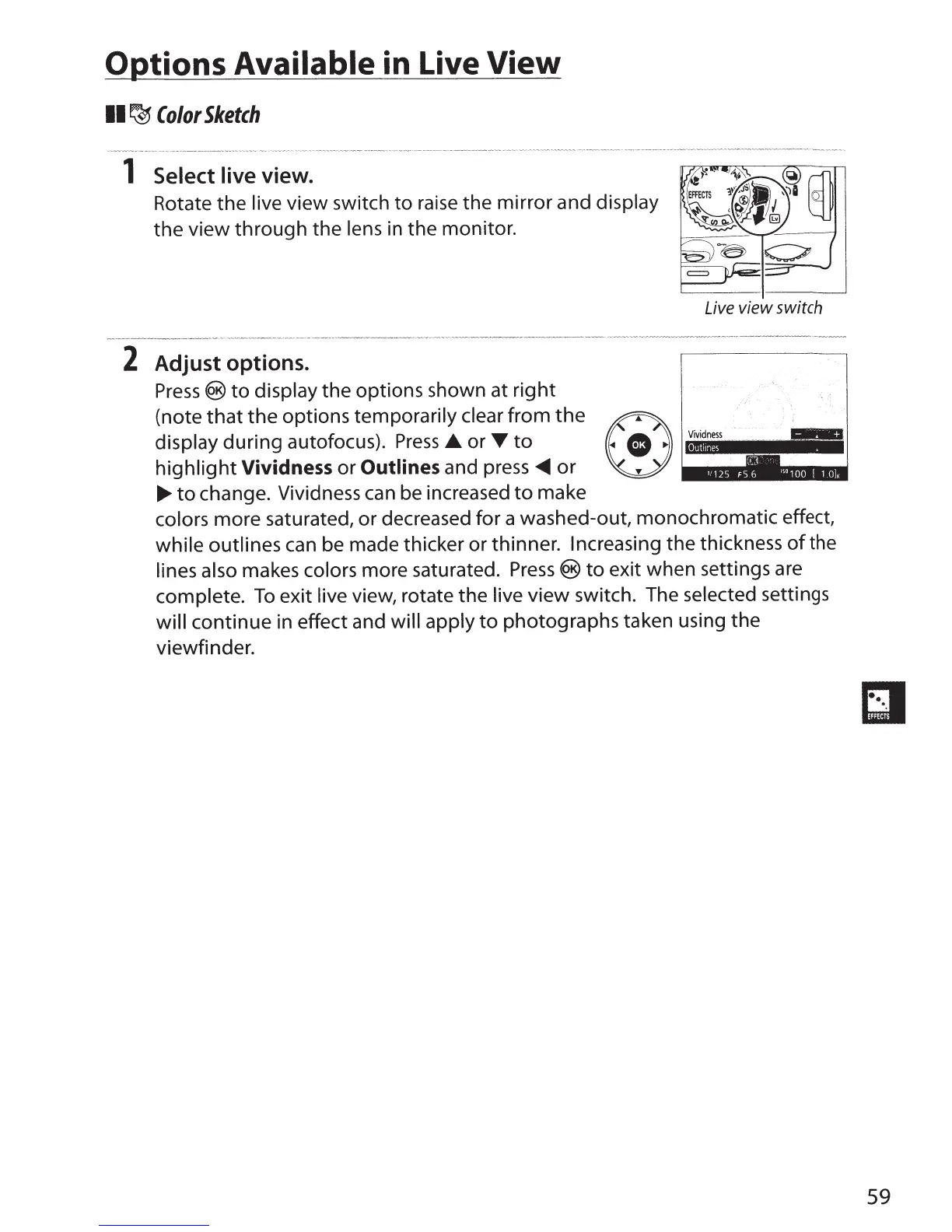
Rotate the
live
view switch
to
raise
the mirror and
display
the
view
through
the
lens in the monitor.
2
Adjust options.
Press®
to
display
the options shown
at
right
display
during
autofocus).
Press
• or
T
to
,.
""
Live
view switch
(note
that
the
options temporarily clear
from
the
(!)~
.·...
...
highlight
Vividness
or
Outlines
and
press~
or
••a
~to
change. Vividness can be increased
to
make
colors more saturated,
or
decreased for a washed-out, monochromatic effect,
while outlines can be made thicker or
thinner. Increasing the thickness
of
the
lines also
makes
colors
more saturated.
Press®
to
exit when settings are
complete.
To
exit
live view, rotate the
live
view switch. The
selected
settings
will
continue in effect and
will apply
to
photographs taken using the
viewfinder.
59



 To Next Page