© 2005-2016 Nira Control AB 59
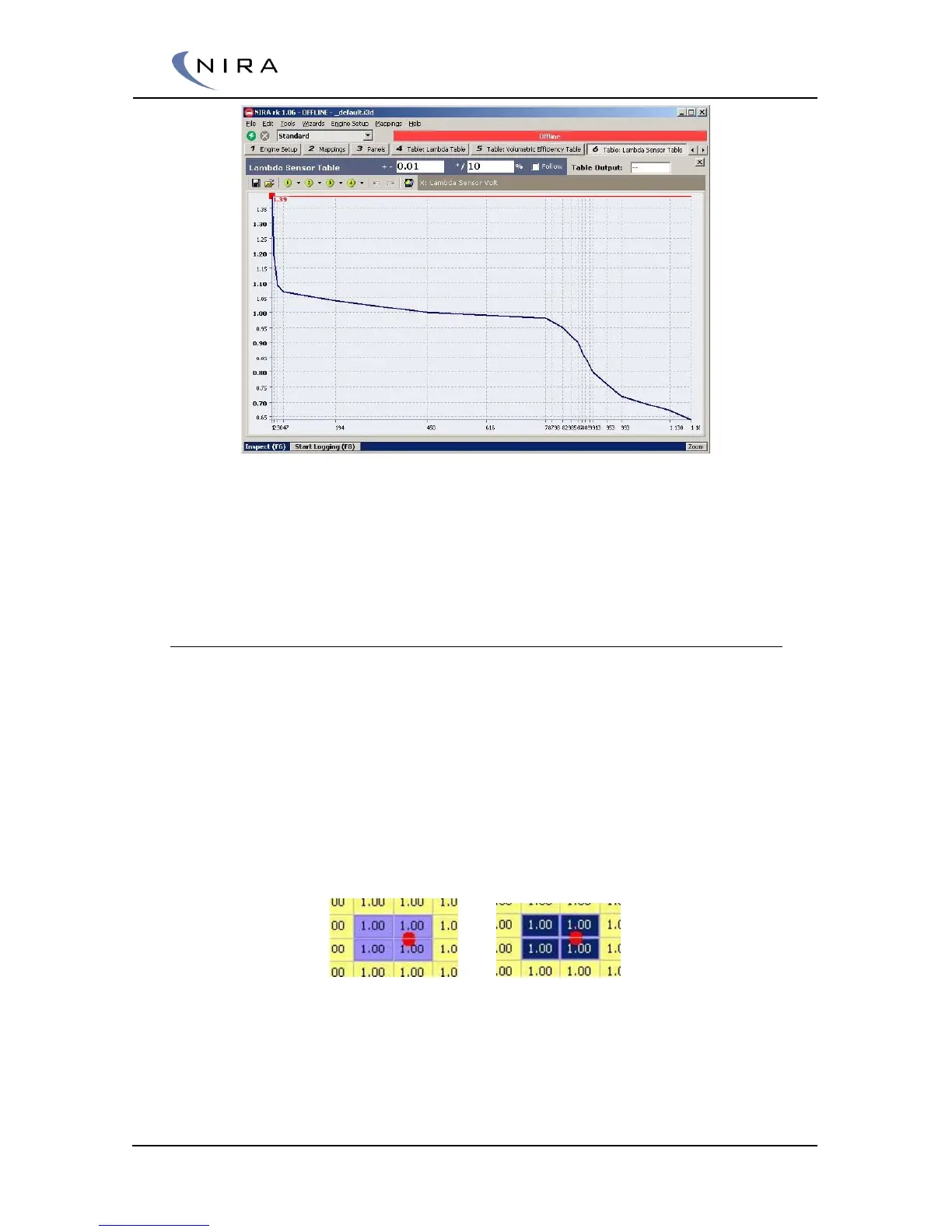
Picture 4-18: F5 or the "Toggle Graphics"-button switches to a graphical view of the table.
This is a one-dimensional table.
While in the graphical view, it’s possible to move among the cells and
change their value with the + and – keys, just like in the table view.
Operating Point
When NIRA i7x is online, NIRA rk can show where in a table NIRA i7x is
currently operating, the so-called operating point. This is very helpful during
the calibration effort.
By checking the ”Follow” checkbox or turning this feature on/off with O,
NIRA rk can move the currently highlighted cell to the operating point.
By hitting Space on the keyboard, you can manually move to the operating
point. This affects all open tables such that the focus of each table moves to
the operating point. If you want to modify multiple tables around the
operating point, this can be very useful.
Picture 4-19: Jumping to the operating point using the Space key.
If ”Follow” is enabled (see above), or if you use Space to jump to the
operating point, four cells around the operating point will be highlighted.
The operating point is marked as a red bullet. If you use the +, –, / or * keys to


 To Next Page