© 2005-2016 Nira Control AB 47
4.3 Using NIRA rk
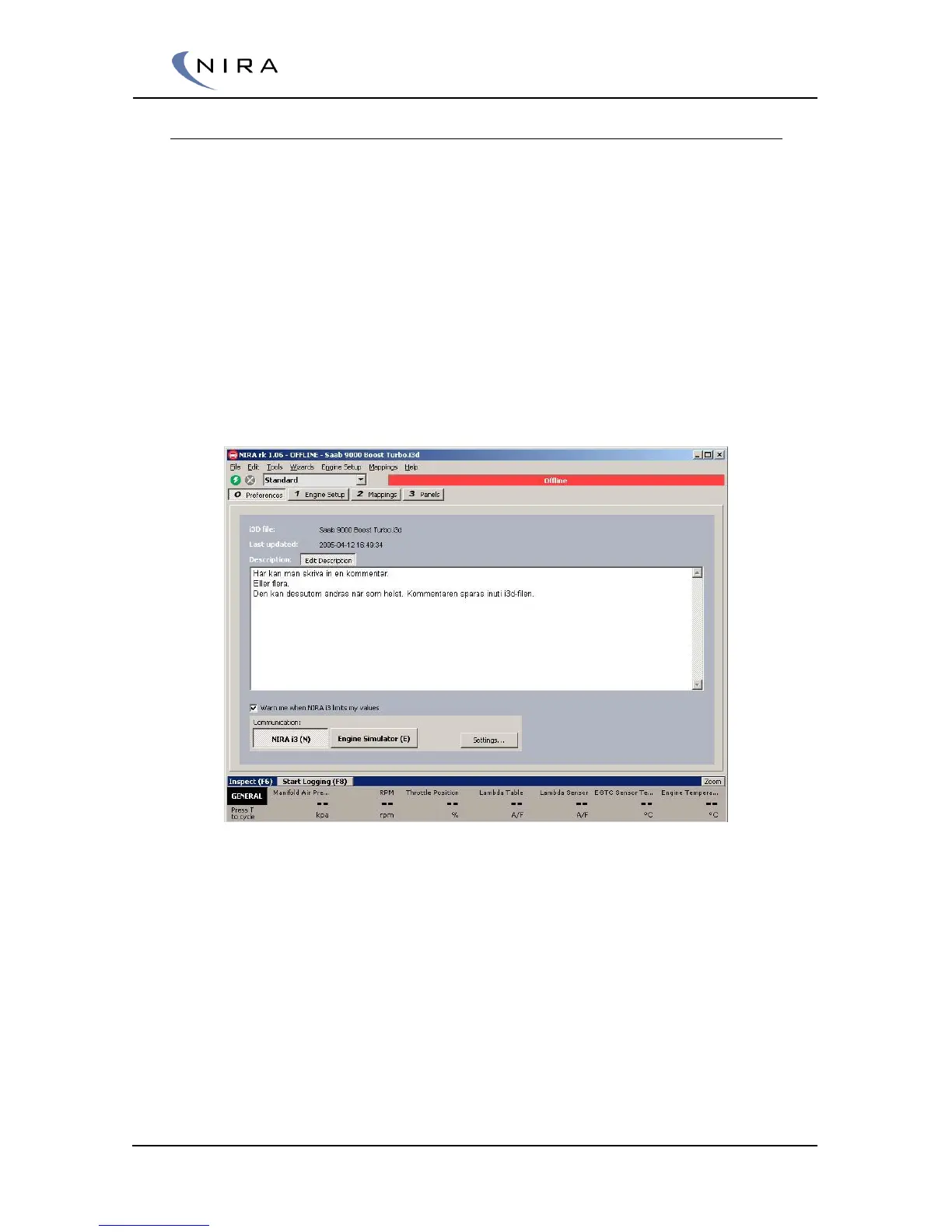
Once you have selected and loaded an i3d-file, NIRA rk takes you to the
Preferences window (Picture 4-5.) This screen tells you when the i3d-file was
last saved on your computer’s file system and you can add comments.
At the top of the main program window, below the main menu, is a red bar
with the word Offline in it. This status bar shows the state of the connection
to NIRA i7x. In order to go online and be able to upload mapping data to
NIRA i7x, you first have to go through all steps of all NIRA i7x Engine Setup
Wizards.
It’s also possible to read any mappings already in NIRA i7x. (“Read from
NIRA i7x” under “File” in the main menu.) Only use this option if you’ve
previously gone online with NIRA i7x.
Picture 4-5: The “Preferences” tab lets you add comments and choose whether you want to
simulate engine running values (Engine Simulator) or connect to NIRA i7x.
Before attempting to connect to NIRA i7x, ensure that the drivers for the
Kvaser USB-CAN dongle are installed on your computer. These drivers are
available on the USB stick delivered together with NIRA i7x.
If you can’t connect to NIRA i7x, check the connection settings by clicking on
”Settings…”. This lets you choose the port to which NIRA i7x is connected.
You can also launch ”Auto Find Target”, which searches all ports and selects
the one to which NIRA i7x is connected.


 To Next Page