© 2005-2016 Nira Control AB 68
Data from multiple parameters can share the same plot window. Each
parameter has its own, adjustable y-axis at the left edge of the window.
Adjusting the View
There are multiple tools available to zoom and pan. Click and drag on an axis
to pan. Zoom by moving the mouse perpendicularly against an axis.
It’s also possible to adjust the range of an axis by double clicking on the axis
or by clicking on the Set-button at the bottom of each axis.
Removing an Axis
Removing an axis (and the associated sampled parameter) can be done by
clicking on the X at the top right corner of the axis in question. You can
deactivate an axis by un-checking the checkbox to the immediate left of the
Set-button at the bottom of the axis.
Adding an Axis
To add an axis, click on .
4.8 Locking the i3d Data Set
Protect the i3d data file by choosing File Lock i3d Data Set… A password
can be entered that will disable access to the calibration data developed,
unless the password is entered when the data is loaded to NIRA rk.
4.9 FlexiPorts™ - Set up
Example for setting up a FlexiPort for boost controller.
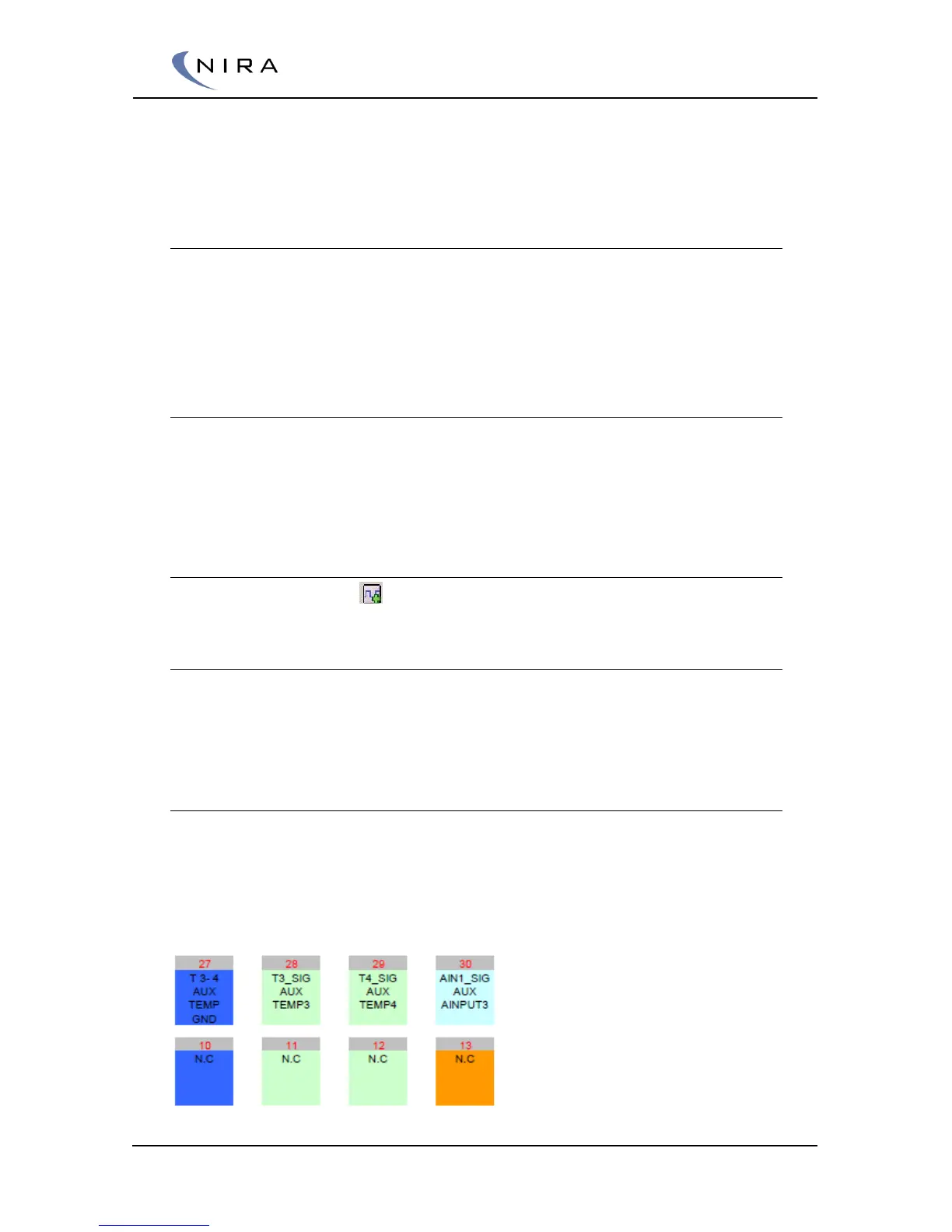
Choose one of the auxiliary temperature inputs and install a switch or
potentiometer to that input.
I.e pin 28. Named T3 in Nira rk.


 To Next Page