© 2005-2016 Nira Control AB 65
4.7 Logging
NIRA rk includes a powerful logging feature. Any parameter can be logged
and there’s no limit to the number of parameters that can be logged.
However, as the number of parameters increases, the sampling rate
decreases.
The log can be saved to a file and shown graphically.
4.7.1 Inspect
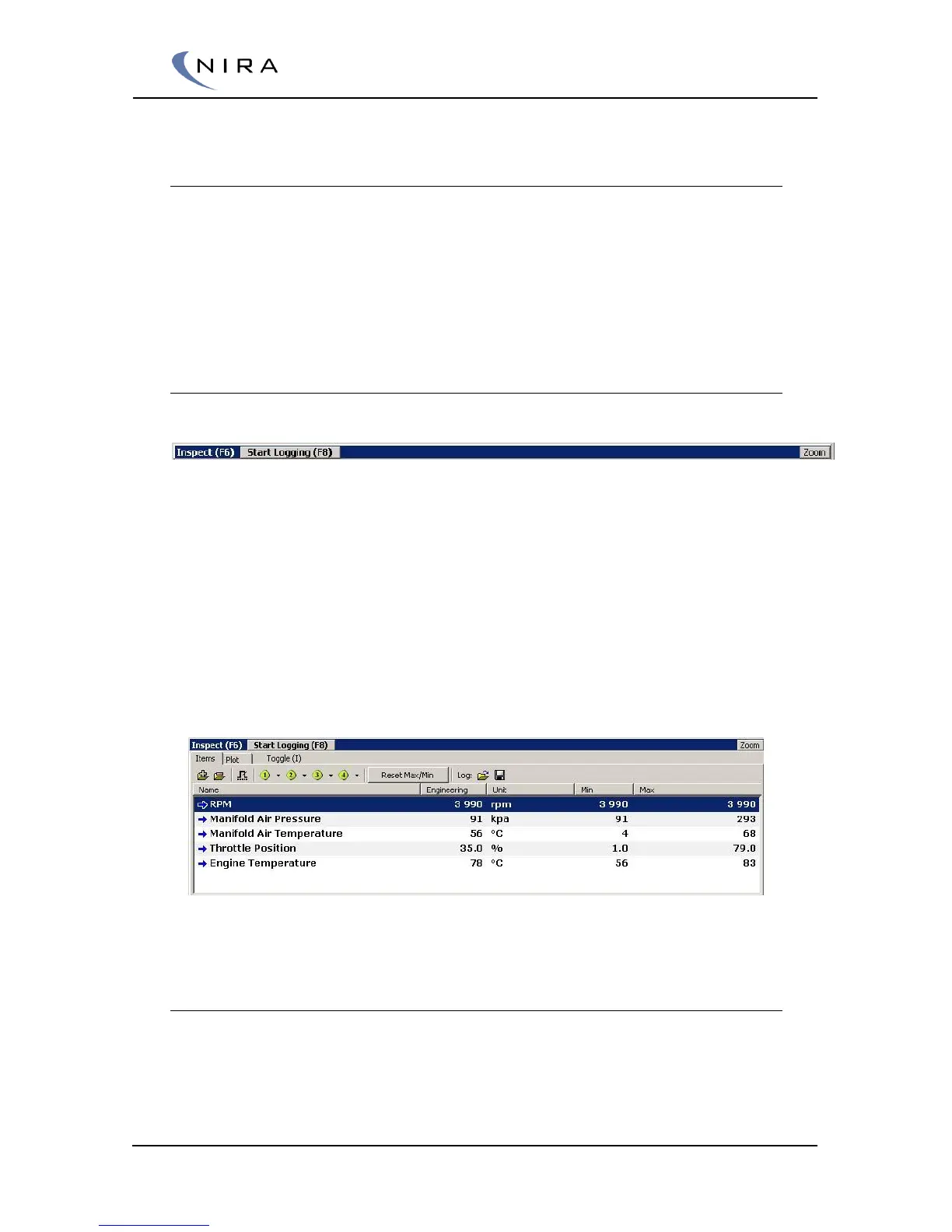
At the heart of the logging function is a function called Inspect. Inspect
allows you to select a set of parameters at which you want to take a closer
look, e.g. by logging them.
Parameters being inspected are shown with min and Max values, even when
actual logging isn’t active. This can be useful when you calibrate your engine.
Inspect resides in a separate window at the bottom of the screen. The
window has three display modes; full view, partial view and minimized view.
You can cycle through the modes with F6, or by clicking on the Zoom button
at the far right of the Inspect window. You can also resize it by clicking and
dragging the top of the window up and down.
Picture 4-24: Inspect. Cycle through the different display modes using F6 or the Zoom
button.
Selecting Parameters
To add a parameter to the Inspect window, highlight it in the Mappings tab
and click on the ”Add to Inspect” button at the top of the window,
alternatively hit I on the keyboard.


 To Next Page