© 2005-2016 Nira Control AB 66
If you would like to add more parameters from within the Inspect window,
you can use the -button. To remove a parameter, use the Del key on the
keyboard or use the -button.
Saving/Opening Presets
It’s possible to save parameter selections and assign them to the four round,
green buttons at the top of the Inspect window. By clicking on the arrow to
the immediate right of a button, a menu will open up giving you the option
of assigning the parameter selection to the button.
NIRA rk comes with four different parameter selections already assigned to
the four buttons.
4.7.2 Basic Logging
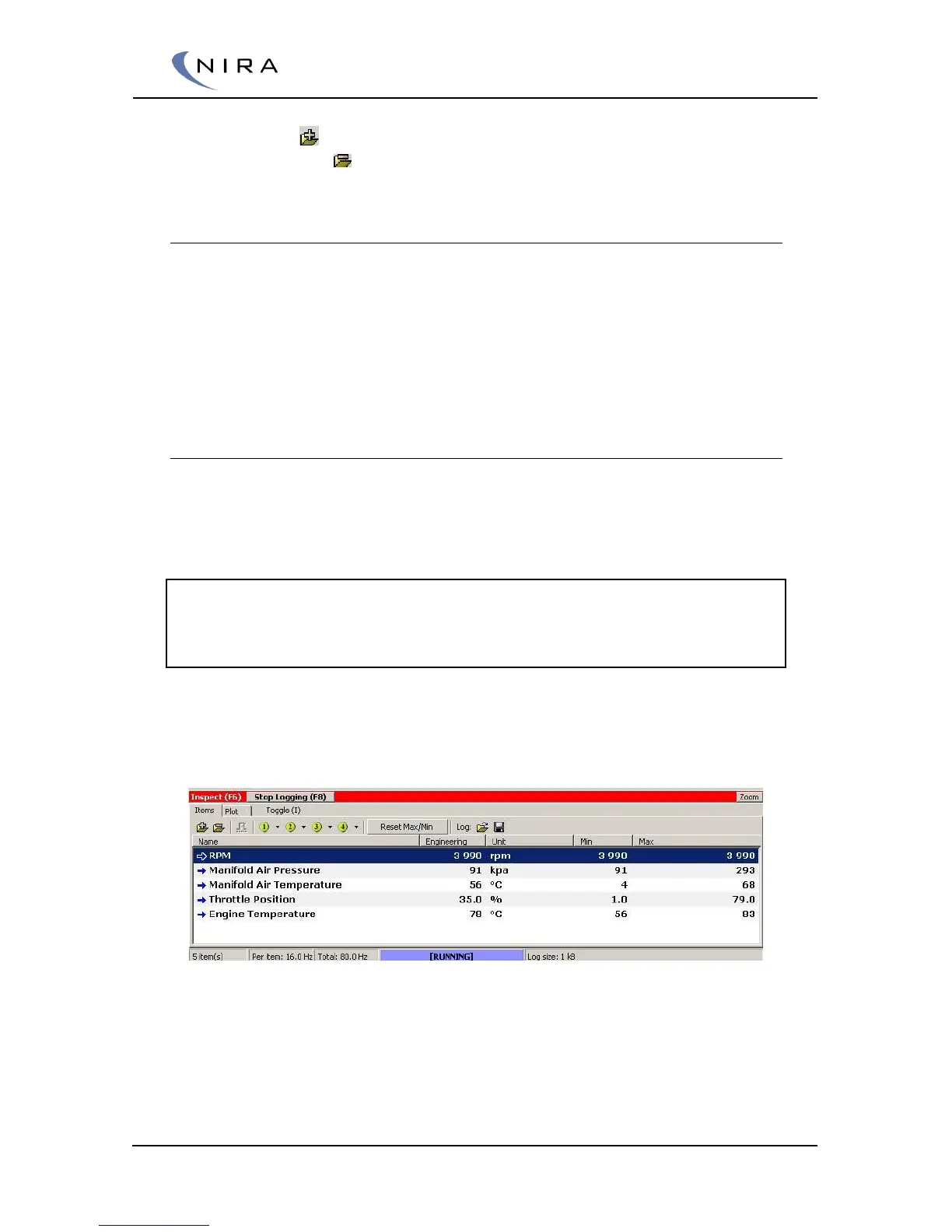
To start logging of the parameters in Inspect, hit F8 on the keyboard. This
can be done from anywhere in NIRA rk, whether you’re calibrating a table,
showing gauges or reading help screens.
Note: When logging is active, no parameters are updated in NIRA rk. The
reason is that NIRA rk instead tries to sample the logging parameters as fast
as possible. The operating point is updated, though, and all alarms are still
active.
Parameter values that aren’t being updated while logging is active change to
dashes, "--", so you can always trust any number that’s shown.
Picture 4-25: The top of the Inspect window turns red when logging is active.
To stop logging, hit F8 on the keyboard. This will also open up a dialog box,
which gives you the option of saving the log as a file for later analysis.


 To Next Page