Setting up your receiver
OCEASOFT LoRaWAN Receiver User Guide Page 23
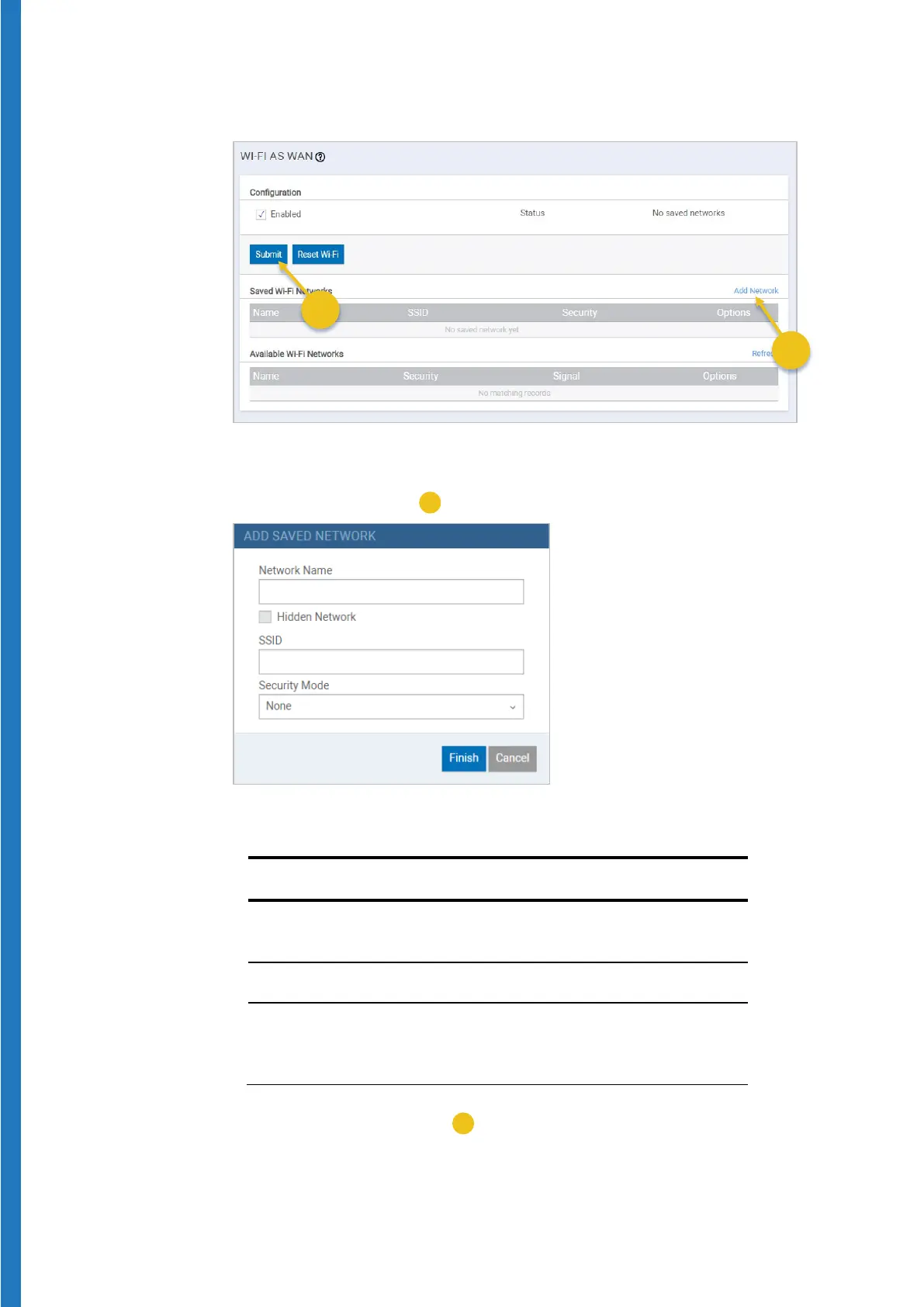
2. Click on Wireless Wi-Fi as WAN, as shown here:
Figure 18 – Adding a Wi-Fi network
3. Click on
Add Network (
) and fill in the information as required:
Figure 19 – Wi-Fi network settings
Network Name Assign a “friendly” name for the
network.
SSID Enter the exact real network name.
Security Mode Choose the security and key
encryption methods used by your Wi-
Fi network
4. Click on
Finish Submit (
) to save your settings, then click on Save
and Restart to complete configuration. This process may take several
minutes to complete.


 To Next Page