Setting up your receiver
OCEASOFT LoRaWAN Receiver User Guide Page 24
Workaround for Wi-Fi connection with static IP address
As of this writing, the OCEASOFT LoRaWAN receiver does not support the use of a
static IP address for Wi-Fi communications.
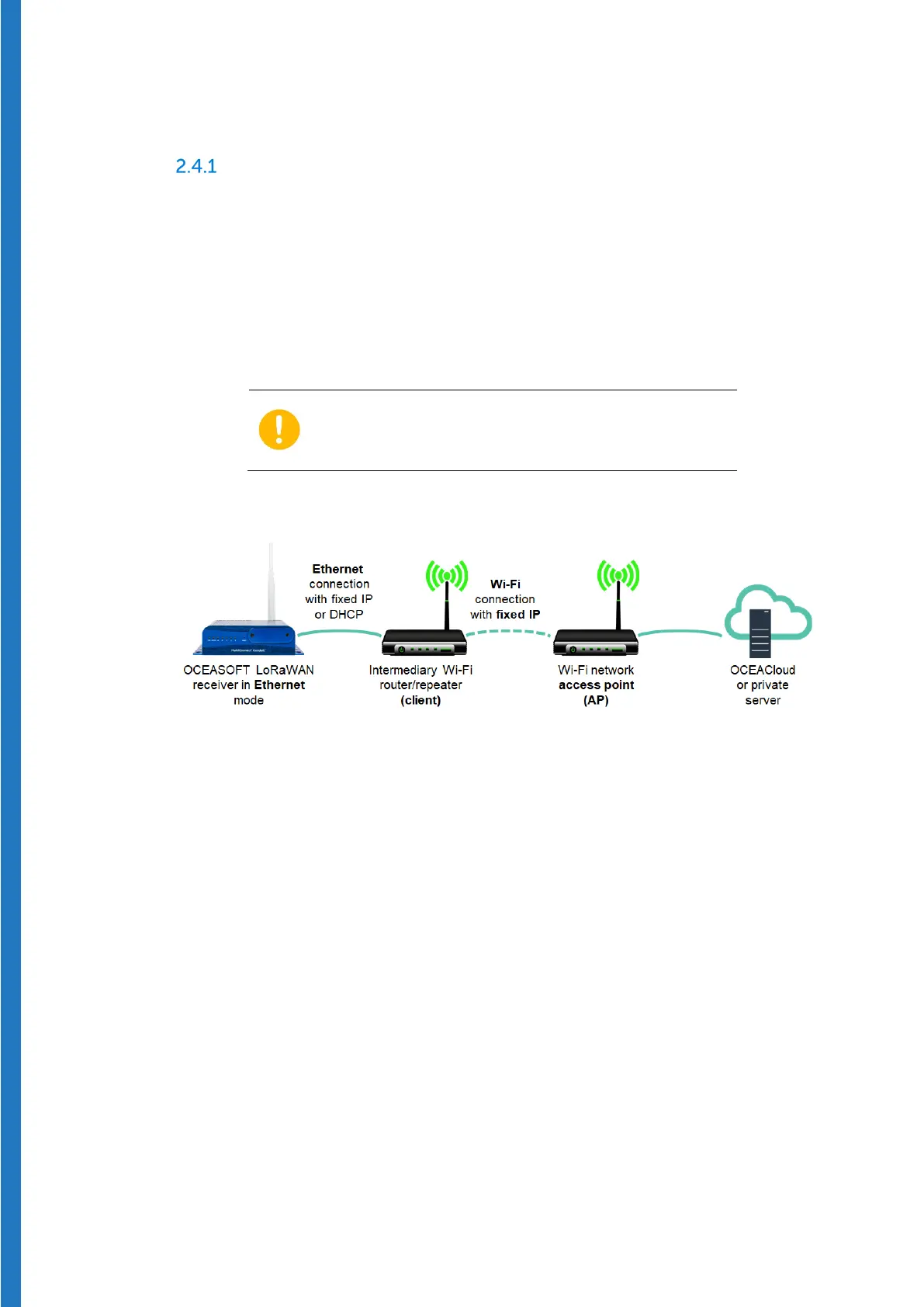
If you need to use your OCEASOFT LoRaWAN receiver in Wi-Fi mode with a static
IP address, you must implement a workaround solution using an intermediary Wi-
Fi repeater or router whose setup allows a fixed IP address, as shown below, to
connect to your network.
The Wi-
Fi router or repeater must also support
being configured as a Wi-Fi client
connect to your organization’s Wi-Fi access point.
Figure 20 – Using an intermediary Wi-Fi router or repeater to provide a
static IP address
To implement this workaround:
1. Set up an intermediary Wi-Fi router/repeater whose configuration options
allow you to set a static IP address for connecting to your network. That
device must also be configurable as a Wi-Fi client (and not just as an access
point (AP).
2. Connect the router to your network.
Note: We recommend that you test the router using a laptop computer
plugged into an Ethernet port (as the OCEASOFT LoRaWAN receiver will be)
3. Set up the OCEASOFT LoRaWAN receiver to use an
Ethernet connection
(as described in section 2.3 – Ethernet connection to your network, p. 20)
either with a static IP address or using DHCP, according to your
requirements.
4. Connect the OCEASOFT LoRaWAN receiver to the Wi-Fi router using an
Ethernet cable.


 To Next Page