Setting up your receiver
OCEASOFT LoRaWAN Receiver User Guide Page 33
If you enter a domain name rather than an IP address, the
DHCP client in the receiver must be able to resolve the name
to connect to the Internet.
3. Assuming your receiver is correctly connected to the network (as described
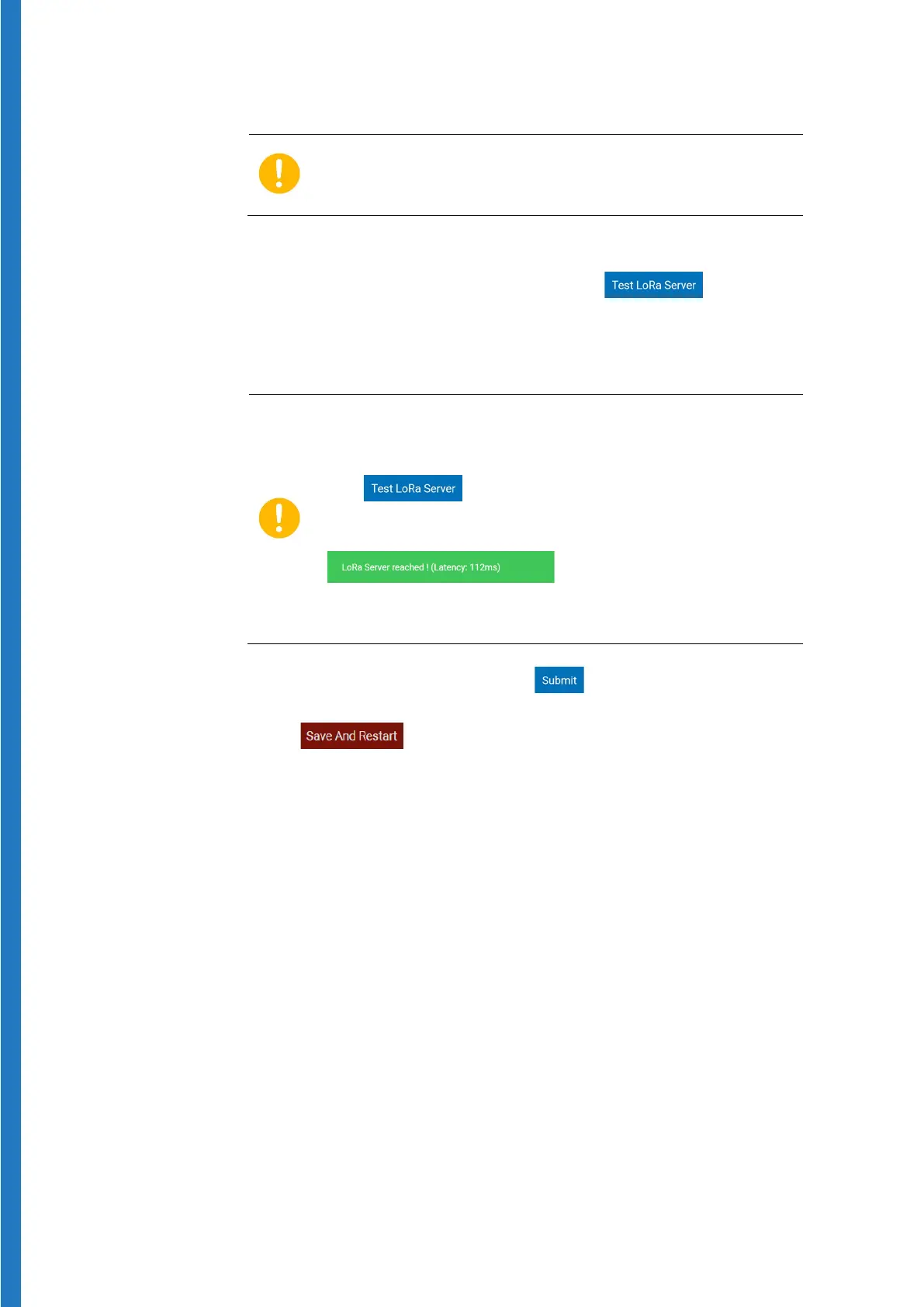
in the previous sections), you may click on the
button in the
lower right-hand corner to verify the connection between the receiver and
the OCEAView platform. This function only works if your network is
configured properly.
Your receiver must have a reasonably fast Internet
connection to operated correctly and avoid communication
errors.
The function must show a maximum latency
time of 200 ms. The latency is indicated on the screen as
shown here:
If the latency value is higher than 200 ms, please check with
your IT department to increase speed for the receiver.
4. When the test has succeeded, click on to apply your changes
5. You must restart gateway services for the settings to be saved.
Click on (left-hand side of the screen) to save and restart the
gateway. This process may take several minutes to complete.
6. Once the services are restarted, LoRaWAN networking status is updated.


 To Next Page