EasyManua.ls Logo

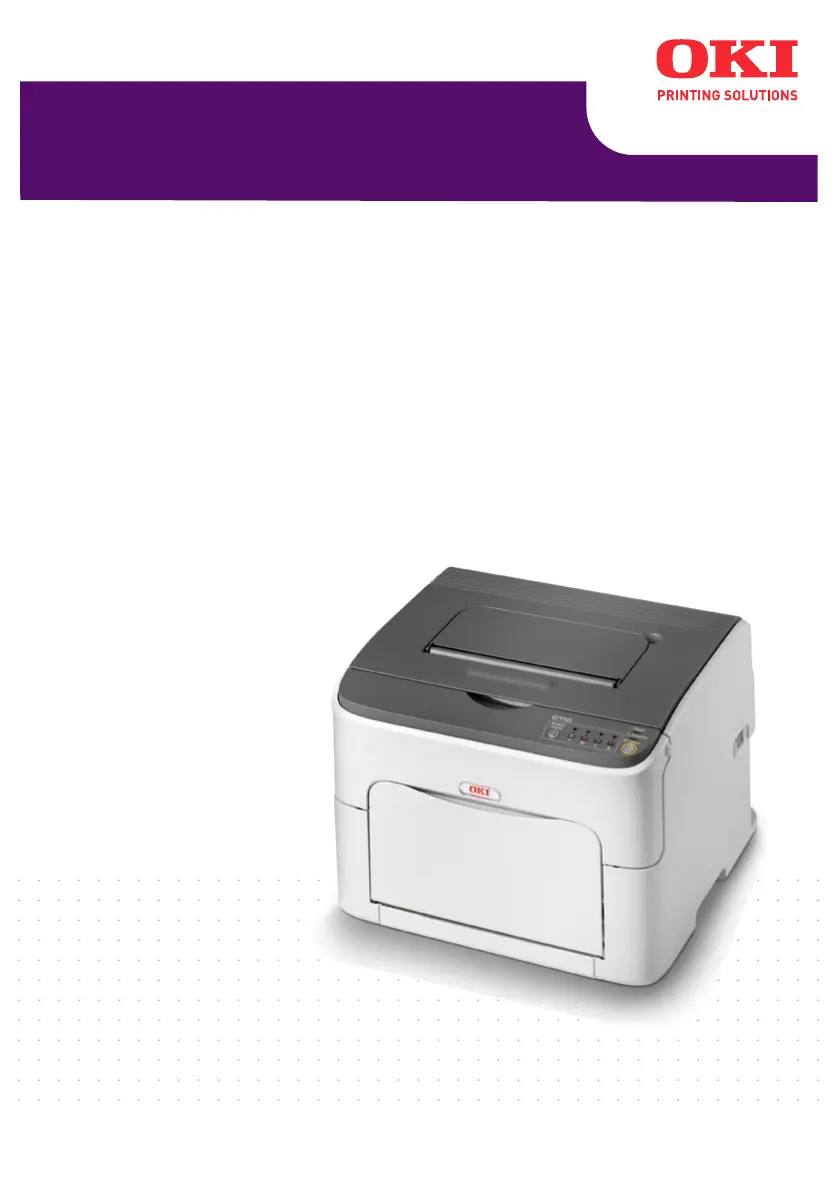
Oki C110 - User Manual

Oki C110
115 pages
Print Icon
To Next Page IconTo Next Page
Loading...
C110
User’s Guide

Table of Contents

Other manuals for Oki C110

Questions and Answers

  • Q
    qwoodSep 2, 2025
    What causes Oki Printer to reset frequently?
    • D
      Dylan WilliamsSep 2, 2025
      If your Oki Printer is resetting or turning off frequently, begin by ensuring the power cord is correctly plugged into the outlet. Turn off the printer, confirm the cord is secure, and then turn the printer back on. If the issue continues, it may indicate a system error, in which case you should contact Technical Support with the error information.
  • C
    Charles SmithSep 1, 2025
    Why is my Oki Printer's image too light?
    • A
      Audrey HernandezSep 1, 2025
      If your Oki Printer is printing images that are too light or have low image density, several factors could be responsible. First, clean the print head window. If the issue persists, check if the media is moist and replace it with dry media. Additionally, the toner cartridge may be low; try replacing it. Defective toner cartridges can also cause this issue, so inspect them for damage. Finally, ensure the media type is correctly set in the printer driver, especially when printing labels, postcards, thick stock, or letterheads.
  • S
    Samantha McdanielAug 31, 2025
    Why does my Oki C110 reset or turn off frequently?
    • T
      tsimpsonAug 31, 2025
      If your Oki Printer resets or turns off frequently, confirm that the power cord is correctly plugged into the outlet. If the issue persists, contact Technical Support with the error information, as a system error may have occurred.
  • A
    Angel RussellAug 30, 2025
    How to stop my Oki Printer from feeding multiple sheets at once?
    • J
      Joshua BryantAug 30, 2025
      If several sheets go through the Oki Printer together, remove the media and even up the front edges, then reload it. Also, if the media is moist from humidity, remove it and replace it with new, dry media.
  • C
    colin87Aug 29, 2025
    Why is my Oki C110 not printing all pages?
    • T
      Travis WagnerAug 29, 2025
      If not all pages are printing from your Oki Printer, make sure no one pressed the Cancel key while your job was printing. Also, check that the trays are loaded with media, in place, and secure. If you are printing a document with an overlay file, ensure it was created with a suitable printer driver.
  • P
    pgilesAug 28, 2025
    What to do if my Oki C110 Printer is misfeeding?
    • L
      Larry HarveyAug 28, 2025
      If the Oki Printer media is misfeeding, first ensure the media is correctly positioned in the tray. If there are too many sheets, remove the excess media. Also, check that the media guides are adjusted to the media size. If you are using warped or wrinkled media, remove it, smooth it out, and reload it. If you're using label sheets, load them according to the manufacturer’s instructions.
  • P
    pinedajoanAug 27, 2025
    Why is my Oki C110 Printer printing blank pages or with blank spots?
    • K
      Kristine ReyesAug 27, 2025
      If nothing is printing or there are blank spots on the page from your Oki Printer, the toner cartridges may be defective, so remove them and check for damage. The imaging cartridge could also be defective, so remove it and check for damage, replacing it if necessary. Humidity can affect the media, so ensure you are using dry media. Also, verify that the media type set in the printer driver matches the media loaded in the printer. Ensure that the power source matches the printer specifications. If several sheets are feeding at once, remove the media and check for static electricity. Fan the paper and realign the media guides in the tray.
  • E
    Edward VillarrealAug 26, 2025
    Why is my Oki C110 Printer printing nothing?
    • W
      William WalkerAug 27, 2025
      If your Oki Printer is not printing anything, or there are blank spots on the printed page, it could be due to several reasons. First, check the toner cartridges for damage. If they are fine, inspect the imaging cartridge for defects and replace if necessary. Ensure the media is not moist; if it is, replace it with dry media. Verify that the media set in the printer driver matches the media loaded in the printer. Also, confirm that the power source matches the printer specifications. If multiple sheets are being fed at once, remove the media and check for static electricity, fanning the paper before replacing it. Finally, ensure the media is properly set in the tray, straightening it out and realigning the media guides if needed.
  • B
    Billy CruzAug 25, 2025
    What to do if my Oki C110 is misfeeding media?
    • K
      Kathryn MorrisonAug 26, 2025
      If your Oki Printer is experiencing media misfeeds, it could be due to several reasons. First, remove the misfed media and reposition the media properly in the tray. If that doesn't work, check the following: 1. Ensure that the number of sheets in the tray does not exceed the maximum allowed. 2. Adjust the media guides in Tray 1 to match the size of the media. 3. Make sure warped or wrinkled media is not loaded in the tray. 4. If using label sheets, ensure they are loaded according to the manufacturer’s instructions. 5. Unsupported media is not being used. Consult “Print Media” on page 30. 6. The media feed roller is clean. For more details, refer to “Interior” on page 69.
  • C
    Cathy GardnerAug 25, 2025
    Why is my Oki Printer printing blank pages?
    • R
      Russell RussellAug 25, 2025
      If your Oki Printer is printing blank pages, one or more of the toner cartridges may be defective or empty, so check the toner cartridges. Also, the wrong media may be in use, so check that the media type set in the driver matches the media loaded in the printer.

Summary

4 Media Handling

Loading Media

Step-by-step instructions for loading various types of media into the printer trays.

5 Replacing Consumables

Replacing a Toner Cartridge

Detailed procedure for replacing individual toner cartridges in the printer.

Replacing the Imaging Cartridge

Instructions for safely removing and installing the printer's imaging cartridge.

Replacing the Fuser Unit

Guidance on replacing the fuser unit, including crucial safety warnings about heat.

6 Maintenance

Cleaning the Printer

Procedures for cleaning the printer's exterior and interior components.

7 Troubleshooting

Preventing Media Misfeeds

Best practices and tips to avoid paper jams and misfeeds during printing operations.

Indicator Messages

Explanation of printer status, warning, error, and service messages displayed by indicators.

Clearing Media Misfeeds

Step-by-step guide on how to safely remove misfed media without causing damage.

Solving Problems with Media Misfeeds

Troubleshooting common symptoms, causes, and solutions for media misfeed issues.

Oki C110 Specifications

General IconGeneral
ColorYes
Duplex printingNo
Maximum resolution600 x 1200 DPI
Time to first page (black, normal)13 s
Time to first page (color, normal)22 s
Print speed (black, normal quality, A4/US Letter)19 ppm
Print speed (color, normal quality, A4/US Letter)5 ppm
Internal memory16 MB
Sound power level (standby)29 dB
Sound pressure level (printing)51 dB
Total input capacity200 sheets
Total output capacity100 sheets
Maximum print size216 x 356 mm
ISO A-series sizes (A0...A9)A4, A5
ISO B-series sizes (B0...B9)B5
Maximum ISO A-series paper sizeA4
Supported media weight(s)60/209 g/m²
Compatible operating systemsWindows 2000 / XP / XP x64 / Vista (32 bit) / Vista (64 bit) / Server 2003 / Server 2003 x64 / Server 2008 / Server 2008 x64
Maximum operating temperature range (T-T)10 - 35 °C
Recommended operating temperature range (T-T)15 - 25 °C
Maximum duty cycle250 pages per month
Sustainability certificatesENERGY STAR
Power consumption (printing)440 W
Power consumption (PowerSave)14 W
Storage temperature (T-T)-20 - 40 °C
Storage relative humidity (H-H)10 - 95 %
Operating relative humidity (H-H)15 - 85 %
Weight and Dimensions IconWeight and Dimensions
Dimensions (WxDxH)396 x 380 x 275 mm

Related product manuals