Loading paper > 18
M
ULTI
PURPOSE
TRAY
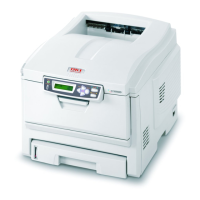
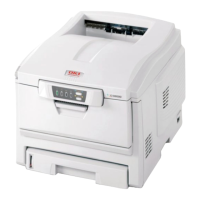
1. Open the multi purpose tray (a).
2. Fold out the paper supports (b).
3. Press
gently down on the paper p
latform (c) to ensure it is latched down.
4. Load the paper and
adjust the paper guides (d) to the size of paper being used.
> For single-sided printing on headed paper load the paper into the multi purpose
tray
with pre-printed side up and top edge into the printer.
> For two-sided (duplex) printing on headed paper load the paper wit
h pre-printed
side down and top edge away from the printer.
> Envelopes should be loaded face up with top edge to the left and short
edge into
the printer. Do not select duplex printing on envelopes.
> Do not exceed the paper capacity of about 100 sheets or 10 envelopes. Maximum
stacking depth i
s 10mm.
5. Press the tray latch
button inwards to release the paper platform, so that the paper
is lifted and gripped in place.
6. Set the correct paper size for the multi pu
rpose tray in the Media Menu.
NOTE
> Do not press the paper from the top or pull the paper by
holding it while
the printer is printing from the MP tray. If you want to stop printing, open
the output tray.
> F
or instructions on how to remove the paper, refer to “Clearing paper
jams” on page 71.



 To Next Page