EasyManua.ls Logo

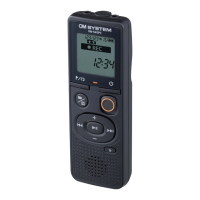
OM SYSTEM VN-541PC - User Manual

OM SYSTEM VN-541PC
42 pages
Print Icon
To Next Page IconTo Next Page
Loading...
Thank you for purchasing our company’s digital voice recorder.
Please read these instructions for information about using the product correctly and safely.
Keep the instructions handy for future reference.
To ensure successful recording, we recommend that you test the record function and volume
before use.
If there are additions and/or modifications of functions due to firmware update for the
recorder, the contents will differ. For the latest information, please visit our website.
Getting started
Recording
Playback
Editing
Use with a PC
Other information
1
2
3
4
5
6
VN-541PC
VN-540PC
DIGITAL VOICE
RECORDER
USER MANUAL
EN

Questions and Answers

  • M
    Melanie CostaAug 16, 2025
    How to fix inaudible playback on OM SYSTEM Voice Recorder?
    • N
      Natasha JonesAug 16, 2025
      If your OM SYSTEM Voice Recorder playback is inaudible, first, ensure that earphones are not connected to the jack if you intend to use the built-in speaker; disconnect them. Second, check the volume level and adjust it if it is set to [00].
  • K
    Kelly MccartyAug 19, 2025
    How to eliminate noise during playback on OM SYSTEM Voice Recorder?
    • J
      Juan DavisAug 19, 2025
      If you're experiencing noise during playback on your OM SYSTEM Voice Recorder, it might be due to a couple of reasons: * Objects brushed against the voice recorder while recording. Try your best not to touch the voice recorder during recording. * The voice recorder was placed near a mobile phone or fluorescent light during recording or playback. Redo the operation with the voice recorder in a different location.
  • A
    Angel TaylorAug 22, 2025
    Why can't I record on my OM SYSTEM Voice Recorder?
    • M
      Mary RobertsAug 22, 2025
      If you are unable to record with your OM SYSTEM Voice Recorder, it may be due to: * There is no remaining memory. Erase unnecessary files. * The maximum number of recordable files (199) has been reached. Erase unnecessary files.
  • B
    Brenda SmithAug 25, 2025
    How to fix a recording that is too quiet on OM SYSTEM Voice Recorder?
    • S
      Scott MeyerAug 26, 2025
      If the recording on your OM SYSTEM Voice Recorder is too quiet, the output level of the connected external device may be too low. Adjust the output level of the external device.
  • K
    Kimberly HoffmanAug 28, 2025
    What to do if my OM SYSTEM Voice Recorder is not operating?
    • B
      Bradley DunlapAug 28, 2025
      If your OM SYSTEM Voice Recorder is not operating, ensure that the power is turned on. Also, check the battery level and replace the batteries if they are low. Finally, verify that the voice recorder is not in HOLD mode, and if it is, release it.
  • K
    Kristen FryeAug 31, 2025
    Why is the display blank on my OM SYSTEM Voice Recorder?
    • C
      Cristian HallAug 31, 2025
      If the display of your OM SYSTEM Voice Recorder is blank, there might be a few reasons: * The batteries may not be inserted correctly. Double-check that the positive and negative terminals are properly aligned. * The remaining battery power could be low. Try replacing the batteries. * The power might be off. Make sure to turn the power on.
  • K
    Karla OwensSep 3, 2025
    What to do if I am unable to erase a file on my OM SYSTEM Voice Recorder?
    • E
      Elizabeth GoodmanSep 3, 2025
      If you are unable to erase a file on your OM SYSTEM Voice Recorder, it could be because the file is locked. You will need to unlock the file before you can erase it. Alternatively, the file might be a read-only file; unlock the file, or undo the read-only setting on a PC.
  • J
    Joshua MataSep 6, 2025
    What to do if I can't write index marks on my OM SYSTEM Voice Recorder?
    • W
      William DuncanSep 6, 2025
      If you are unable to write index marks/temp marks on your OM SYSTEM Voice Recorder, it could be due to the maximum number of marks (99 for VN-541PC/16 for VN-540PC) has been reached. Erase unnecessary marks. Also, the file may be locked. Unlock the file. The file could be a read-only file. Unlock the file, or undo the read-only setting on a PC.
  • C
    Courtney BriggsSep 9, 2025
    Why is there noise when monitoring a recording on my OM SYSTEM Voice Recorder?
    • M
      Mark BeanSep 9, 2025
      If you are hearing noise when monitoring a recording on your OM SYSTEM Voice Recorder, feedback may be the cause. Connecting a speaker with a built-in amplifier may cause feedback during recording, so using the earphones to monitor recording is recommended. Also, adjust the recording setup such as by moving the earphones and microphone farther apart, or ensuring the microphone is not facing the earphones.
  • S
    Stephanie MarshSep 12, 2025
    What to do if audio file is missing on OM SYSTEM Voice Recorder?
    • A
      Alejandro WilliamsSep 12, 2025
      If you are missing an audio file on your OM SYSTEM Voice Recorder, the file was recorded in a different folder. Select another folder.

Summary

Getting Started

Setup and Initial Configuration

Steps to set up the voice recorder: inserting batteries, powering on, setting time/date, and beeping sounds.

Recording

Recording Scenes and Procedures

Selecting recording scenes and following basic steps to start and stop audio recordings.

Playback

Basic Playback and Volume Adjustment

Selecting, playing, and adjusting volume for recorded audio files.

Editing

Use with a PC

PC Connection and Disconnection

System requirements, connection steps, and safe disconnection procedures for PC use.

Other Information

Troubleshooting and Recorder Care

Solutions for common issues and guidelines for maintaining the recorder's condition.

Safety Precautions

General Safety Guidelines

Definitions of hazard levels and fundamental safety rules for device operation.

Operational Safety Warnings

Specific warnings for safe operation in various environments, including battery and child safety.

Technical Specifications

OM SYSTEM VN-541PC Specifications

General IconGeneral
DisplayLCD
Recording FormatWAV, MP3
Memory4GB
MicrophoneStereo Microphone
PC ConnectivityUSB
Battery2 x AAA
Playback FeaturesVariable Speed Playback, Repeat

Related product manuals