5
30
EN
Loading a le to a PC
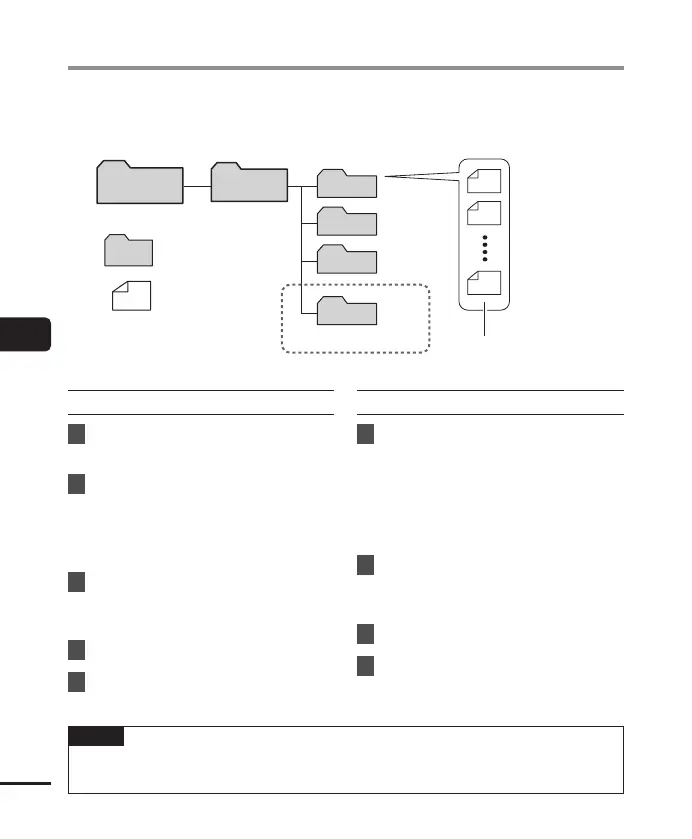
Files recorded with the built-in microphone are saved in a folder named [RECORDER] on the
PC. You can copy voice recorder files to any folder on the PC.
RECORDER
VN-541PC
*
MEMO
TALK
MUSIC
LP
001
002
199
Copy these files to the PC.
VN-541PC model only
Drive name Folder names
* Recognized/displayed by
voice recorder drive name.
Folder
File
(Memo)
(Talk)
(Music)
(LP)
Loading a file to a PC
Windows
1
Connect the voice recorder to the
PC (☞P. 28).
2
Open Windows Explorer.
• When you open [Computer], the voice
recorder is recognized and displayed
with the model name as the drive
name.
3
Click on the folder labeled with
your voice recorder’s model
name.
4
Copy the desired data to the PC.
5
Disconnect the voice recorder
from the PC (☞P. 29).
Macintosh
1
Connect the voice recorder to the
PC (☞P. 28).
• When the voice recorder is connected
to the Macintosh operating system,
it is recognized and displayed on the
desktop with the model name as the
drive name.
2
Double-click the removable disk
icon labeled with your voice
recorder’s model name.
3
Copy the desired data to the PC.
4
Disconnect the voice recorder
from the PC (☞P. 29).
NOTE
• To prevent the risk of data damage, never disconnect the voice recorder from the USB
port while the LED indicator light is flashing.


 To Next Page