USING SIMPLECENTER
5 Using SimpleCenter
15
Devices
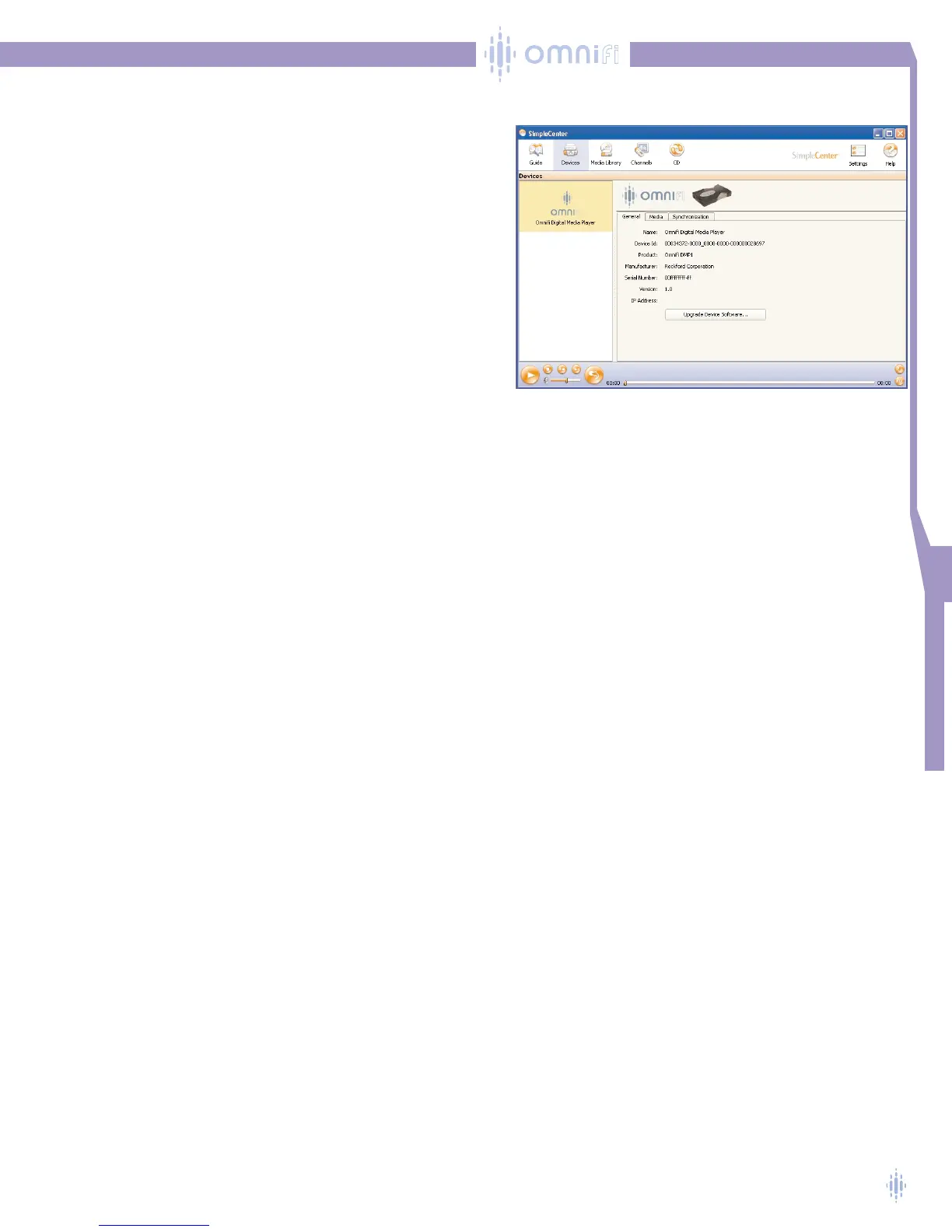
When you click on the Devices icon in your SimpleCenter
toolbar, you’ll find the device manager, figure 20.
General
The first tab in the Device Manager window is General.
This window gives you basic information about your Omnifi
device, including the device’s unique identification number and
serial number.The IP address of Omnifi is displayed.
Removing a Device Icon from SimpleCenter
You can remove a device icon from the left pane of the
Device function.To remove a device, click on device icon in
the left pane, then right click. A Remove Device selection will
appear. Click on this selection.The specific device icon will dis-
appear.
NOTE: The Omnifi device will reappear if the device is active on the network the
next time SimpleCenter is activated.
Device Software Upgrades
Upgrades offering new features will periodically be made available for your Omnifi.You
can choose to select to upgrade with one button click using SimpleCenter. Select the
General tab in Device mode in SimpleCenter. If a new upgrade is available for your
Omnifi device, the Upgrade Device button will be highlighted.After you make this
selection, the new upgrade will be installed in your Omnifi.
You can find out more about the new features and improvements
at www.omnifimedia.com.
Figure 20



 To Next Page