USING SIMPLECENTER
16
Media Library
The Media Library is used to manage and organize digital media that you store on
your PC, or other PCs connected by a local area network. Click on the Media
Library tool bar icon to access the playlist editor and media manager for your Omnifi.
Configure Watch Folders
The first tab in the Media Library window is Configure Watch Folders.
You can direct
SimpleCenter to watch various folders on your PC so that any
new media files added to these folders will be automatically added to the
Media Library, and will be available on all Omnifi devices.
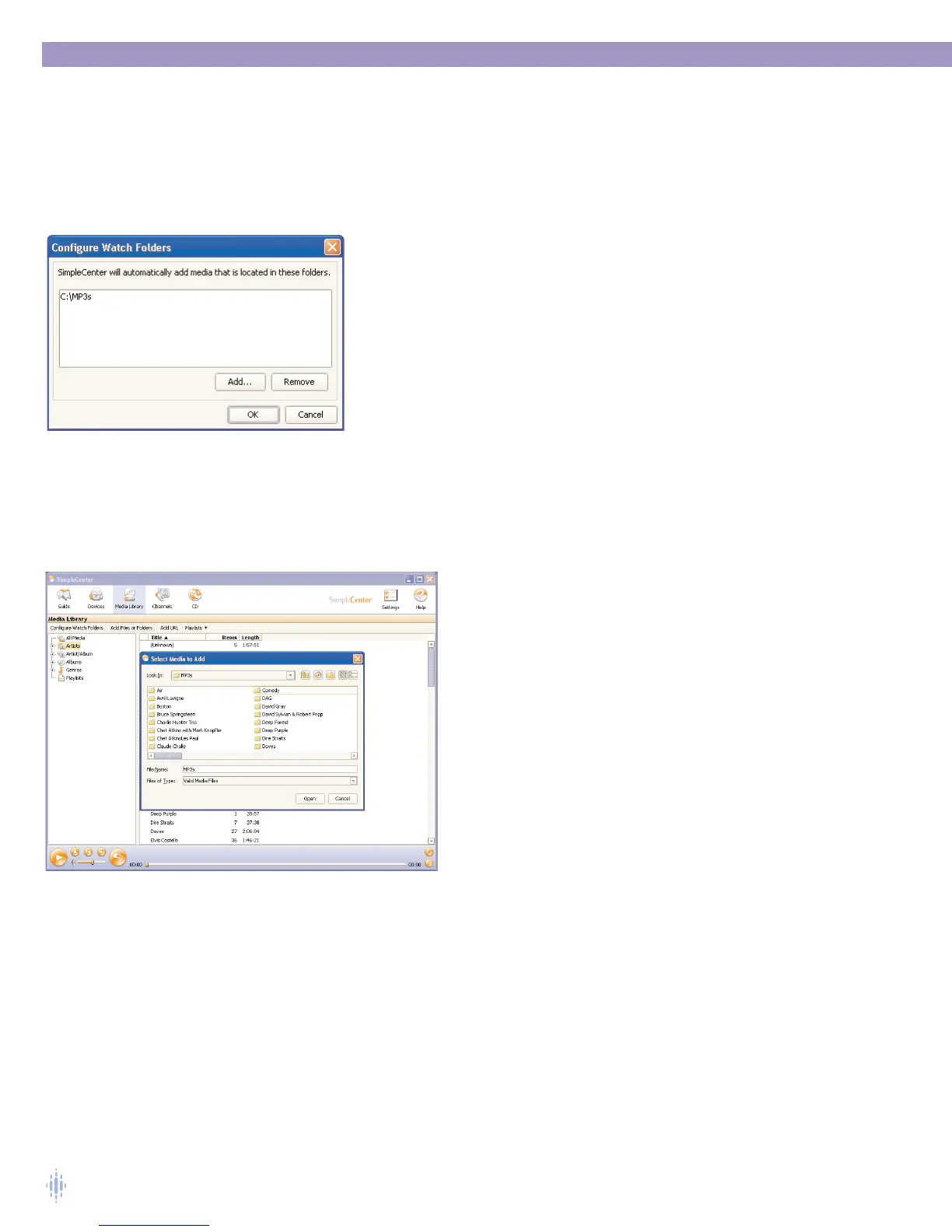
When you select Configure Watch Folders,you’ll see a dialog box that allows
you to select the folders you want to designate as watch folders, figure 21.
Click the Add button to search your computer for folders you want to
designate as watch folders. Once you see the folders you’ve chosen appear
in the Configure Watch Folders dialog box window, click OK.You can add
multiple folders to the Watch Folders list.
Add Files or Folders
The second tab in the Media Library window is Add Files or Folders.
With SimpleCenter you can manage and organize both MP3 and WMA files, converted
up to 320 Kbps.To add media to your Media Library, click on the Add Files or
Folders tab above the panes, figure 22.
A dialog box will appear. Navigate to the folder where your
digital media files (MP3 or WMA files) are stored. Select
Open and the software will add the files to the Media
Library. If it is the first time you are adding media to the
library, it may take a few minutes to add all the files,
depending on the number of tracks you have.You can add
multiple folders using Add Files or Folders.
You can also add individual media files, or individual folders
containing media files, to the Media Library through the
Add Files or Folders feature.
Figure 21
Figure 22



 To Next Page