USING SIMPLECENTER
5 Using SimpleCenter
17
When you Add Media to SimpleCenter, the software automatically organizes all of
your digital audio files into the following categories:
•
All Media – All digital media files in your Media Library.
• Artists – Your digital media files, sorted by artist.
• Artist/Album – Your media files sorted first by artist, then by album.
• Albums – Your media files sorted by album.
• Genres – Your media files sorted by genre.
• Playlists – Playlists that you create with SimpleCenter or import (M3U format).
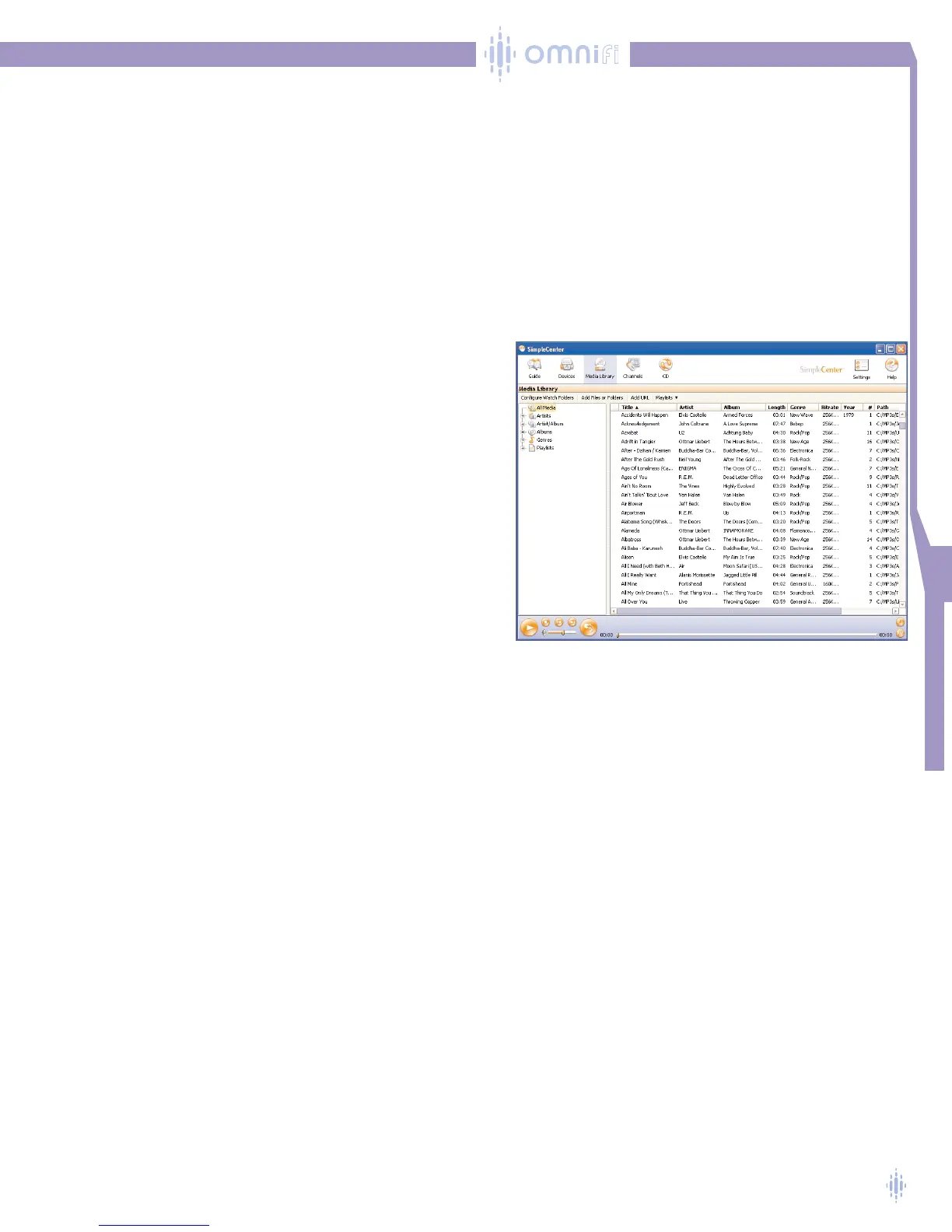
In the left pane, you’ll see a list of the digital media files
contained in each category. For example, in figure 23, the
All Media category is selected and the right pane lists all
the tracks in your collection.
If you select the Artists category, the right pane lists the
artists in your media collection. If you click on the + to the
left of Artists you can expand the Artist category to show all
the artist’s names. If you click on a specific artist, all the
tracks by that specific artist will be shown in the right pane.
Digital media files are categorized based on metadata
(identification text) that is embedded in each media file. Each
media file will be categorized unless the metadata is nonex-
istent or incomplete.
Depending on which category you are viewing, the metadata
embedded in your digital media files provides information
for some of the columns in the right pane. For example, in
figure 23, the column titles along the top of the right pane
include title, artist, album, length (minutes), genre, bitrate, year, number (track number
on the album), and path. By clicking on the column titles you can sort your music
library by that aspect.
If you click on
Album for example, the listings in the right pane will re-sort based on
album title, in alphabetical order. If you click again on Album, the list will re-order
starting at the end of the alphabet.
Add a URL
The third tab in the Media Library window is Add a URL.
You can add a URL (Universal Resource Locator) to the Media Library. URLs are
addresses to existing Internet media streams.To add a URL, click on the Add URL
button. Either type the URL or you can cut and paste a URL from a browser.
When you add a URL to the Media Library, the URL appears in All Media.You can
add the URL to a playlist. Media from the URL will be available for playback on your
Omnifi Digital Media Streamer if the stream is either MP3 or WMA format.
MP3 and WMA streams are currently supported. "Real", .asx and others are not
supported.
Figure 23



 To Next Page