USING SIMPLECENTER
18
Playlists
The fourth tab in the Media Library window is Playlists.
You can organize media in your Media Library into playlists and playlist groups, which
are customized collections of media that you create. For example, you can group all of
your favorite dance songs into a Dance Fever or build playlists for certain occasions,
such as Christmas Dinner.
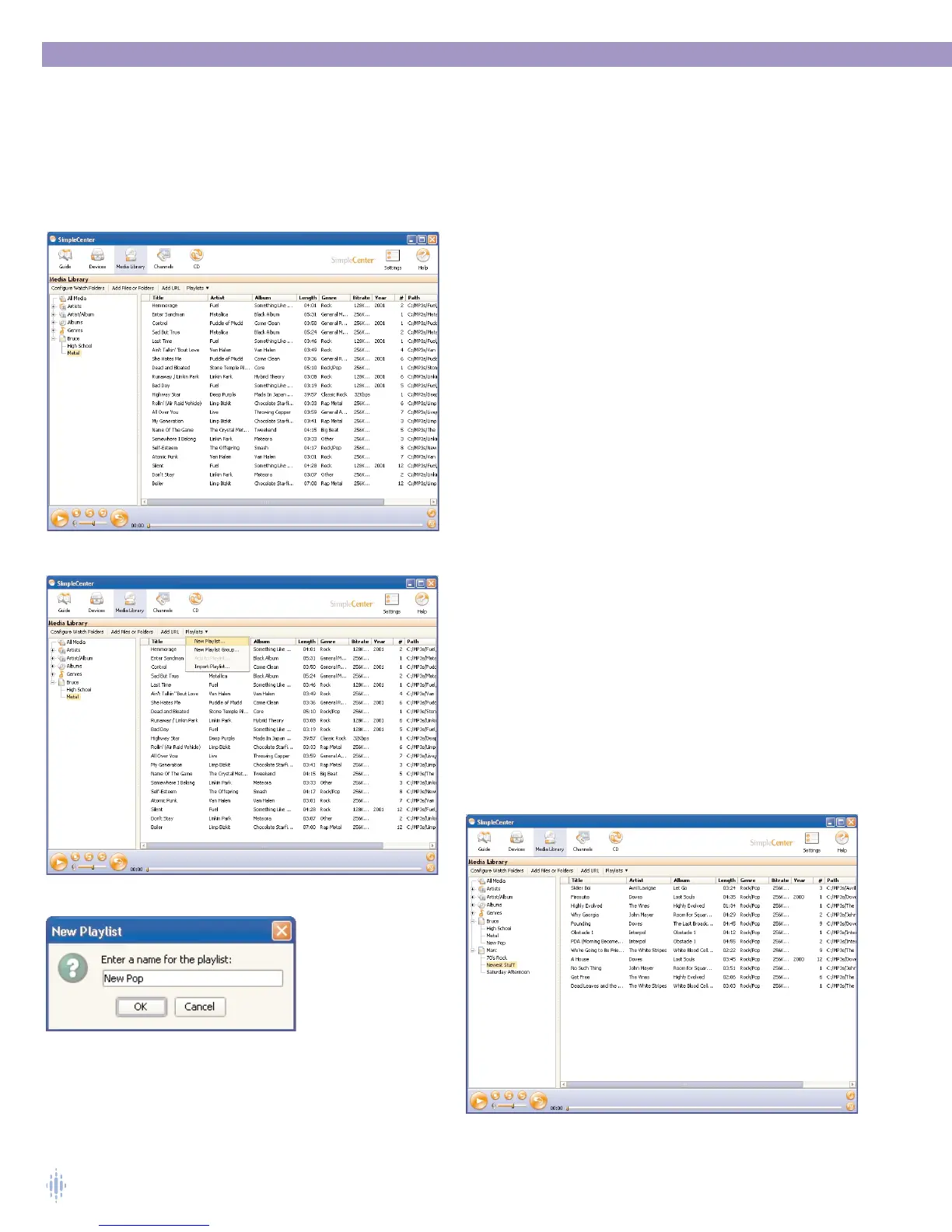
Your playlist titles are displayed in the left pane of the Media
Library window. In figure 24, Bruce is a playlist group that
contains two playlists, each containing a number of digital
media tracks.
To Create a new playlist, click the Playlists arrow above the
left pane, figure 25.
Click on New Playlist, and you’ll see a window that allows you
to name your new playlist, figure 26.Type in a name for your
playlist and click OK.
Your new playlist is added to your Playlists category in the left
pane.
To add media to your playlist, click on All Media or any other
category that contains the media you want to add to your
playlist. Find the song you want to add to the playlist in the
right pane and click on it so that it’s highlighted. Drag the song
into your playlist in the left pane, and the song will be added to
the playlist.
To Rename your playlist, select the playlist and right-click on it.
The right-click drop-down menu also allows you to Delete a
playlist.
Playlist Groups
You can organize your playlists into Playlist Groups, which
appear as a category in the left pane. In the picture below,
Marc is a Playlist Group containing 70’s Rock, Newest Stuff, and
Saturday Afternoon playlists, figure 27.
The way you manage Playlist Groups is similar to the way in
which you manage your Playlists. Click on the Playlists
arrow to create new Playlist Groups.
Figure 24
Figure 25
Figure 27
Figure 26



 To Next Page