Chapter 3 Source Connecon
1313131313
2. Connect an AV cable (not provided) to the AV jacks on your TV and to the AV out jacks on the DVD or Blue ray player.
IMPORTANT : When you connect the audio using the AV jacks, the signals are analog
3. Plug your TV's power cord into a power outlet, then turn on your TV and DVD or Blu-ray player.
4. If needed, set the player to the correct output mode. See the documentaon th t came along with the player.
5 .0n the HOME screen, navigate to the INPUTS row, then select Composite.
Connecng o Ethernet / Rj45 :
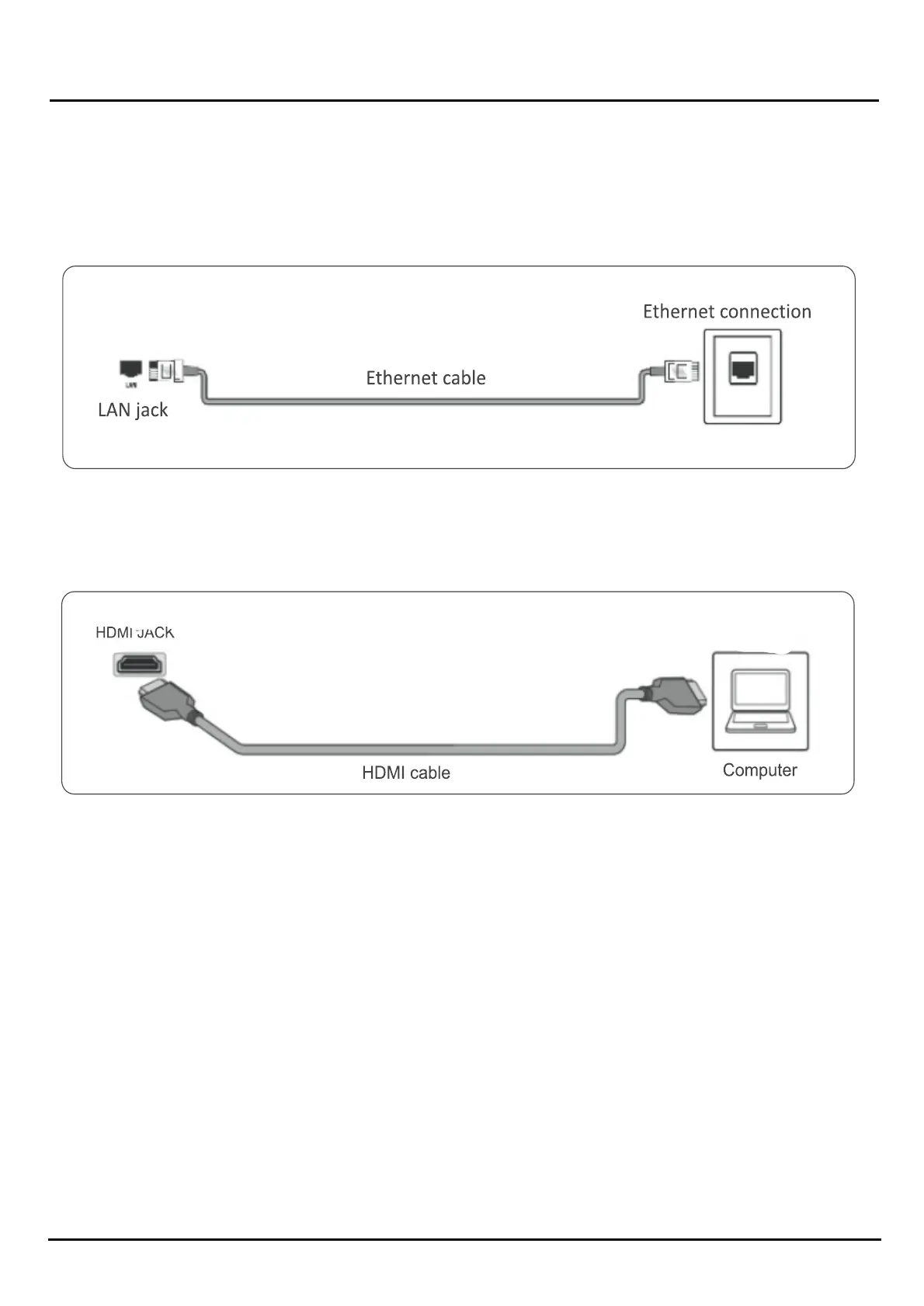
To access the Internet, you can connect to a LAN (Ethernet) network If you do not want to connect to Wi-Fi.
• Connect an Ethernet cable (not provided) to the LAN jack on your TV and to your Ethernet
Connecng a Compuer :
1.) Make Sure that your TV's power cord is unplugged and the computer is turned Off.
2.) Connect an HDMI cable (not provided) to one of the HDMI jacks on your TV and to the HDMI out jack on the computer.
3.) plug your TV's power cord into a power outlet, then turn on your TV and the computer.
4.)On the HOME screen, navigate to the INPUTS row, then select HDMI 1, HDMI 2, HDMI 3(OPTINAL)
Connecng Exernal Speaker or a Sound bar :
You can connect external speakers or a sound bar using: * Digital audio * Analog audio
1. ) Make sure that your TV power cord is unplugged & the digital speaker system or sound bar is turned off.
2.) Connect a SPDIF audio cable (not provided) to the SPDIF output jack on your TV and to the audio in jack on the digital speaker
system or sound bar.
3.) Plug your TV's power cord into a power outlet, then turn on your TV.
4.) Turn on the digital speaker system or sound bar, then set it to the correct source. See the documentaon th t came along with
the digital speaker system or sound bar
Note: Depending on the audio device you are connecn , you may need to change the digital audio format for your TV. The
default seng is A o


 To Next Page