Chapter 3 Source Connecon
141414141414
5.)If you need to change the digital audio format, go to the Home menu, select Sengs, then select Disp y & Sounds, then
Select Audio Output, then select Digital Audio Format and change the seng o PCM or Dolby Digital.
6.)If you want to turn o ffyour TV speakers, go the Home menu, select Seengs, then select Dis y & Sounds. Select Audio
Output, then select TV Speakers and change the seng o OFF.
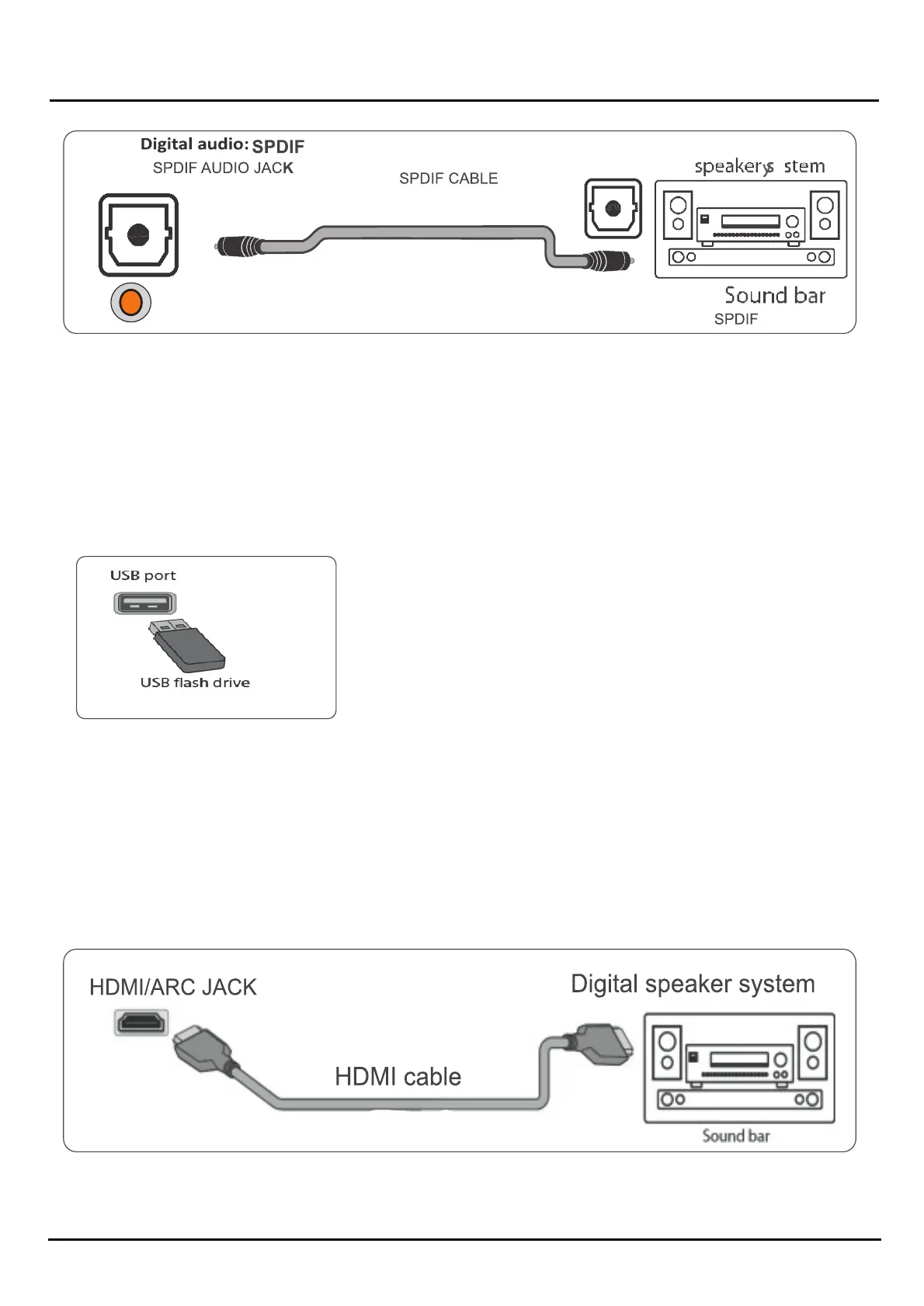
Connecng a USB flash dr e
Plug a USB flash drive into the USB port on your TV. It takes few seconds for deecng flash d e." Content loading" message will
be seen on TV screen, afer deecng flash d e, on TV you will see fe four opons.
I) Your Files: for all content are visible,
2) Video: only compable Video ontent play
3) Image: only compable ima e file format play
4) Audio: only compable Audio ormat play
To safely remove USB storage, you need to "eject" it from your Amazon Fire TV first:
Digital audio using the HDMI/ARC: (Oponal)
Your TV can send sound to an ARC device, like an AV receiver, to create a home theater that uses two or more speakers. When
you connect external speakers or a sound bar, sound plays through your TV speakers and the external speakers or sound bar.
I. )Make sure that your TV's power cord is unplugged and the digital speaker system or sound bar is turned off.
2.) Connect an HDMI cable (not provided) to the HDMI 1/Arc jack on your TV and to the audio in jack on the digital speaker
system or sound bar.
SPDIF OUT


 To Next Page