Chapter 7
30
Atennon and equently
Asked Quesons
Atennon: Some nontandard mobile storage device may not be recognized. Please change to use the standard device.
Note: For coding files, there are many kinds non- standard coding method, so this system can not be guaranteed to support the
file formats using any coding method.
Frequently Asked Quesons:
1. Under the following condions, this ystem cannot decode the file and the file cannot be play normally: -The parameters of
file such as the pixel of picture, code rate of audio and video file, sampling rate of audio file, exceed the limit of the system; The
format of file is not matched or the file is harmed.
2. Hot plug: Do not disconnecon when the ystem is reading or trransming ta, avoid damaging the system or the device.
3. Pay atennono the power supply of the device when you are using a mobile hard disk or a digital camera.
If the power supply is not sufficient or not stable, you may encounter problems during operarang oan not operate at all. In
this case, please restart the device, or unplug the device and plug it again, and ensure that its power supply is normal.
4. The system supports standard USB1.0 and USB2.O devices, such as standard U-dlsks, MP3 players, mobile hard disks, etc..
5. For obtaining beter audio and video quality, suggests to use the external device which accords with USB2.O standard.
6. When playing the video with high compression ra , these phenomenon, such as picture standssll and menu long me
response, are normal.
7. For some USB device with power supply, such as large size hard disk, MP4, etc., suggests using it with power to avoid electric
power shortage.
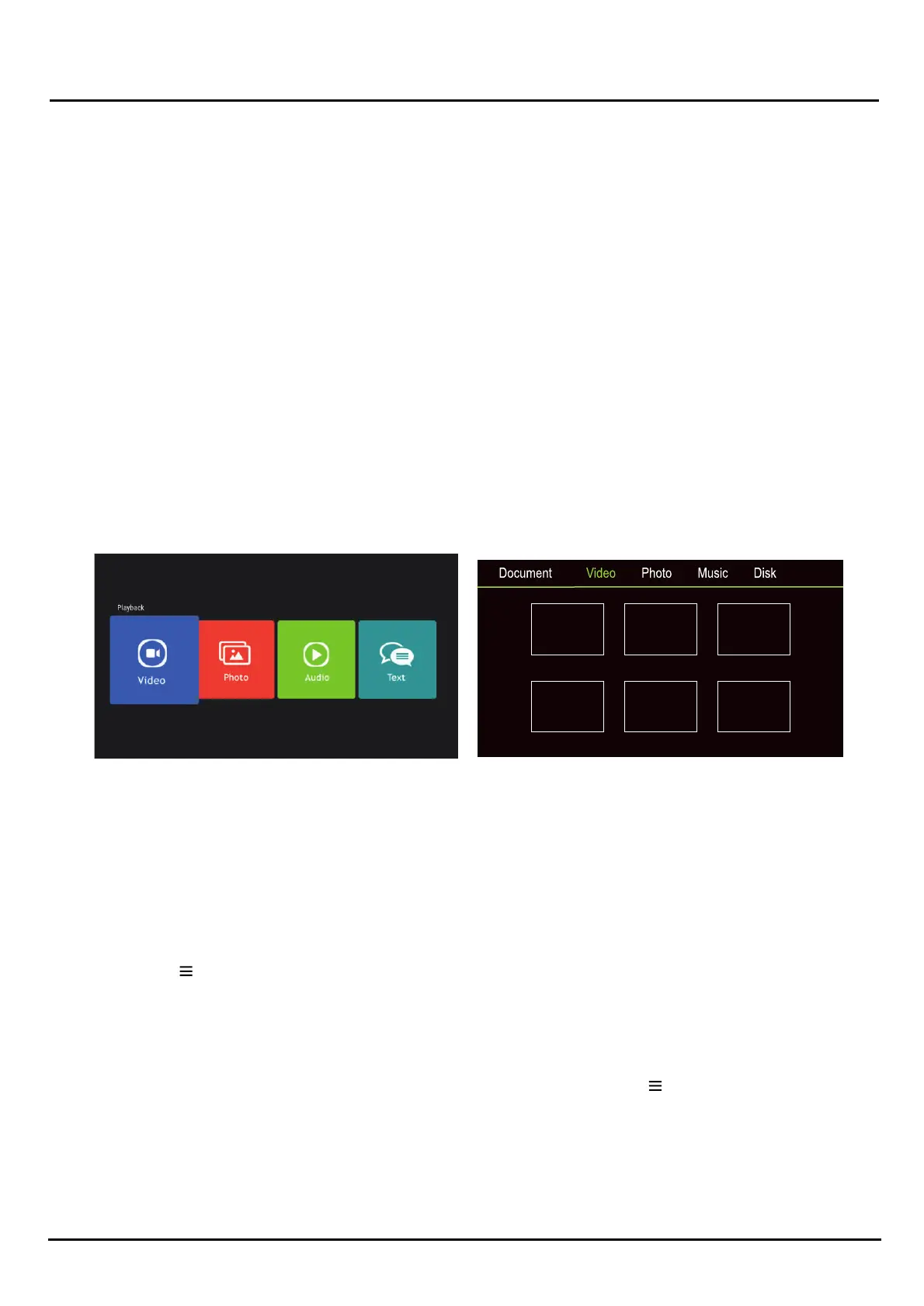
Mulmedia
Connect a USB device to a USB socket, the screen will show USB file name and then press OK to enter .lf no USB device
connected, the USB interface will be not displayed.
3. While showing picture, press OK to display the play console. For Previous and Next use remote le and Rig t key.
4. Use OK key or key to see more opon: L eotataonoom+, Zoom-. Play Interval, Right Rotaotaon, Manual
play, Informaon, Pl y mode, BGM:on or off.
Music:
I. Select Music icon, then press OK buton to listen to Music.
2. Press Up, Down, Le or Rig t dirrecon b on to select you desired file and press OK to Play.
3. The Play console includes Previous, Play/Pause, Fast backward/Fast forward, Next. Press key to see Play List.
4. Press Return key of remote to Stop playing.
Disk:
1. Select Disk icon, then press OK buton to choose folder.
2. Press Up, Down, Le or Rig t dirrecon b on to select your desired file and press OK to Play.
3. Press Return key of remote to Stop playing.
Document:
1. Select Document icon, then press OK
buton to choose folder.
2. Press Up, Down, Le or Righ
t dirrecon
buton to select your desired file and press OK
to Play.
3. Press Return key of remote to Stop playing.
Video:
I. Select Video icon, then press OK buton to
view movie file.
2. Press Up, Down, Le or Rig
ht dirrecon
buton to select your desired file and press OK
to Play.
How to Operate your Google TV


 To Next Page
 Loading...