25
Chap
ter 6 Introducon for your Google TV Home Page
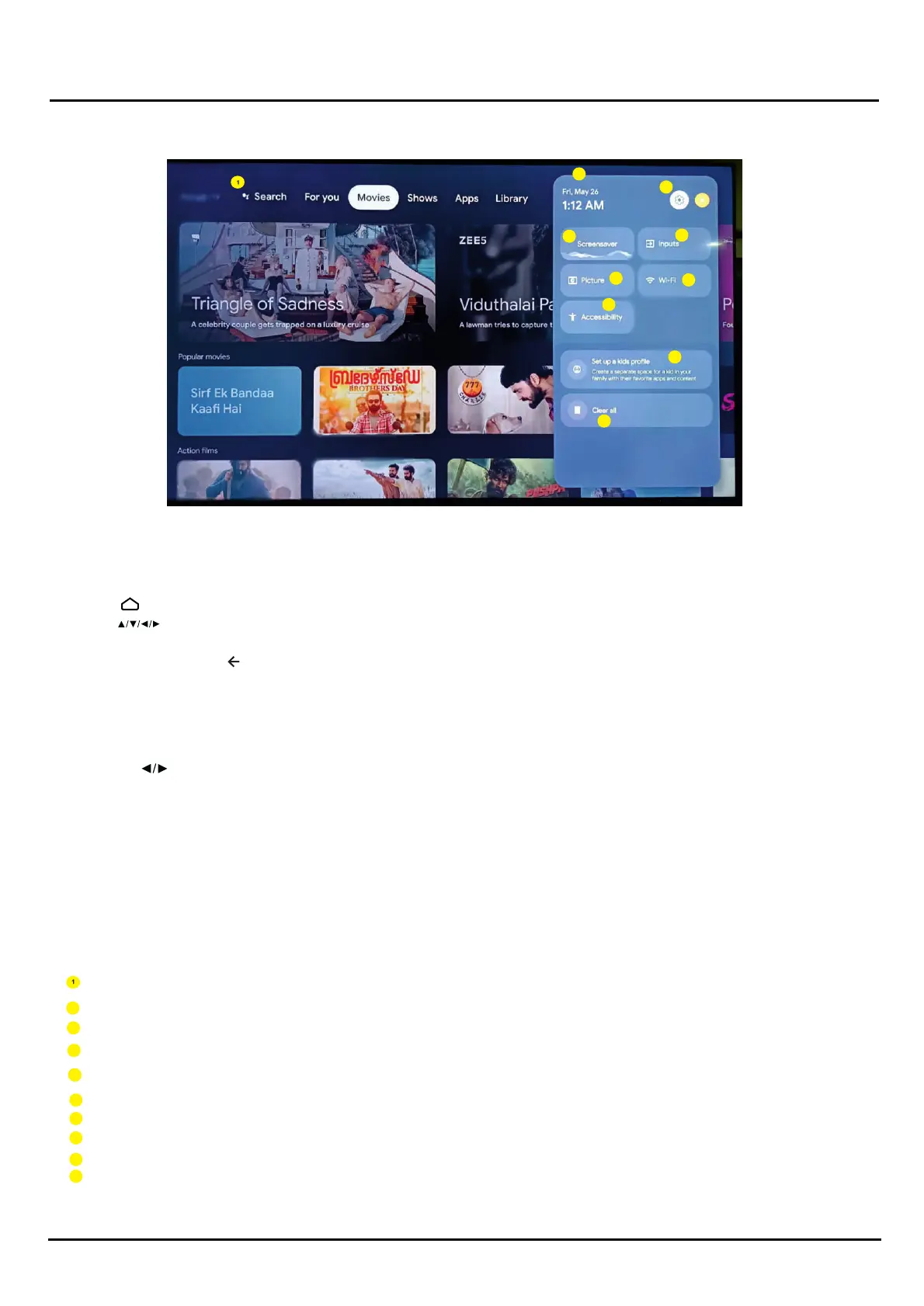
GOOGLE TV - HOME SCREEN
Once you have completed inital setup, you will now enter the GOOGLE TV home screen.
Open Google Assitant to start a voice search.
INPUTS: Select this if you want to adjust your TV Input, Example: DTV, HDMI 1, HDMI 2.
NETWORK: This will display what network connecvit, Wi-Fi or ETHERNET.
SETTINGS: Select this if you want to access TV sengs.
TIME: Displaying current me.
Selecng Picture seng and sound seng
Source: Select the input source from devices connected to TV through different ports.
Sengs: All s you to adjust TV sesengs.
Using Homepage-
Apps : press to select, press OK to Enter.
WARNING:
• Configure the network seengs fore using Smart TV applicaicaons.
• Slow responses and/or interrupons m y occur, depending on your network ccondions.
• If you experience a problem using an applicaon, please ontact the content provider.
• According to circumstances of the contents provider, an applicaon's updates or the applicaaon itself
may be discononnued.
• Depending on your country's regulaons, some applic
aons
have limited service or not be supported.
• Changes in applicaon ontent maay be made without prior noce by the svice provider.
Note: This manual is for common use. Figures and illustraons in this User Manual ae provided for reference only and may differ
from actual product appearance. And for some models, certain opons ae not available.You can select all the features from
homepage.
to display homepage.
1. Press to display homepage
2. press to select icons from the screen list.
3. Press OK to enter each opon.
4. To exit the menu, press
Using Homepage - TV
2
6
5
4
3
3
2
4
5
5
6
7
8
9
Selecng Screen Saver mode
7
Selecng Accessibility
Selecng this icon for clear all web history
8
9
10
Setup proflle for your kids
10


 To Next Page