M E D I A F I L E P L A Y BACK
43
NOTE
The Network feature is not officially supported due to the variation in hardware and
software configurations. OPPO does not offer technical support via email or phone for this
feature. The OPPO Wiki located at wiki.oppodigital.com can be a useful resource to learn
about this feature.
Playing Music Files
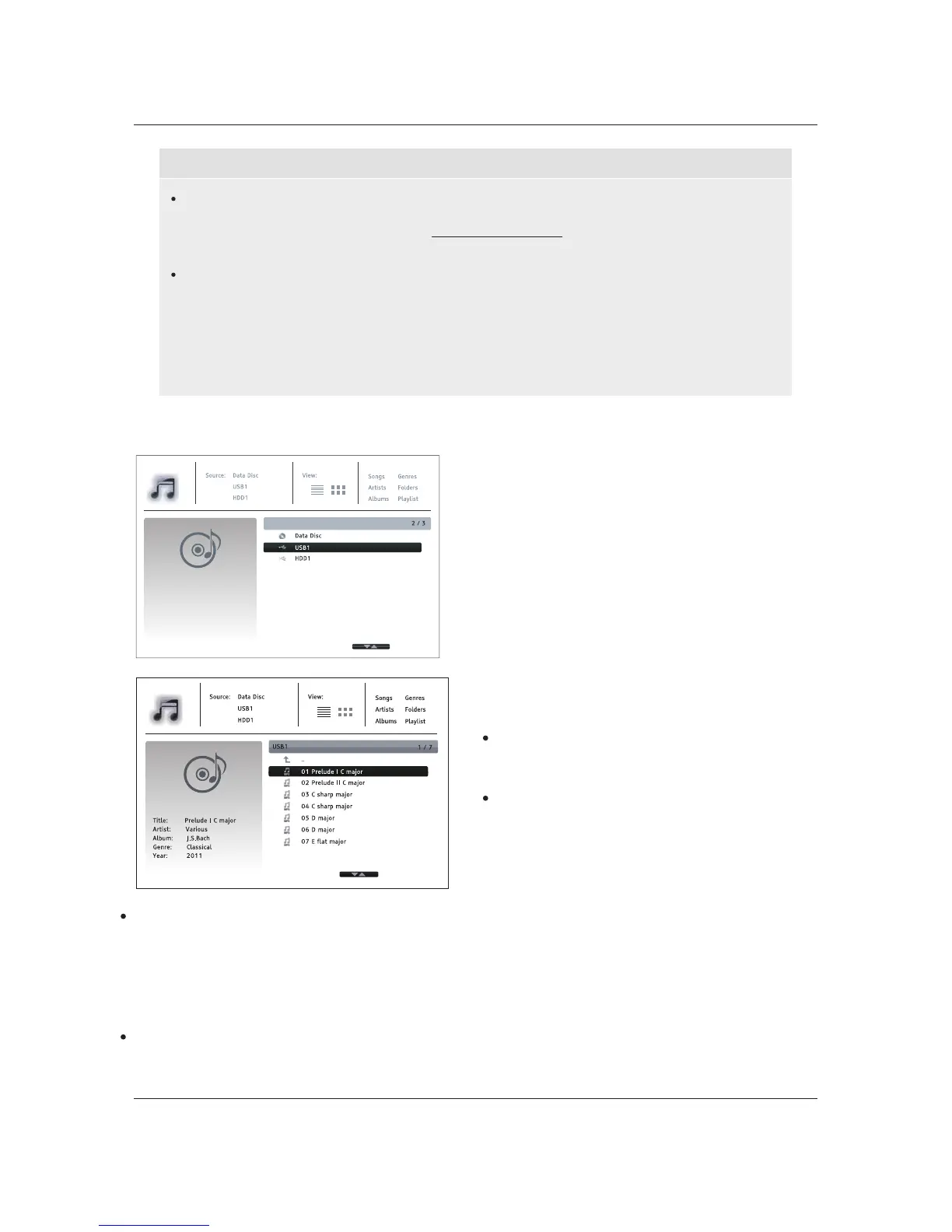
To play digital music files stored on an optical
disc or USB drive, select Music from the Home
Menu.Afile browser will appear to assist you in
navigating the files and folders.
The first step is to select the Data Disc or USB
device that contains the music files. The player
will take a moment to read the media and list the
folders and music files.
In the music browser, you can perform the
following operations:
Press the UP/DOWN ARROW or PAGE
UP/DOWN buttons to move the cursor and
select music files.
Press the OPTION button to gain access
to features such as music information.
Details can be found on page
24.
Press the TOP MENU button to move the cursor to the category menu in the top of the screen. This
menu contains the following choices:
o Source – Allows you to switch between different connected storage devices.
o View – Allow
s you to switch between List View and Folder View modes.
o Sort – Lists music files/folders by different categories, such as Song name, Artist, Album and
Genre.
When a music file is highlighted by the cursor, press the ENTER or PLAY button to start playback.
Different internet streaming applications may have different function mappings on the
BDP-103 remote control. To exit Netflix, YouTube or Rhapsody, press HOME button. To
exit VUDU, Film Fresh or Picasa, either press HOME button or repeatedly press RETURN
button until the Home Menu appears. To exit Pandora, either press HOME button or select
Exit Pandora in Pandora’s Menu selection. To exit CinemaNow, either press HOME
button or select Exit in CinemaNow’s Menu selection. Please contact OPPO customer
support if you need assistance.


 To Next Page