Using your terminal © Hypercom EMEA Ltd. 2011 29
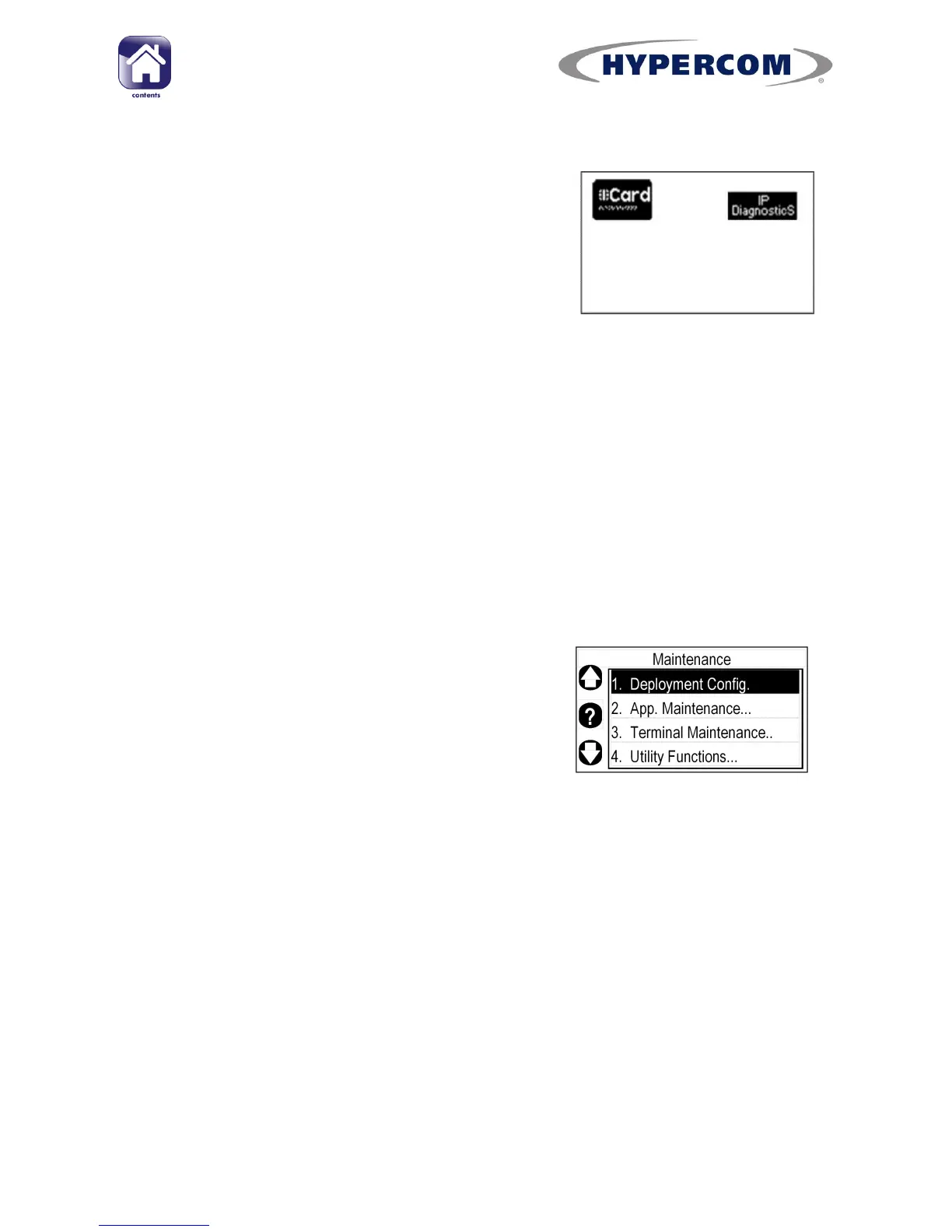
Desktop screen
The Desktop will show icons for each
application that is loaded in your terminal.
To access applications, press the Navigation
Button next to the relevant icon. The main
application for taking transactions has a
“Card” icon.
Application Manager
The Hypercom operating system for your terminal is called the Application
Manager. The Application Manager contains all the terminal‟s
communication settings and controls the connection to the Hypercom
Terminal Management System.
To access the Application Manager‟s main
screen (“Maintenance” menu) from the
Desktop, press the blue FUNCTION button
on the keypad.
To return to the Desktop, keep pressing the
Cancel button on the keypad until the
Desktop shows.
Screensaver
Depending on your leasing company requirements, your terminal may
feature a screensaver, usually containing the leasing company or bank‟s
logo.
The screensaver will show after approximately thirty seconds of inactivity
and will typically show your bank or leasing company‟s logo.
To return to the idle screen, press the Cancel button on the keypad.



 To Next Page