© Hypercom EMEA Ltd. 2011 39
Sale (continued)
Step 3
If not done already at Step 1, present the Card or key enter the card de-
tails. This can be done in a number of ways depending upon the card type
being used:
Chip card with contactless capability. Applicable if you have the
R3210 Contactless Reader. The cardholder must briefly hold their
card with the chip part immediately above the Radio Wave icon on
the R3210. There will be indicator activity
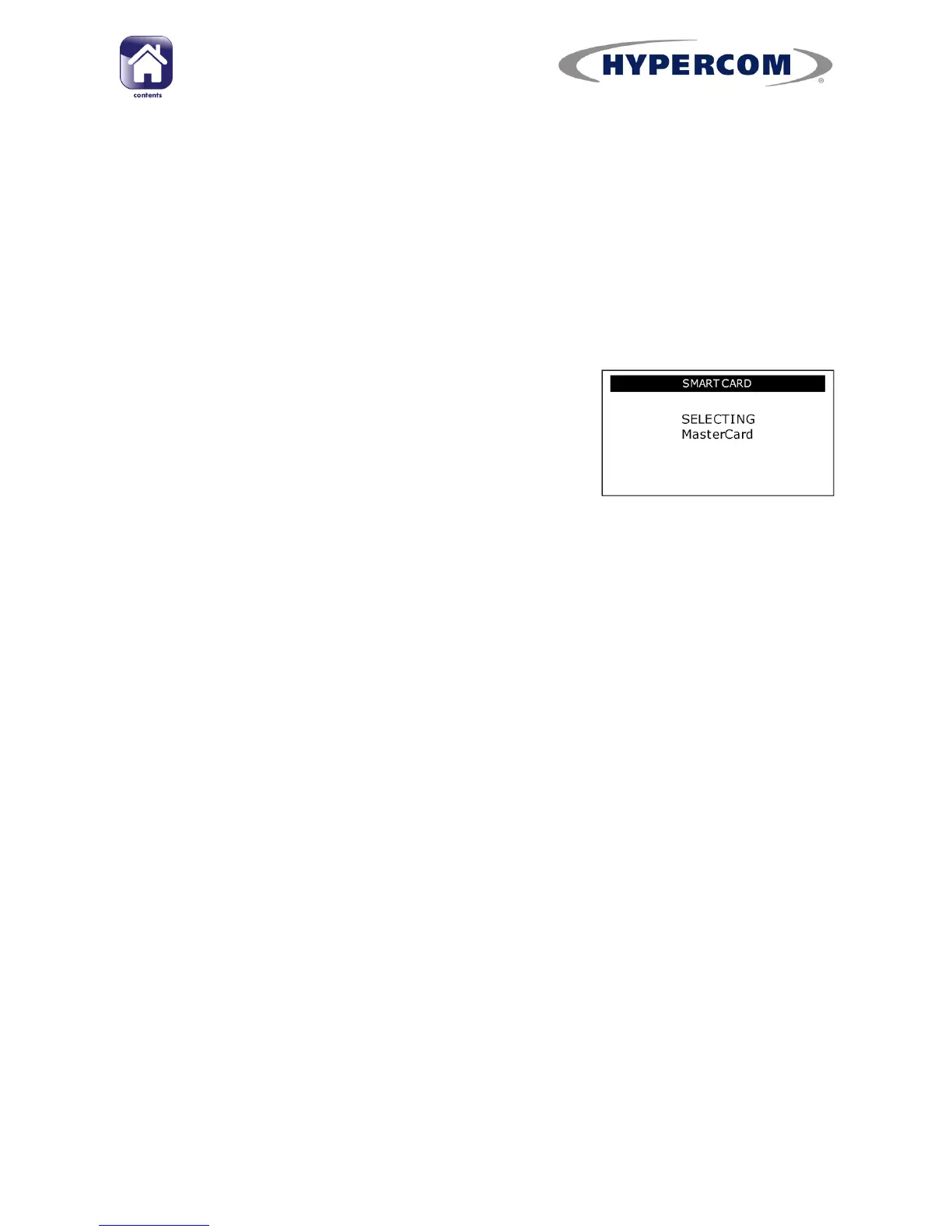
and a short beep to signify that the card
has been read. You will briefly see the card
name on the screen.
Chip card with or without contactless capa-
bility. Insert the card into the chip reader
on the terminal or optional PIN Pad. You
will briefly see the card name on the screen.
Magnetic swipe card. Swipe the card in the terminal‟s magnetic
swipe reader. If the card is a Chip card it will probably request that
you use the chip card reader.
Keyed Entry. Keyed Entry should only be used if the Cardholder is
not present, or if a Chip or Magnetic Stripe card is unreadable. Enter
the first digit of the card number as shown on the card. The screen
may then prompt for the entry of the card number, and other details
from the card such as Start and Expiry dates and Issue number.
You may then be asked to select if the Customer is Present or not,
and also for the card CVV2 code and Address data. This must be en-
tered.
See Page 41 for more details on Keyed card detail entry.
continued...



 To Next Page