40 © Hypercom EMEA Ltd. 2011 Using your terminal
Sale (continued)
Step 4
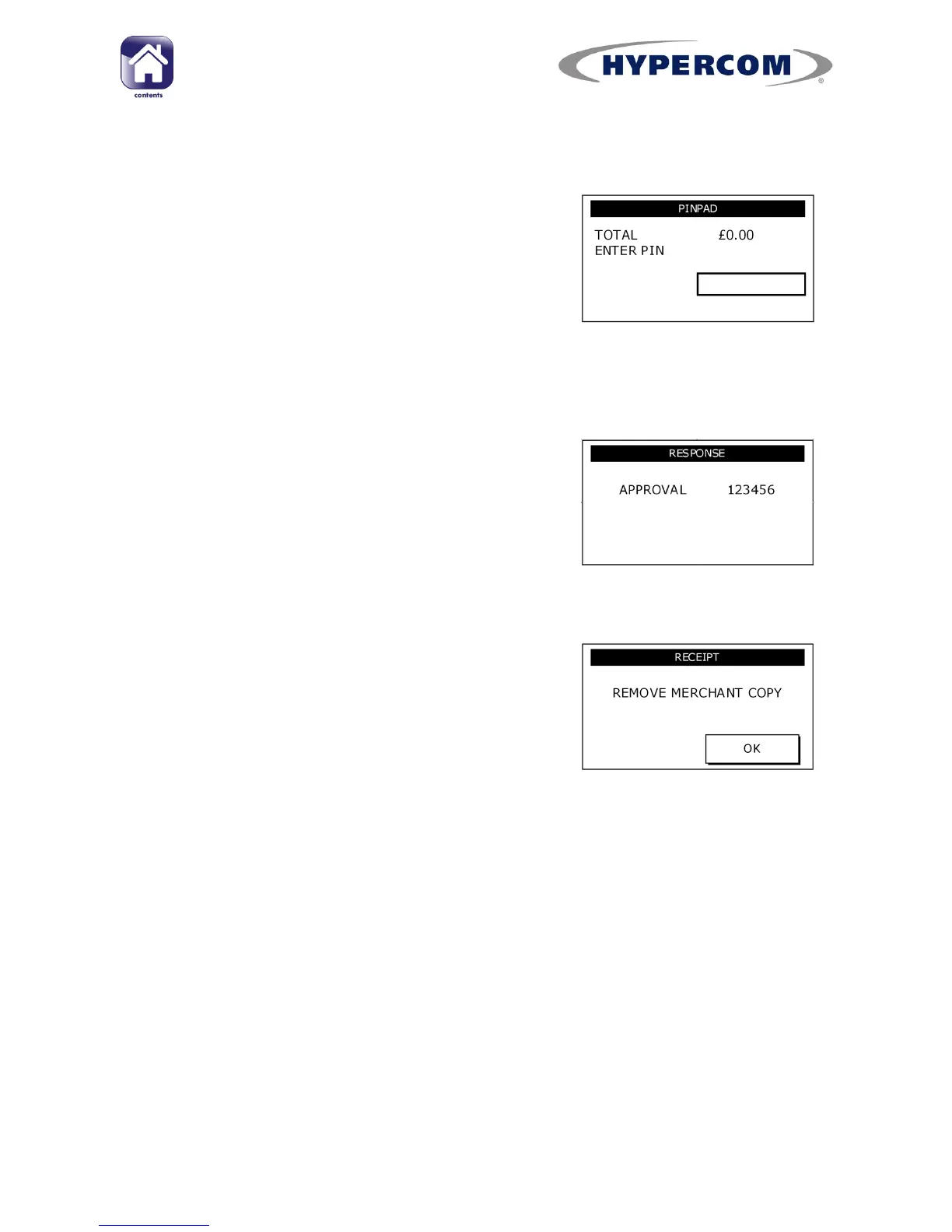
For chip card transactions (except contactless),
the cardholder must enter their PIN (Personal
Identification Number) on the terminal keypad
or the optional PIN Pad. After the PIN has been
typed in, the customer must press Enter
The terminal may now attempt to connect to your Acquirer.
See page 67
for troubleshooting communication problems)
The terminal will then display a response. If the
transaction is approved, the Approval Code will
then be displayed and the terminal will print the
Merchant Copy of the receipt.
(See Appendix A for possible transaction
responses)
Step 5
The terminal may request a cardholder
signature on the Merchant Copy of the receipt;
this can apply to chip card transactions as well
as magnetic swipe and keyed transactions.. You
must request that the cardholder signs the
receipt and then you must check the signature
to the signature on the card signature strip;
respond to the screen prompts correctly.
Remove a chip card when prompted and tear off the Merchant Copy of the
receipt and press OK/Enter.
Step 6
The terminal will print the Cardholder Copy of the receipt and display the
response again. Note that Contactless transactions do not print a
Cardholder Copy, but if one is requested by the cardholder, you must print
one for them by selecting CL RECEIPT from the Idle screen.
Tear off the Customer Copy and hand it to the cardholder. Please ensure
that the Cardholder has their card returned. Press Enter to return to the
Idle screen.



 To Next Page