Using your terminal © Hypercom EMEA Ltd. 2011 55
Refund Transactions (continued)
The terminal will now attempt to connect to your Acquirer.
(See page 67 for troubleshooting communication problems)
The terminal will then display a response.
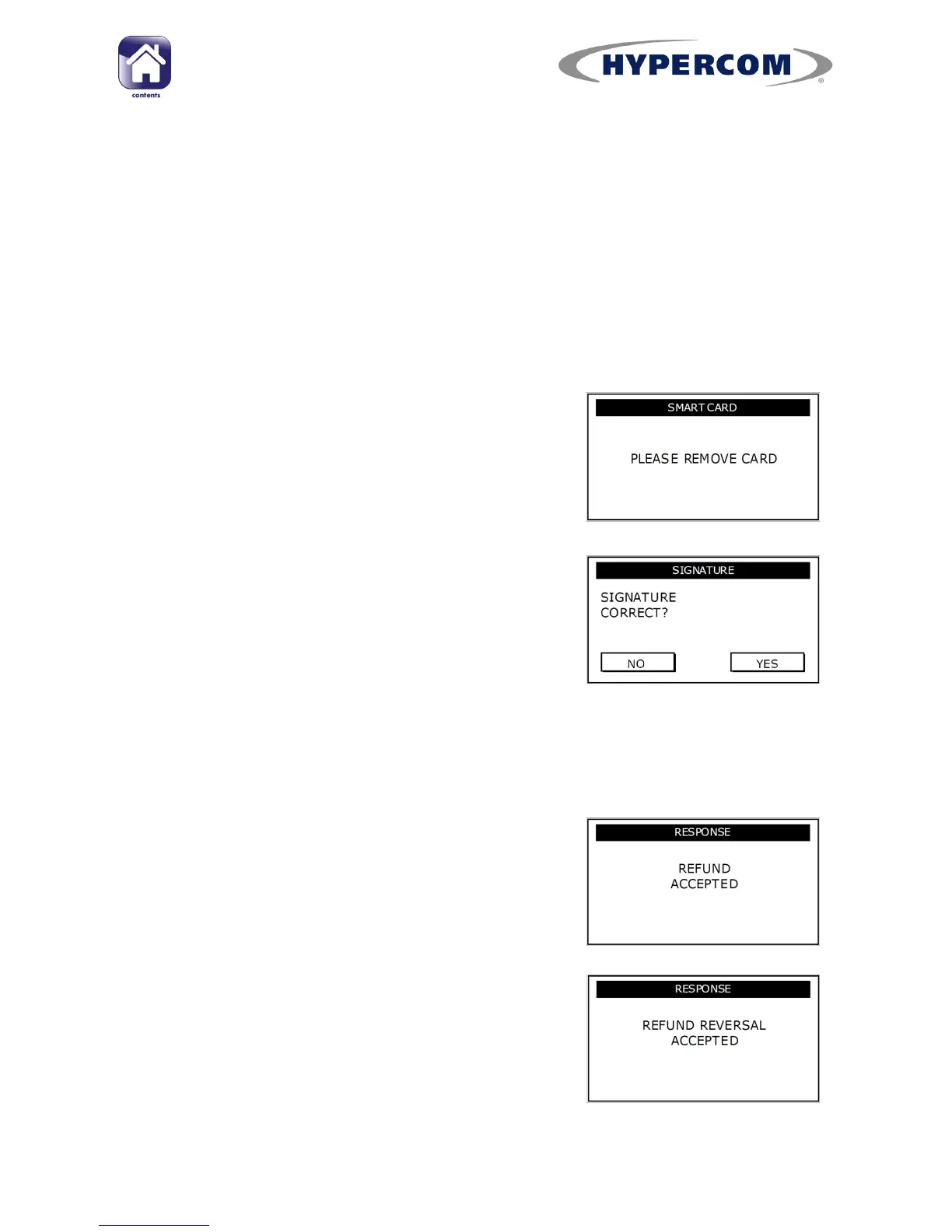
If the transaction is approved the terminal will display REFUND ACCEPTED
and the terminal will print the Merchant Copy of the receipt.
(See Appendix A for possible transaction responses)
Step 5
Remove the card and the Merchant Copy of the
receipt.
Step 6
A signature must be obtained and written on the
Merchant Copy of the receipt. Please see your
bank procedure documentation to determine if
you are required to use your own merchant
signature, or to obtain the Cardholder‟s
signature on a Refund receipt.
You will be prompted to confirm that the signature is correct (if you bank
requests a merchant signature, then you always select YES).
If you press YES/Enter to confirm, it will print
the Cardholder Copy of the receipt and display
REFUND ACCEPTED.
Press Enter to return to the idle screen.
If you press NO/Clear, the terminal will print out
the Refund Reversal Copy of the receipt and
connect to your Acquirer to reverse the
transaction. If successful the terminal will
display REFUND REVERSAL ACCEPTED.
Press Enter to return to the idle screen.



 To Next Page