Condential
4-16
S310e/X312
2. OSD Reset
After nal QC step, we have to erase all saved change again and restore the OSD
default setting.
The following actions will allow you to erase all end-users' settings and restore the
default setting:
(1) Please enter OSD menu.
(2) Choose "SETUP" and then execute "Reset" function,select "All".
4-8 Re-write Lamp Hours Usage
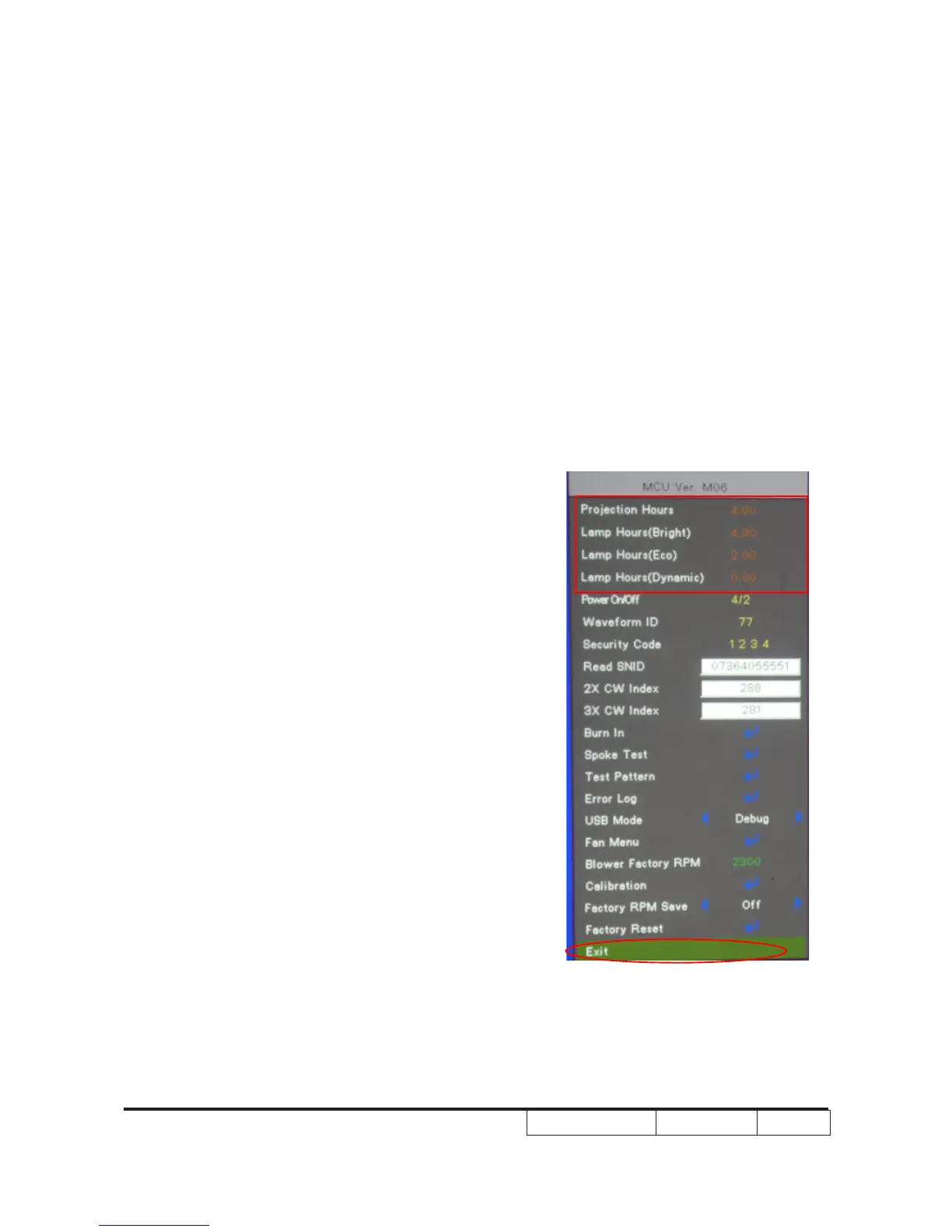
1. Get into service mode
- Press power→up→right→up→left→
Menu to get into service mode.
-Select “Exit”,then press”left” or “right”
key for six times.
2. Re-write Projection Hours
-Select System Hours and use “left” or
“right” buttons to re-write the projection
hours.
3. Re-write Lamp Hours(Bright)
-Select Lamp Full Hours and use
“left” or “right” buttons to re-write the
lamp hours(Normal).
4. Re-write Lamp Hours(ECO)
-Select Lamp ECO Hours and use “left”
or “right” buttons to re-write the lamp
hours(ECO).


 To Next Page