34
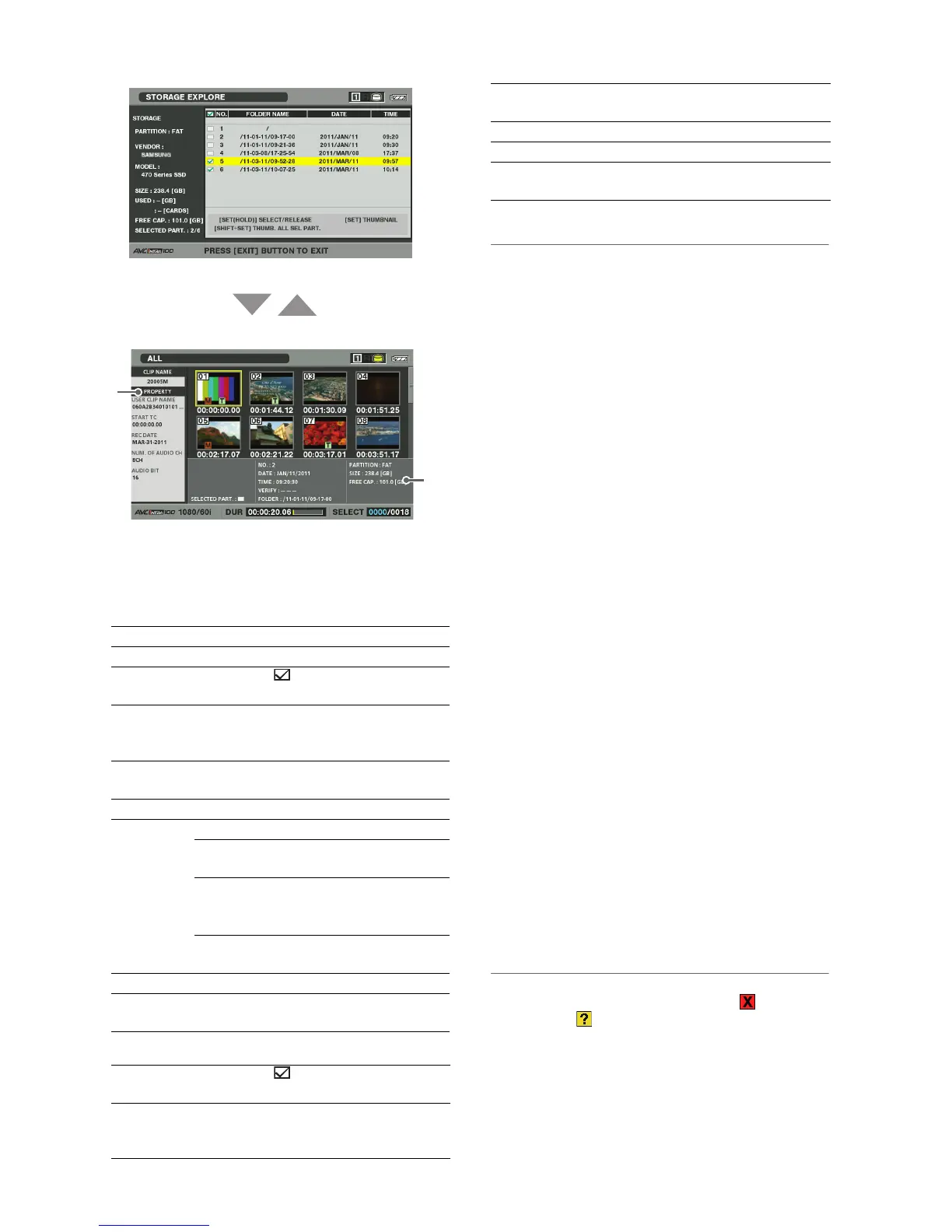
Main Mode: Thumbnail Screen
1) Clip information
Displays clip properties.
2) Storage device information
TYPE S device
FAT formatted device
*
1
: Date created is not shown for root.
◆ NOTE:
• Use the SHIFT and +/- buttons to move to thumbnail displays on
adjacent partitions or folders without returning to the EXPLORE
screen.
• Change the thumbnail screen display as necessary. These
changes are performed in the same way as when using P2
cards. (➝ “Changing Thumbnail Display” page 12)
• There is a limit of 1000 clips and clips that exceed this limit will
not be displayed.
Viewing Clip Information
Use the steps below to view a variety of meta data on clips
stored on a storage device. It shows information in the same
way as the P2 card clip property.
1. Move the cursor to select a clip in a thumbnail screen
on a storage device.
2. Press the MENU button.
3. Use the Up/Down/Left/Right cursor buttons to
choose the PROPERTY - CLIP PROPERTY menu
setting and press the SET button.
(➝ “Viewing and Revising Clip Information” page 20)
But repairs cannot be made.
Deleting Clips
Use the steps below to delete clips that are no longer
necessary on a storage device.
1. Select a clip to delete on the thumbnail screen on a
storage device.
2. Press the MENU button.
3. Use the Up/Down/Left/Right cursor buttons to
choose the OPERATION - DELETE menu setting
and press the SET button.
4. Select YES in the confirmation message that
appears and press the SET button.
◆ NOTE:
• It may not be possible to delete clips with the (bad clip
indicator) and (unknown clip indicator).
SERIAL: P2 card serial number
MODEL: P2 card model name
SELECTED
PART.:
A check mark appears for the selected
partition.
SELECTED
PART. No.:
This indication appears only when multiple
partitions are selected and a list of numbers of
selected partitions is displayed.
NUMBER
(NO.):
Partition no. (1 - )
DATE / TIME: Date and time of partition recording
VERIFY: Verify setting and result of verification
ON:
FINISHED
Verification was successful
ON:
FAILED
Verification failed
• “- -” is displayed on P2
store.
OFF: No verification was
performed
NAME: User assigned partition name
SIZE / USED /
FREE CAP.:
Total storage device capacity/used capacity/
remaining capacity
SELECTED
PART.:
A check mark appears for the selected
partition.
SELECTED
PART. No.:
This indication appears only when multiple
folders are selected and a list of numbers of
selected folders is displayed.
EXITSET
1)
2)
NUMBER
(NO.):
Folder no. (1 - )
DATE / TIME: Date and time of folder created
FOLDER: Folder name
*1
SIZE /
FREE CAP.:
Storage device capacity/remaining capacity





 To Next Page